Correspondence checks the email accounts you connect. For each email it decides whether it has to do with your work; those that do not are not kept.
Which emails are kept
Only those related to your matters:
those sent from an address recorded on a client's record;
those that mention a case number, a reference or a tax ID from your matters, or carry it in an attachment's name;
those from official senders, such as public authorities and courts;
those from senders you add to your list.
Everything else is not kept. And for the ones that are kept, nothing is downloaded — neither the message nor the attachments — until you log them in: What comes in.
Connecting an account
Open the Email accounts dialog by clicking the account card at the bottom of the Correspondence side menu. If there is none, it says Connect an account.
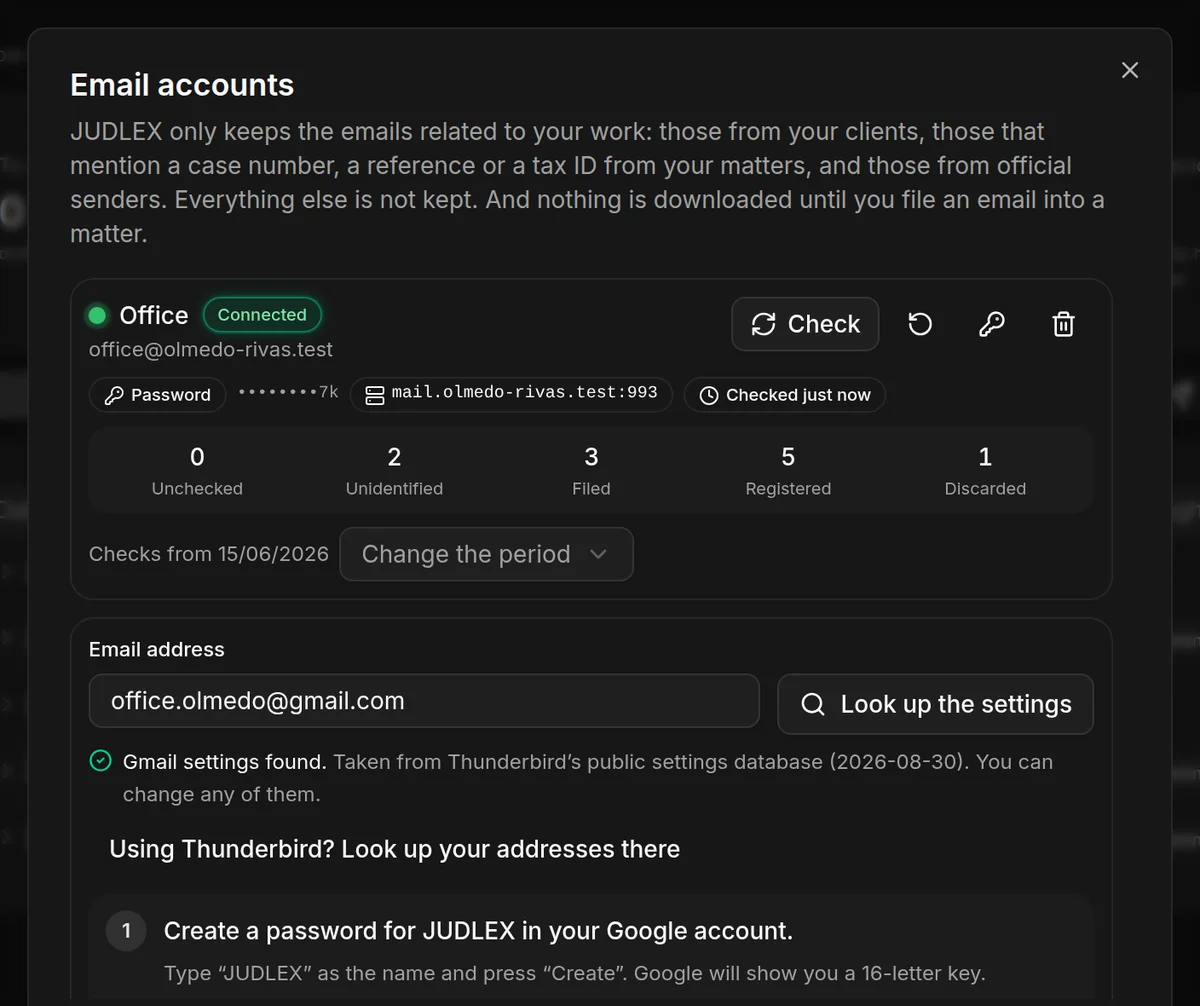
Type the address
Click Connect an account, type the address in Email address and click Look up the settings. JUDLEX looks up the server details for that email and tells you where it found them. You can change any of them in View or change the server details.
Follow your provider s steps
Below, the steps for your email service appear, with a button that takes you to the page on your provider's site where each thing is done. Which password each provider asks for is explained further down.
Give it a name and choose how far back to go
A name you will recognise, for example “Firm”, and Check emails from: three months, six, one year or three years.
Connect
JUDLEX saves the details, checks that it can get in and fetches the emails from the chosen period. If it cannot get in, it saves nothing and tells you why.
Which password to use
Gmail, Yahoo, AOL and iCloud ask for an App password: a key different from your email password, which you create in your account with the provider so you can give it to JUDLEX. The Open my … account button takes you to the page where you create it. With Google, you must first turn on two-step verification.
Email on your own domain, bought from a hosting provider, uses the normal password you sign in to your webmail with. What you need to connect your email explains which details to ask your provider for and links to its guides.
The account in the list
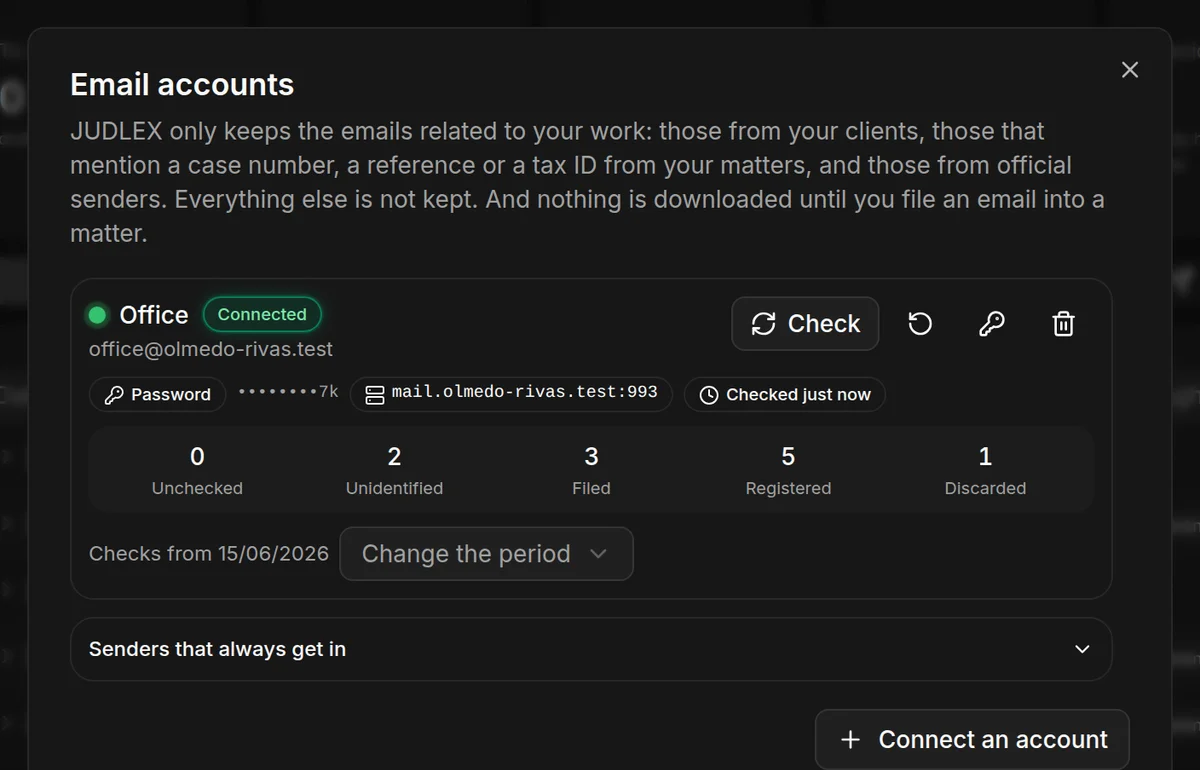
Each account shows whether it is Connected, its server, when it was last checked and how many emails it has in each pile: Unchecked, Unidentified, Filed, Registered and Discarded. Below, the date from which it is checked and Change the period.
Each account's buttons:
Check fetches new emails and files on its own the ones whose matter is known. It is free and does not use artificial intelligence. It only happens when you click it. When it finishes, a summary says how many emails it checked, how many have to do with your work and how many it filed.
Check again from scratch, the circular arrow, clears what has been checked for that account and looks at it all again from the beginning. Anything you have already filed, discarded or registered is left untouched. It asks you to confirm.
Change the password, the key, saves the new one and tests it straight away.
Remove the account, the bin, stops checking that mailbox. What has already come in through it stays. You can choose whether the stored password is deleted too.
If an account stops working because the password is no longer valid, it says so in amber, with How to fix it. A break in your internet connection does not disconnect it.
Where the password is kept
On this computer, in a file that only your user account can read. It is not encrypted: if the computer's disk is not encrypted, anyone who can read the disk can read it. See Your data: what stays and what goes out.
Senders that always get in
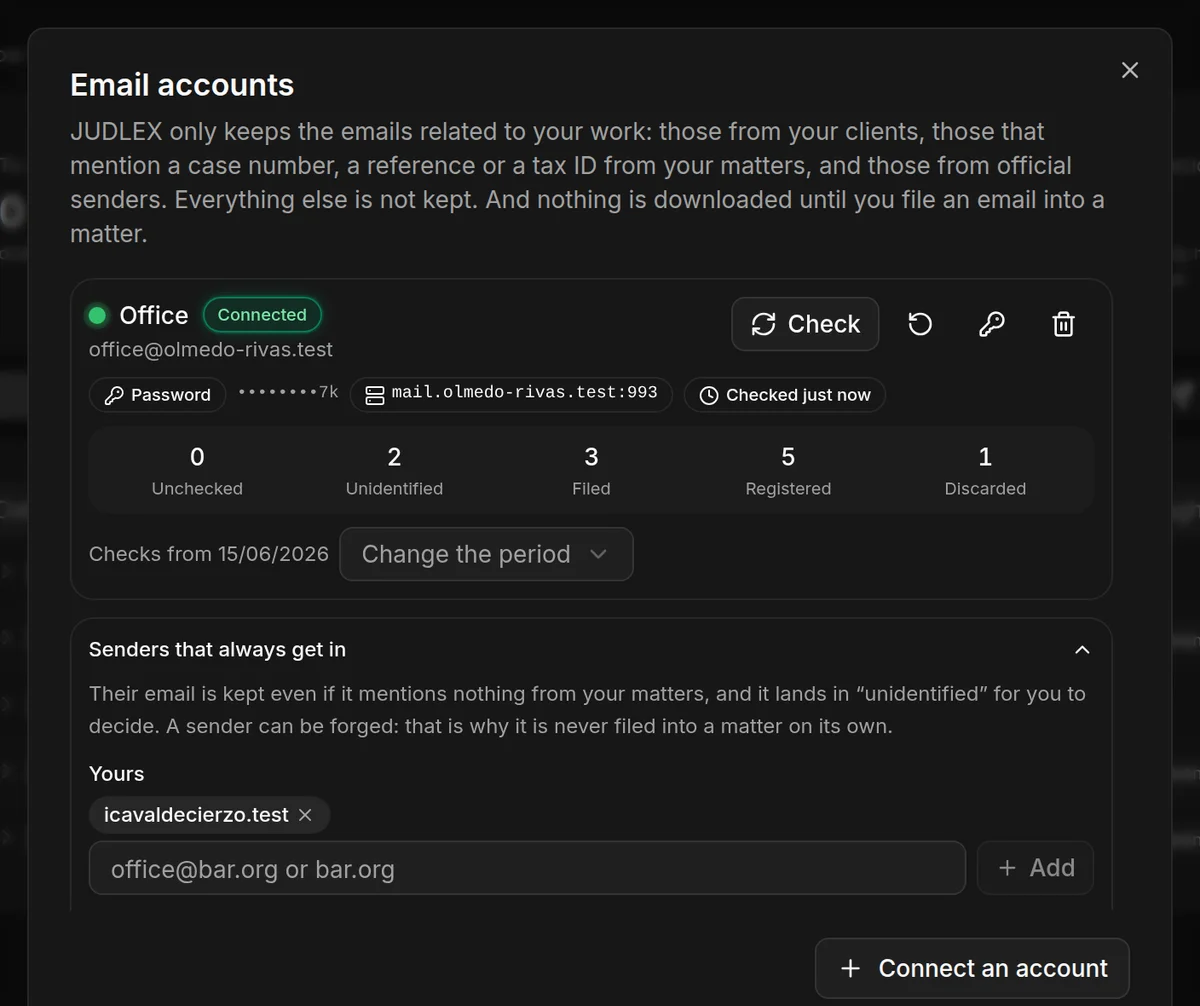
At the end of the dialog, Senders that always get in keeps email from certain senders even if it mentions nothing from your matters, for example your bar association or your court agent. Type an address or a whole domain and click Add.
These emails land in Unidentified so that you decide which matter they belong to. They are never filed on their own, because a sender can be forged.
Below is the fixed list of official senders, which always get in.
Also in Settings
In Settings → AI and connections, the Firm email block shows how many accounts are connected and opens the same dialog with Email accounts.