The What comes in group, in the Correspondence side menu, gathers the emails JUDLEX has kept when checking your accounts. It only knows their header: sender, subject, date, and the name and size of the attachments. The message and the attachments are not downloaded until you log the email in.
The five piles
Unchecked: just fetched, before deciding which matter they go to. It is almost always empty, because checking files them on its own.
Unidentified: JUDLEX could not tell which matter they belong to, or they could belong to two. You decide.
Filed: they already have a matter, set by JUDLEX or by you. They still need logging in.
Registered: they have an entry in the register.
Discarded: the ones you set aside, with your reason.
Each pile shows how many emails it holds.
The table
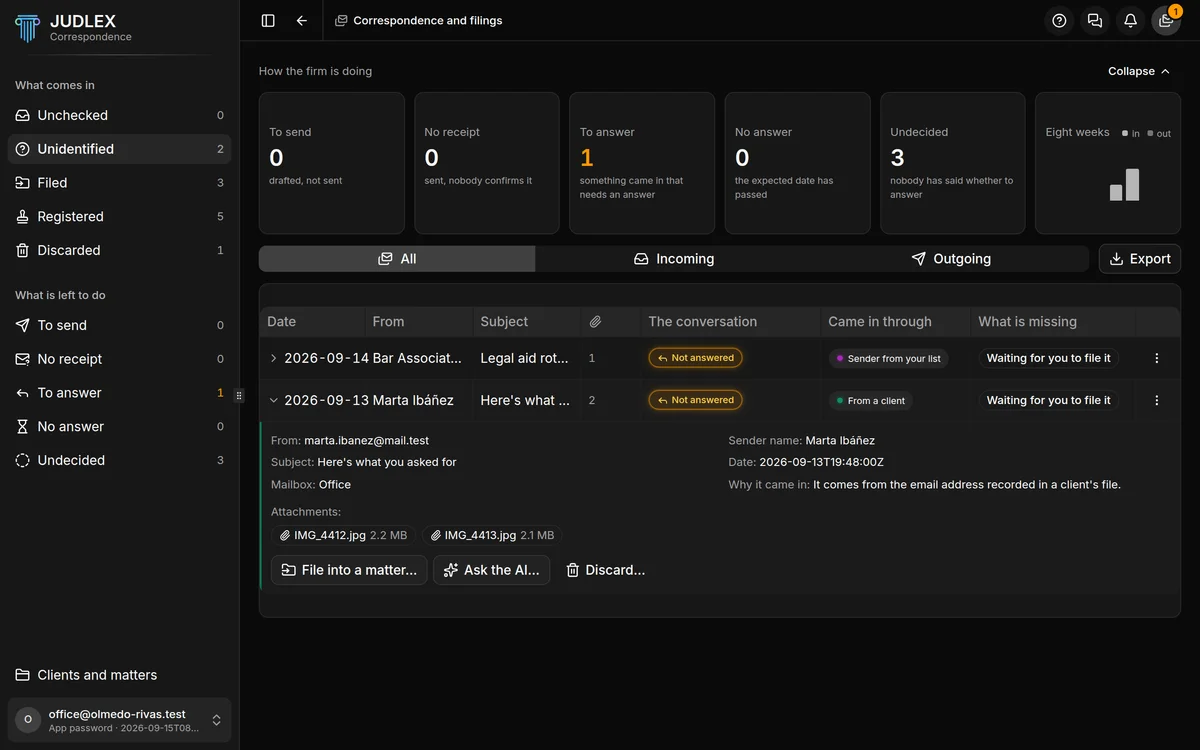
Date, From, Subject and the number of attachments.
The conversation: what can be worked out by matching it against the emails you sent from that account, without using artificial intelligence. For example Answered on…, Not answered, A reply to something you sent, Acknowledgement of receipt or how many messages there are in the conversation.
Came in through: why it was kept. From a client, Mentions a reference, Mentions a tax ID, In the attachment's name, Official sender or Sender from your list.
What is missing: the matter it is filed under or, if it has none, Waiting for you to file it.
Click a row to expand it: you see the full sender, the mailbox, why it came in, the attachments with their size and the buttons for what you can do with it. The same actions are in the row's three-dot menu and on right-click.
Filing an email under its matter
For Unidentified emails, or to move one that is already filed to a different matter.
Click File into a matter…
For filed emails it is called File it under another matter….
Choose the matter and type who is deciding
JUDLEX does not know who is at the keyboard, so it asks for your name and records it along with the date. It is remembered for as long as the application stays open.
Click File
The email moves to Filed.
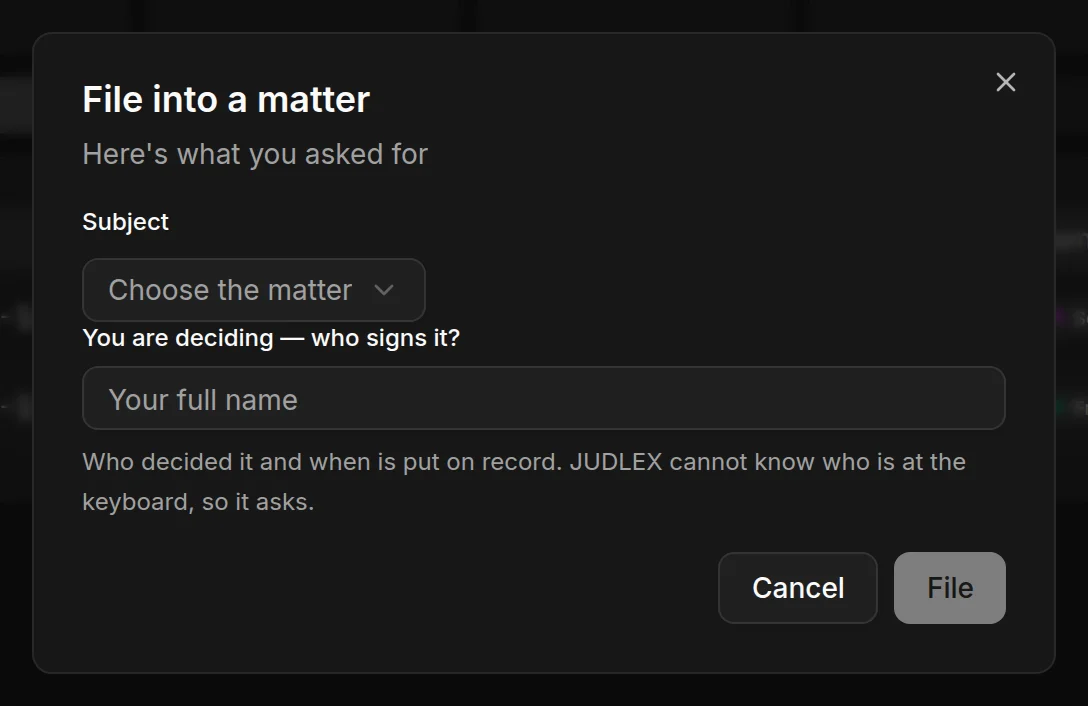
It is free. To file an email, the client and their matter must exist.
Asking the artificial intelligence
If you do not know which matter an email belongs to, Ask the AI… asks the provider you have connected. Before it does, it tells you what it will cost and asks you to confirm.
The provider is sent the email's header — sender, subject, date and attachment names — and the list of your open matters, with the client's name, the matter's title and the case numbers, so that it can choose among them. The body of the email and the attachments are not sent.
The answer appears in the expanded row: The AI suggests a matter, or The AI does not know either. It files nothing: if you open File into a matter…, the suggested matter comes already selected, and you are the one who confirms it.
Discarding an email
Discard… moves it to Discarded. It asks for the reason and your name. Nothing is deleted: who, when and why are recorded.
In Discarded, Undo the discard returns it to the tray.
Logging it in the register
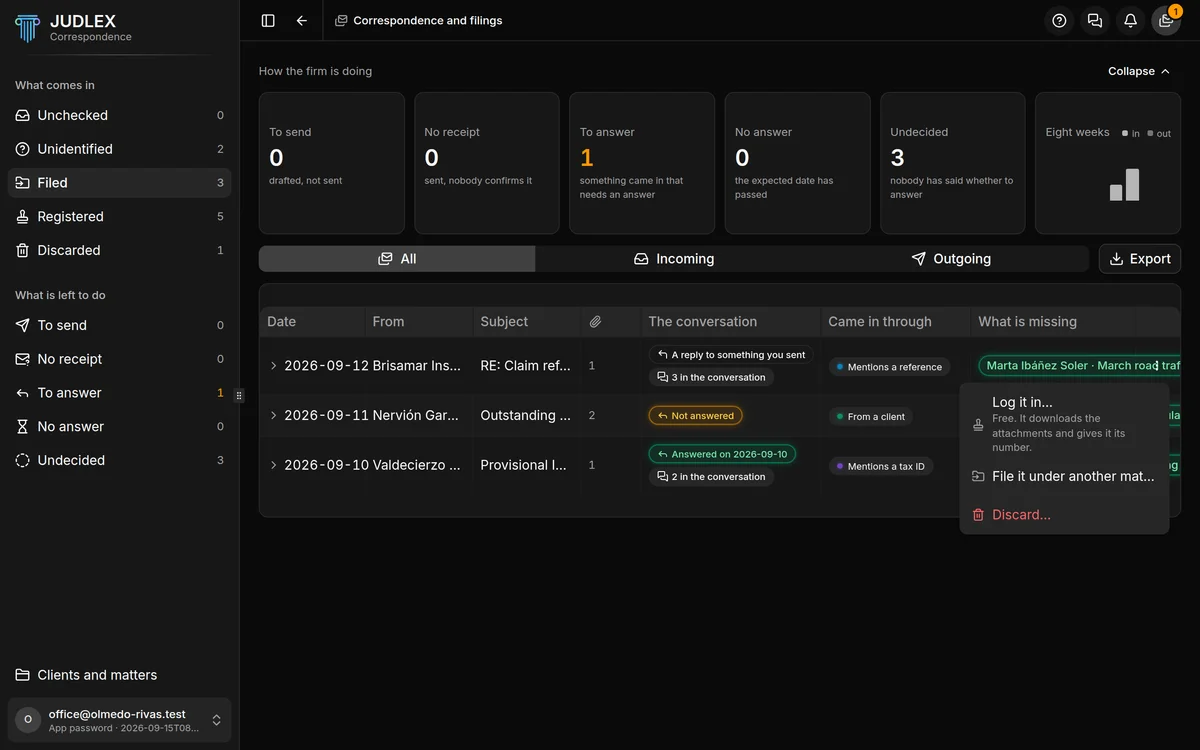
Once an email is filed under its matter, Log it in… registers it:
Click Log it in…
It is the first action for filed emails.
Say where the document comes from
Where does this document come from?: Court case file, Provided by the client, From the other side or The firm's own. This is not the channel it arrived through but its origin: a burofax from the other side received by email comes from the other side.
Click Log in
JUDLEX downloads the message with its attachments, saves them in the matter and opens the entry in the register with its number, for example E/2026/18.
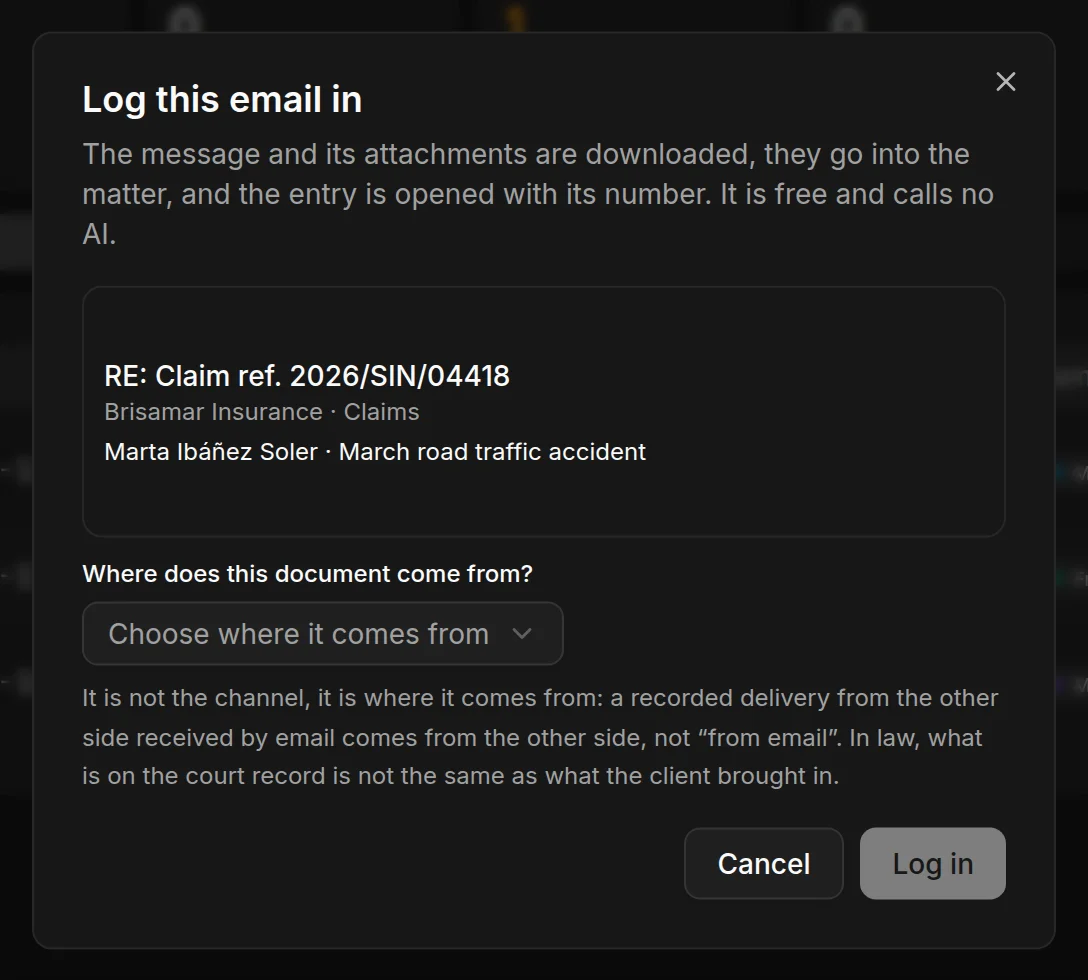
Logging an email in is free and does not use artificial intelligence. Emails are registered one at a time, on purpose.
Once registered, the email moves to Registered and its attachments can be opened from the row. What you do with it next is in What to do with an entry.