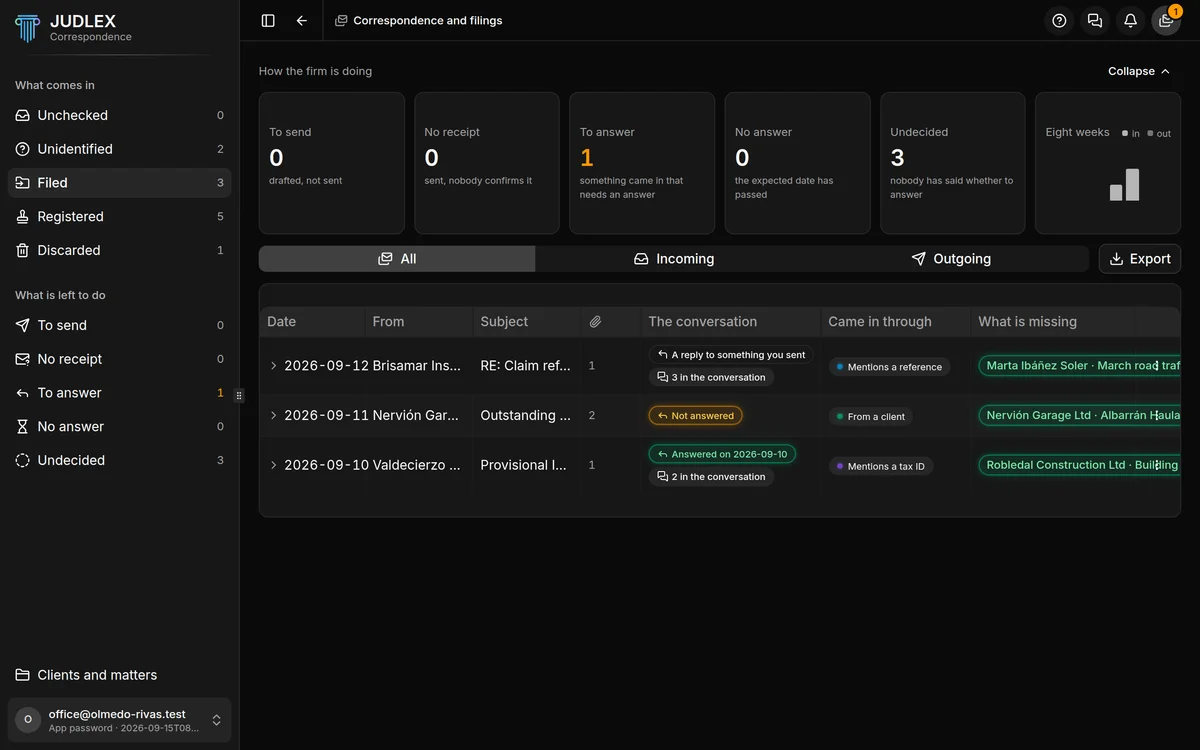
Correspondence and filings handles the firm's email related to your matters. It checks the email accounts you connect, sets aside the messages from your clients and about your matters, and the ones you decide to register go into a register, each with its number, its documents and the date it came in.
How to get there
In the side menu, at the very bottom, Correspondence and filings.
In the top bar, the envelope button. An amber dot shows how many entries have a date that could lapse; a blue one, how many emails have come in since you last looked.
The screen has its own side menu. Clients and matters, at the bottom, takes you back to the main screen.
Two different things
The Correspondence side menu has two groups, and they are not alike:
What comes in is email that JUDLEX has seen in your accounts and of which it only knows the sender, the subject, the date and the attachment names. Nothing has been downloaded yet. This is where you decide which matter each one belongs to and whether to register it: What comes in.
What is left to do is entries in the register: emails that have already been logged in, with their documents saved in the matter: The register.
The extension
Correspondence is a paid extension that you take out separately from the licence, on the Licence screen, in your account menu. There is nothing to install: once you take it out, it switches itself on.
Without the extension, or with an expired licence, what has already been registered is still visible and the whole register can be exported. What you cannot do is connect accounts, file or register emails, or use artificial intelligence on them. Actions you cannot use do not appear.
Where to start
Connect an email account
Check your email
Check fetches the emails from the chosen period and files on its own the ones whose matter is known. It is free.
Review what comes in
File what could not be filed and log in whatever you want to register: What comes in.
Work through each entry
Read it, record its time limit or prepare the reply: What to do with an entry.