When you open an entry in the register, its actions appear below its details. Each one says on the right whether it is free or costs money; the ones that cost money use artificial intelligence with your firm's key and show the price first.
The actions only appear if you have the extension.
Read and classify
Reads the entry's documents and suggests what it is about and whether it needs an answer.
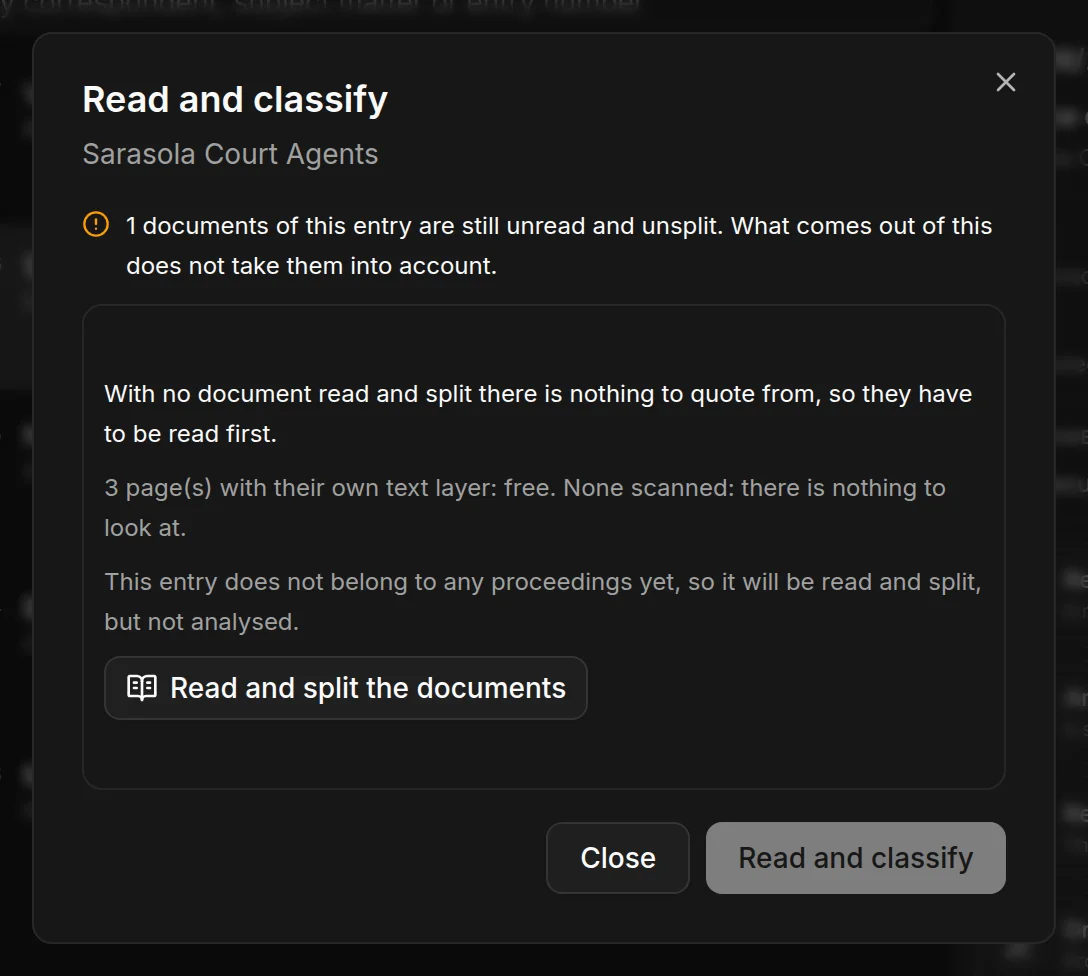
Click Read and classify
The box shows which documents will be read and which are still to be read and split.
If needed, read and split the documents
If the entry's documents have not been read yet, Read and split the documents reads them and splits them into separate documents, just as in a matter: Read and split the documents in a file. Pages with their own text are read for free; scanned pages are paid for one by one, and the box tells you how many there are. Splitting the documents is another call to the artificial intelligence and is also paid for.
Click Read for $…
Once the documents are ready, the button shows what it will cost. What it suggests appears in amber: the subject matter and Does it need an answer? — Yes, No or Not recorded — with the sentence from the document and its page.
Confirm or discard it
I confirm it accepts it and signs it with the name on your profile. Discard removes it. Until you confirm it, the register keeps saying Not recorded.
To confirm, you need to have entered your name in Profile, in your account menu.
Record the time limit
Records in the register the time limit the document states, with its sentence. JUDLEX does not calculate the date.
Choose the document and the page
The entry's documents must have been read and split; if not, the box first sends you to Read and classify.
Copy the sentence
The one stating that it has been made available to you, exactly as it appears on the page, which is shown above.
Choose the regime
Regime (suggestion, with its source) suggests the one that usually applies, with the article it comes from. It is a suggestion, not a calculated date.
Propose and confirm
Click Propose, review it and click I confirm it. It is signed with the name on your profile.
The time limit is recorded in amber and with no date among the client's dates, which you can see in Recurring obligations, in the client's menu. The date is set there.
Separately, in the same box, An answer is expected until (you set this) stores the date by which the firm expects something. Type it in and click Save the date. The entry then shows Due…, and it is recorded that you set the date.
Draft the reply
Prepares a draft procedural filing from the entry. Procedural filings only:
Acknowledgement of receipt.
Submission of documents.
Request for a copy of the file.
Entry of appearance.
Prior formal demand.
Letter to the client or to the other side.
It never drafts substantive pleadings, such as a claim, an appeal or a defence to a claim: those decide what is argued and what is given up, and that is your call.
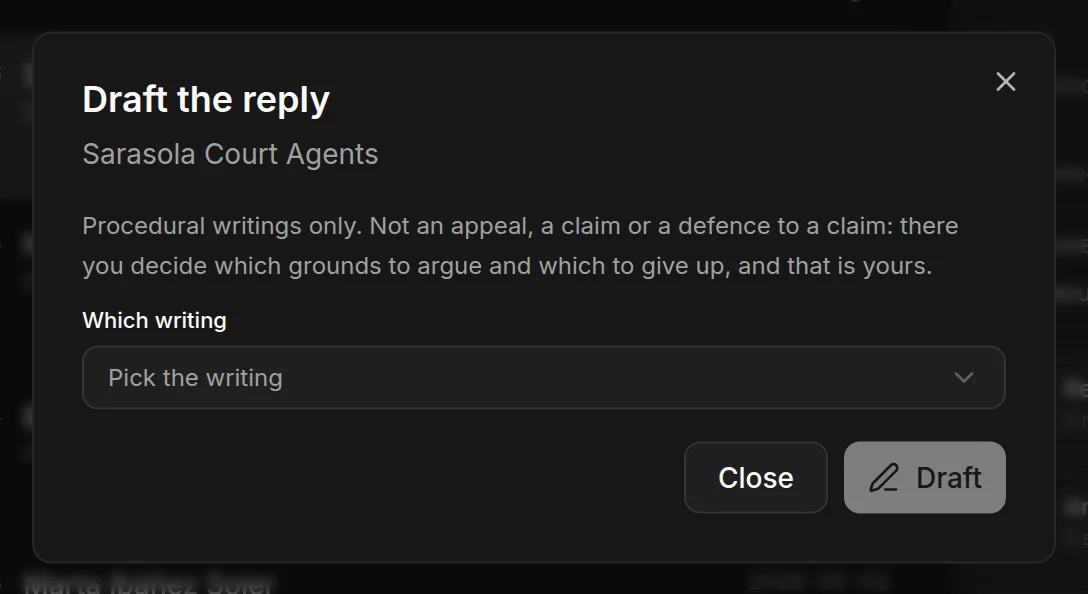
Choose the filing
In Which writing. The button shows what it will cost: Draft for… $.
Review the draft
You can correct the text in the box itself. Below, This is not on record and was left unwritten lists what JUDLEX did not find in the documents and has left blank, and This will be checked against the matter’s memory lists the figures, dates and citations the draft states.
Save the draft
Save the draft checks it against what is confirmed in the matter. If something does not match, it is not saved and it tells you what. If everything matches, it stays in the matter as the firm's own document.
Amicable settlement attempt file
Gathers in one document what has to be evidenced about the attempt to reach an agreement before going to court, each item with its register entry. Anything not in the register appears as NOT ON RECORD. For the content of each message it gives only its name and its fingerprint; it does not copy it.
It is free and is done as soon as you click. It is saved in the vault's Deliverables folder, and a notice tells you under what name.
Certificate of absence of reply
Certifies that a reply to the entry is not on record in this register. It never says “did not reply”: it says it is not on record, and that the register is the one on this computer.
It is signed with the name on your profile; without it, it is not issued. If there is a reply in the register, it is not issued. It is free and is saved in the vault's Deliverables folder.