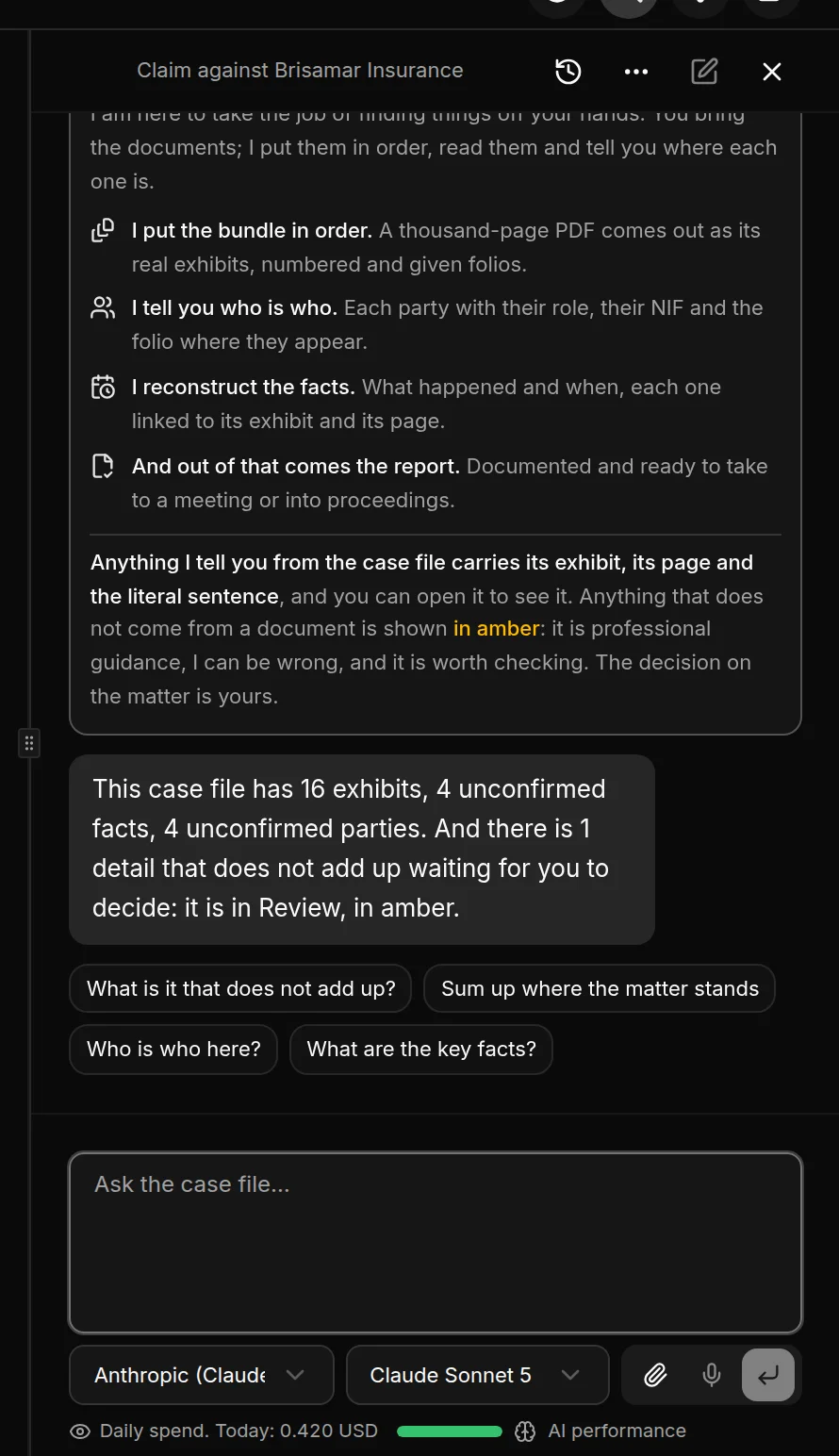
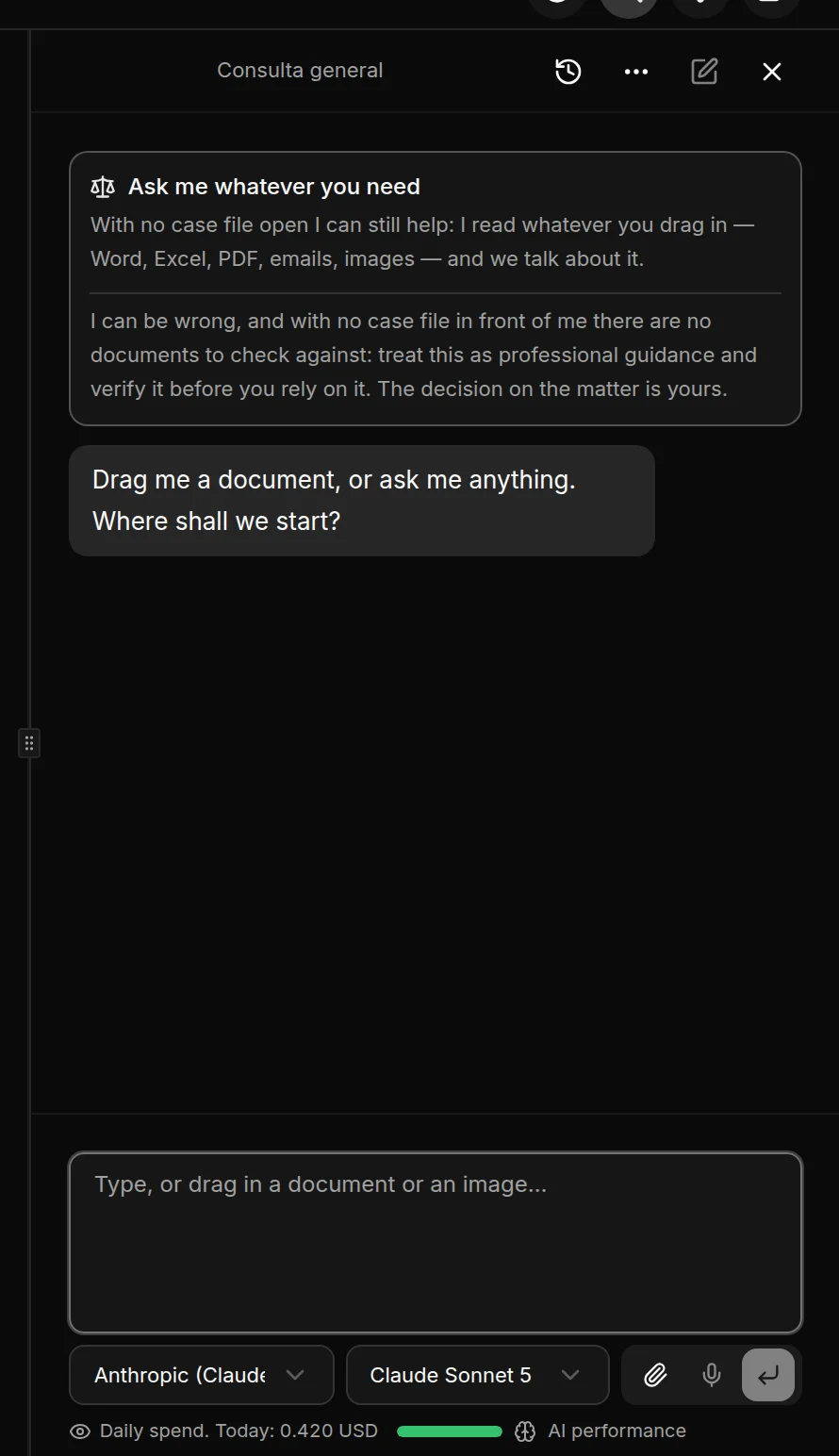
The consultation panel is a chat on the right of the window. With a case file open, you ask the case file questions in plain language, and every answer comes with its exhibit, its page and the exact sentence it comes from. With no case file open, you can use it to ask about anything and to read standalone documents.
Opening and closing it
The Chat button in the top bar, the one with two speech bubbles, opens and closes it from any screen.
On a case file's page, Talk to the case file opens it already focused on that case file.
The X in its header closes it.
The panel opens beside the content, without covering it. You can drag the bar between them to give it more or less room, and JUDLEX remembers the width you choose.
With or without a case file
The panel follows whatever is on screen:
With a case file open, the header shows its title. JUDLEX searches the exhibits for what it needs to answer, and everything it states about the case file must come with its citation. See Ask and read the citations.
On any other screen, the header says General question. You can ask whatever you like or drag in a document to talk about it, but there are no case file papers to check against: everything it answers is guidance, and you should check it.
What you need
An active licence. Without it, the chat will not ask anything.
An artificial intelligence key. Each question is answered by the provider you have chosen, with your firm's key: Add your artificial intelligence key.
What is sent and what it costs
When you ask, JUDLEX sends the provider your question, the case file extracts it has found to answer it, what has already been decided in the matter, what was said earlier in that conversation and any documents you have brought into it. It goes straight from your computer to the provider; it does not go through us.
Each question is paid for with your key, at the provider's rates. At the bottom of the panel, Daily spend shows what the firm has spent on artificial intelligence so far today: Panel options.
In this section
Ask and read the citations: how to ask, what each part of the answer means and how to check it.
Attach documents: drag a document into the conversation and, if needed, save it.
Panel options: guidance, automatic steps, tone, provider, model and today's spend.
The history: go back to a conversation, rename it or delete it.