Licence, in your account menu, opens Licence and plans: the licence status, the computers using it and, if needed, purchasing.
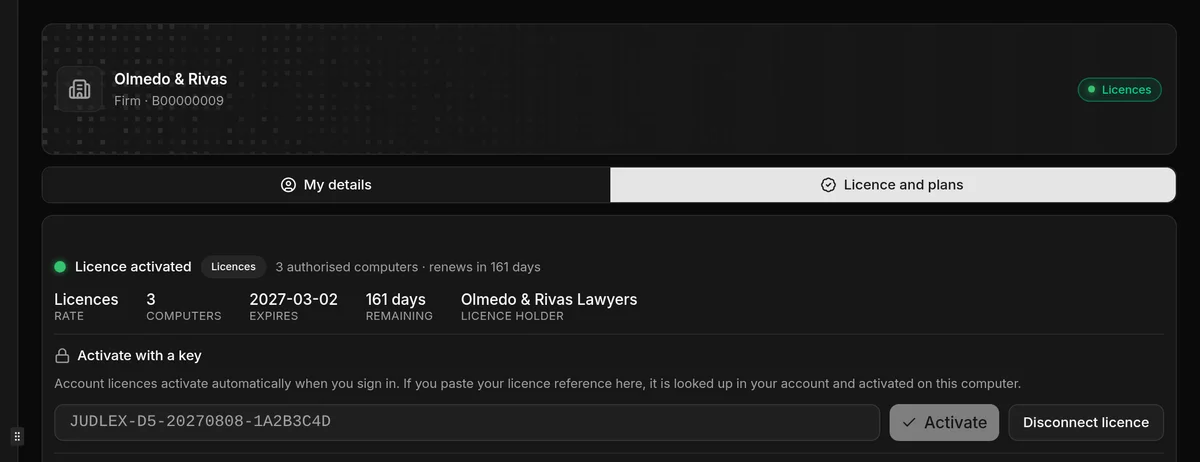
The status
At the top it tells you whether the licence is active on this computer, how many computers it allows and when it renews, with the Rate, the Computers, the date it Expires, the days Remaining — in amber if fewer than thirty are left — and the Licence holder.
Activating the licence on this computer
If you have signed in to your JUDLEX account, your account’s licence activates on its own. If not, paste your licence reference into Activate with a key and click Activate.
Each computer that opens JUDLEX with the licence takes up a seat. If they are all taken, JUDLEX tells you which computer holds the seat and when it was last used, and lets you choose between Not now and Activate here anyway, which takes the seat from that computer.
Disconnect licence frees up this computer’s seat. It asks for confirmation. The computer switches to read-only mode and no case file is deleted.
Computers on the licence
Underneath is the list of computers using the licence: how many seats are taken and how many are free, and for each computer its name, whether it is active and when it last connected.
In each row’s menu:
Disconnect licence, only on the computer itself.
Claim its seat for this computer: takes the seat from that computer and gives it to this one. It asks for confirmation, showing the computer’s name.
If an option cannot be used, it says why. Disconnecting a colleague’s licence or unblocking a computer is done from your account on judlex.com.
Offline
JUDLEX checks the licence with our server from time to time, and it can go a few days without a connection with no change. If it has been more than two days without connecting, a notice tells you how many hours are left before it switches to read-only mode. Connecting once is enough.
Buying or renewing
If you do not have a licence, the calculator appears in Licence and plans: how many people will work with JUDLEX and whether you pay monthly or yearly, with the total. Subscribe opens the order, with the invoice details filled in from your profile and a field for a discount code. You pay by card, inside JUDLEX or in your browser. Once you pay, the licence activates on its own on this computer.
To buy, you need to be signed in to your account. The licence is for JUDLEX; you pay for artificial intelligence separately, with your own key.
If the licence is not going to renew, the screen says so, with the date it ends. Cancelling or reactivating the renewal is done on judlex.com.
Extensions
The Extensions card shows the extensions you can add to the licence, each with its price and what it adds. Today the one that works is Correspondence: Correspondence and filings. You subscribe with Subscribe and cancel with Cancel it, which asks for confirmation and removes the passwords of the connected email accounts. What has already been recorded can still be viewed and exported.
If the licence is not active
With no licence, or with an expired licence, JUDLEX switches to read-only mode. It does not close and nothing is lost:
You can open, consult, correct, delete and export everything.
You cannot create clients, case files, parties or facts, add or process documents, or use artificial intelligence, even with your own key.
When you activate the licence, everything works again just as it was.