Settings → Notifications decides how JUDLEX tells you that a long task has finished. You do not have to sit and watch in the meantime: you can move to another screen or leave JUDLEX in the tray, and the task carries on. What you choose here is saved on this computer and does not affect the firm's other computers.
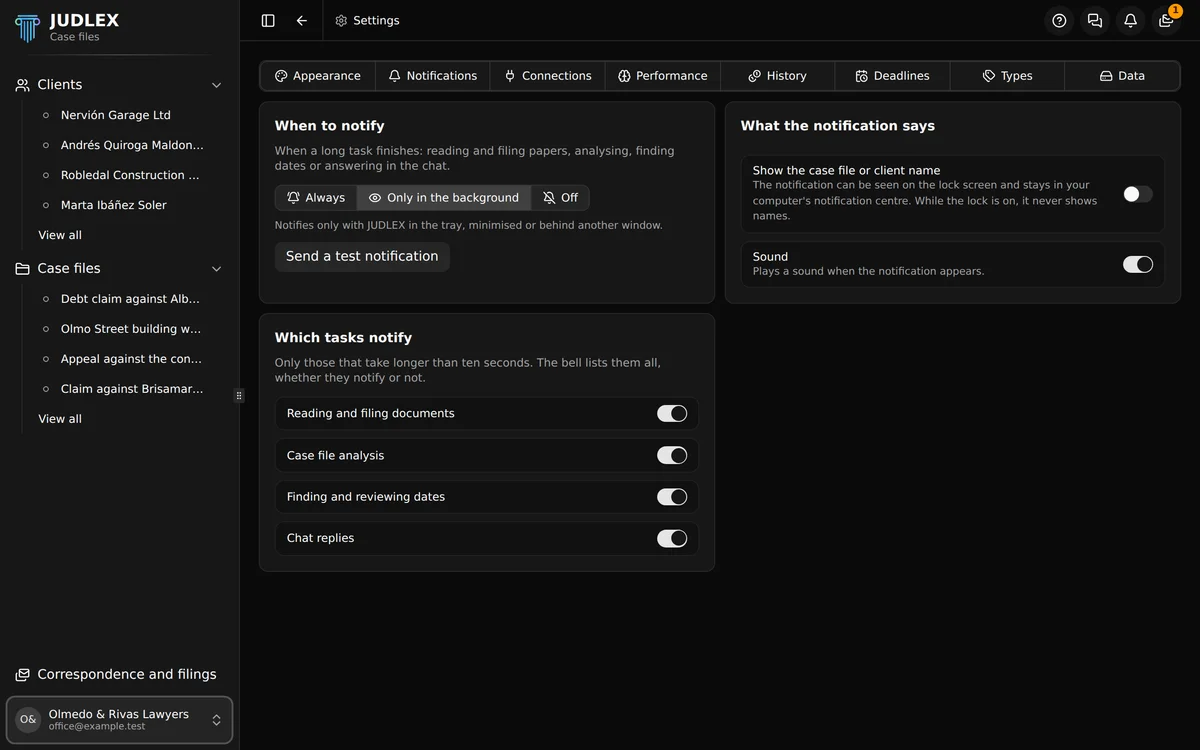
Which tasks notify
Reading and filing documents: adding papers to a matter, preparing them, splitting a bundle into documents and identifying the ones that could not be recognised.
Case file analysis: reading its exhibits and extracting the facts and the parties.
Finding and reviewing dates: the dates the exhibits point to, and the ones left undated or inferred. Finding them is part of the Correspondence and filings extension.
Chat replies: when the answer to a question arrives.
Each type can be switched off separately. Only tasks that take longer than ten seconds notify: anything that finishes straight away is already in front of you.
When it notifies
Only in the background: notifies when JUDLEX is in the tray, minimised or behind another window. If it is in front of you, the usual message in the corner of the screen is enough. This is the default.
Always: notifies even with JUDLEX in front of you.
Off: no system notifications at all. The bell still records what finishes.
Send a test notification shows a sample so you can check that your computer lets JUDLEX display notifications. If nothing appears, check the notification permissions for JUDLEX in your system settings.
What the notification says
By default, the notification says what has finished and how, without names: "Analysis finished" and, underneath, "12 exhibit(s) analysed · 48 facts". With Show the case file or client name switched on, the name goes in front.
Think it over before you turn that on. The system shows notifications on the lock screen and keeps them in its notification centre, where anyone sitting at the computer can read them. While the JUDLEX lock is on, the notification never shows names. The chat notification never includes anything from the answer either.
Sound plays a sound when the notification appears.
The bell and finished tasks
The bell in the top bar keeps the most recent tasks to finish since you opened JUDLEX under Finished tasks, including the ones that did not notify. Each one shows the time and a mark for how it ended: done, done with something worth checking, failed, or stopped at your request. The red dot counts the ones you have not looked at yet.
Clicking a task takes you to the case file, client or chat it came from.
If the task left warnings behind (a document that could not be read, a page that was skipped), See the warning or See 5 warnings appears underneath. It opens the full list, grouped by document, and Copy copies it so you can paste it wherever you need.
Inside the app, the bell does show names: this is the app's own screen, not the system's.
Getting back to the task from the notification
On Linux, clicking the notification brings JUDLEX to the front and opens the case file, client or chat it came from.
On macOS and Windows, clicking the notification brings JUDLEX to the front. From there, the bell takes you to the right place.
Nothing on this screen needs a licence.