Settings → AI and connections stores the keys for the firm’s artificial intelligence providers and shows which one is in use.
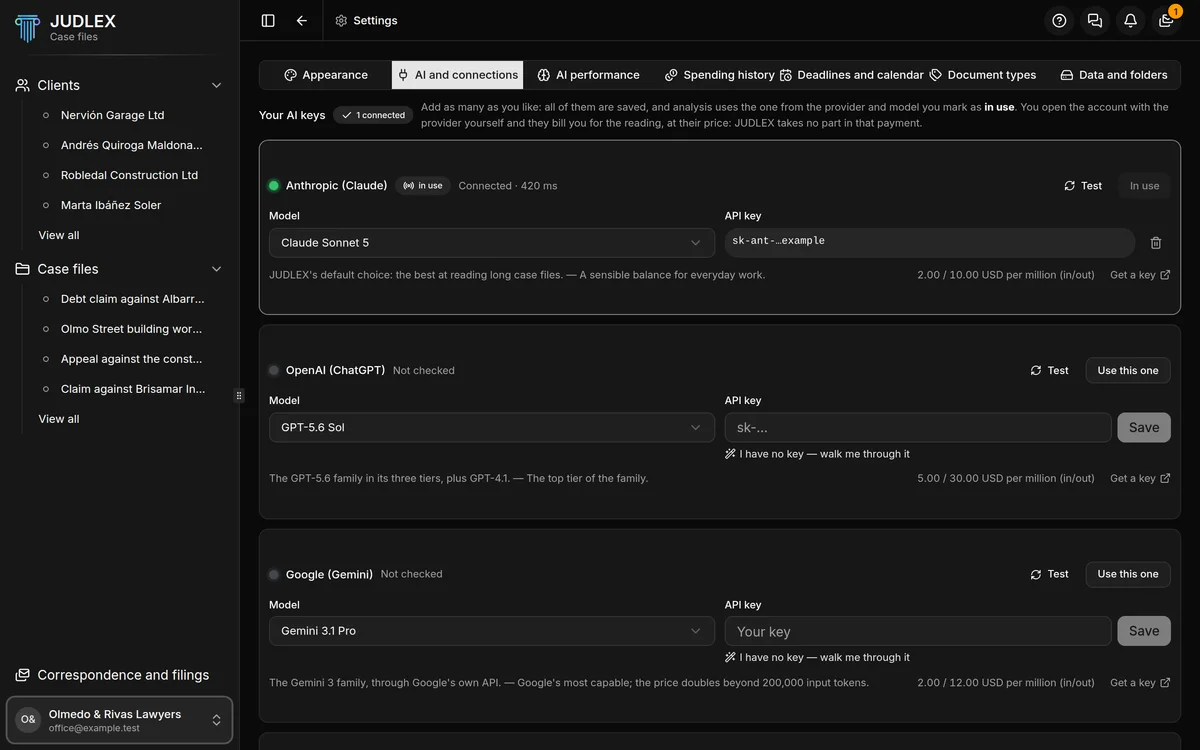
How to get a key and add it, step by step, is explained in Add your artificial intelligence key. Here is a summary of the screen.
The provider cards
At the top, Your AI keys shows how many are connected. Below it, one card per provider with:
Model: which model that provider works with. If it is the provider in use, the change takes effect immediately.
Use this one: makes it the firm’s provider. The active one says In use.
Test: checks that the key and the model work.
API key: the field to paste it into, and Save. A saved key is shown masked, with a bin icon to delete it. The bin deletes it as soon as you click, without asking.
Get a key: the link to the provider’s page where you create one.
I have no key — walk me through it: the wizard.
The provider and model in use are the same for everything: reading, splitting, classifying, analysing and the consultation panel. Changing them from the consultation panel changes them here: Panel options.
Firm email
If you use the Correspondence extension, the Firm email block appears at the bottom, showing how many email accounts are connected, with the Email accounts button: Connect an email account.