Settings → Data and folders tells you where the firm’s things are on this computer and lets you move, copy and restore them.
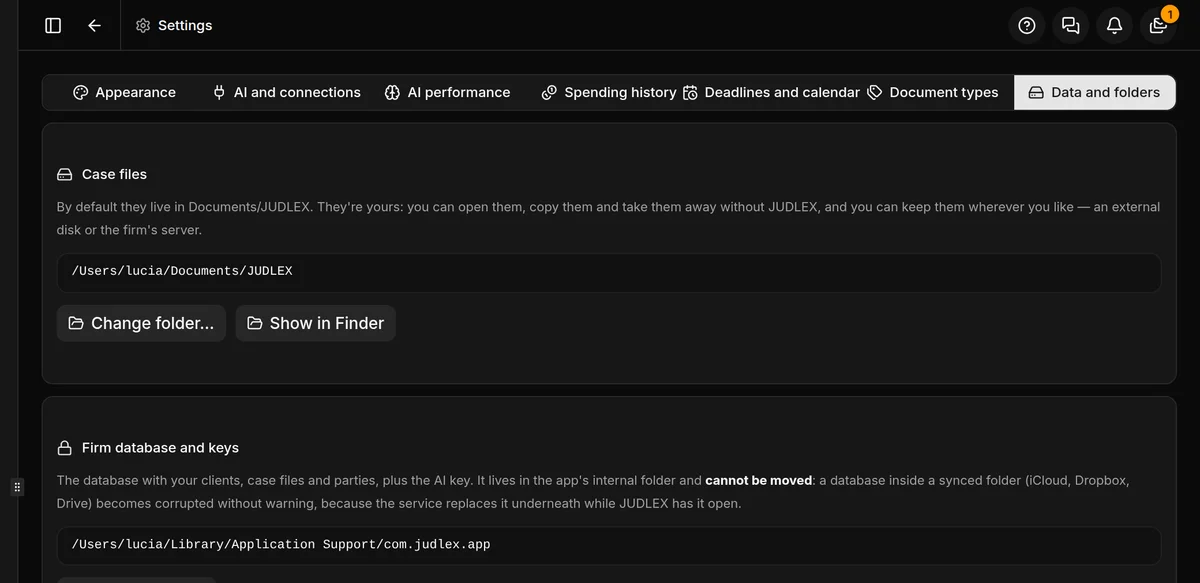
The case files: the vault
Your clients’ documents live in a folder JUDLEX calls the vault. By default it is in Documents, in the JUDLEX folder. They are yours: you can open them, copy them and take them away without JUDLEX.
Change folder… moves them to another folder, for example an external disk or the firm’s server. Choose the folder and confirm in Move the case files there?. The files are actually moved; do not close JUDLEX while this happens. Anything already there with the same name is left untouched.
Show in Finder opens the folder.
If the folder you choose is inside a sync service, such as iCloud, Dropbox or Drive, the screen warns you.
The firm database and the keys
The database with your clients, case files, parties and facts, and the artificial intelligence keys, live in an internal app folder that cannot be moved: a database inside a synced folder gets corrupted without warning. The screen tells you where it is and opens it with Show in Finder.
Disk encryption
If the computer’s disk is not encrypted, or JUDLEX has not been able to check, an amber notice appears explaining where to turn on encryption on your system. JUDLEX does not encrypt what it stores by itself, so the protection of your documents depends on disk encryption. See Your data: what stays and what goes out.
iCloud, on a Mac
On a Mac with the Documents folder in iCloud, Exclude JUDLEX from iCloud appears, turned on by default, so that the case files are not uploaded to iCloud. We recommend leaving it that way for material covered by professional privilege.
Backup
Save a backup: choose a folder and JUDLEX saves a copy in it, dated with the day’s date, with the case files and the whole database: clients, exhibits, folios, facts and their citations.
Restore a backup: choose the backup, review what it contains and confirm in Restore this backup over your firm?. What was there before is not lost: it is set aside in a dated folder and the screen tells you where.
The usage summary
At the end, Help us make JUDLEX break less explains the usage summary and has its switch, Send the usage summary. It is off by default, contains only numbers — nothing from your case files — and is pseudonymised. See what gets sent shows you the exact data before it goes out. When you turn it off, what has built up is deleted.
Exactly what it contains is explained in Your data: what stays and what goes out.