Type your question in the box at the bottom, Ask the case file…, and press Enter or the arrow button. To start a new line without sending, press Shift and Enter together.
Ask as you would ask a colleague who has read the case file: “What did the insurer offer and why did it reject the claim?”, “When was the judgment served?”, “Who signed the expert report?”.
When you open a case file
If guidance is switched on, when you open a case file the panel tells you where things stand — how many exhibits it has, how many facts and parties are still to be confirmed, whether anything does not add up — and suggests questions to start with, such as Sum up where the matter stands or Who is who here?. Click one and it is sent. This costs nothing: it comes from what JUDLEX already knows, without asking the artificial intelligence.
You switch guidance off in the panel options: Panel options.
Before you ask: the literal search
Once you have typed a few letters, the number of literal matches in the case file's pages appears above the box, labelled local search, no cost. Click it to expand them, each with its exhibit, its folio, its page and the snippet of text where it appears.
It lets you find a word, a name or a figure without spending anything, and see whether a question is worth asking.
The answer
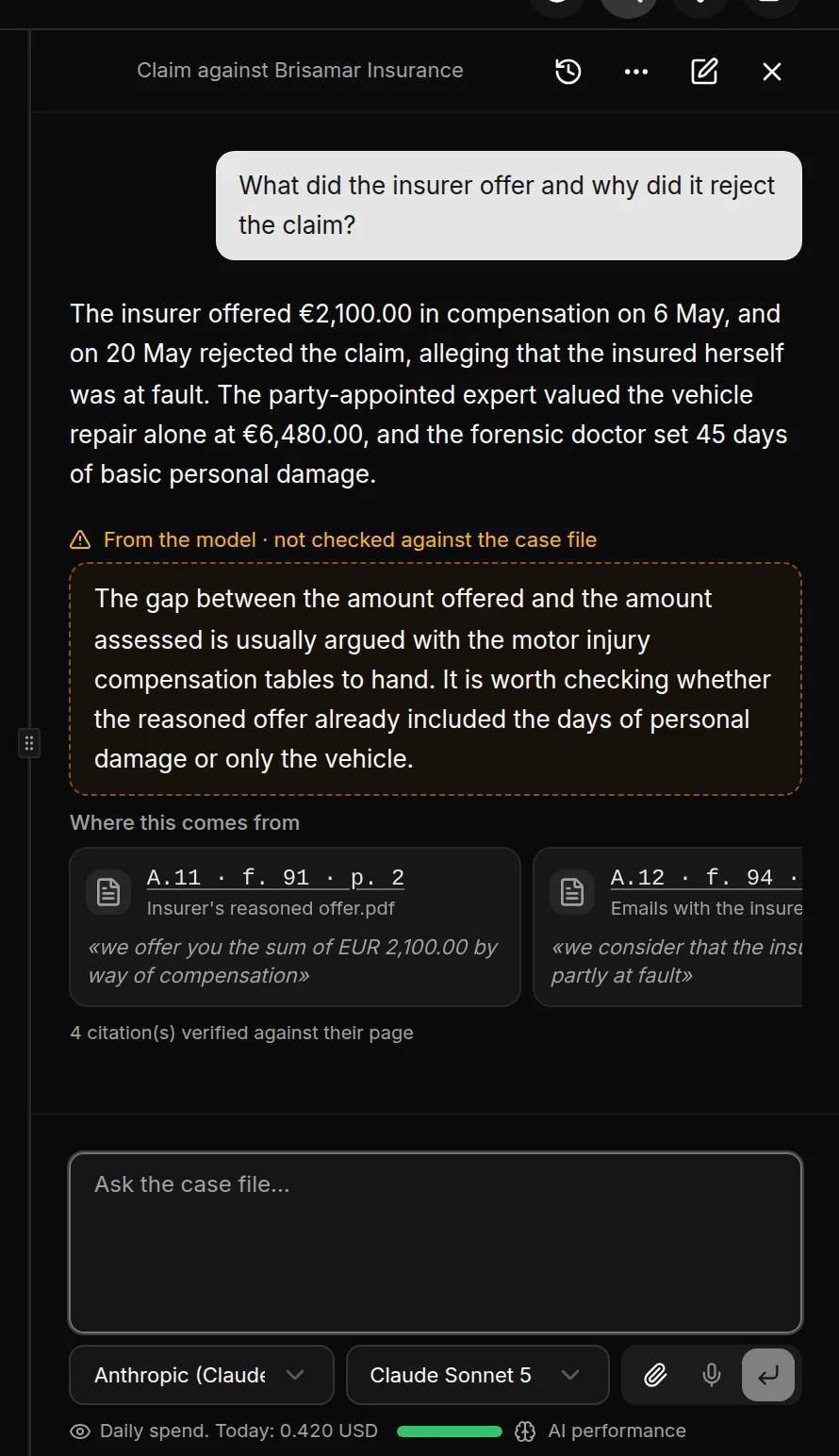
The text: what JUDLEX has found in the case file, set out clearly.
In amber, labelled “From the model · not checked against the case file”: anything that does not come from a document in the case file. It is professional guidance from the artificial intelligence; it can be wrong and you should check it.
Where this comes from: one card per citation, with the exhibit, the folio, the page, the document title and the exact sentence. If the citation is from an exhibit, clicking the card opens the exhibit at that page.
Underneath, how many citations have been checked against their page. JUDLEX looks for each quoted sentence on the page it names; if it is not there, the citation is discarded and the answer says so.
If some pages of the case file have not been read yet, the answer warns that it only covers what has been read: Read pages and find dates.
While it answers
While it prepares the answer, the panel says Reading the case file… and the text appears as it arrives.
Sometimes, before answering, JUDLEX asks you a question with options: Before I answer. Pick one, or type your answer in your own words and press Enter.
A long conversation
JUDLEX sends what has already been said with every question, so that “and the second one?” makes sense. When the conversation grows too long, it summarises the older part and marks this with an amber line: Everything above travels summarised. Click it to read the full summary. The summary is written by the artificial intelligence, so it is not a source.
Making the summary is one more call and is paid for like the others.
Start again
The pencil button in the panel header opens a blank conversation. The previous one is not lost: it stays in the history. See The history.