The three-dot button in the panel header opens its options.
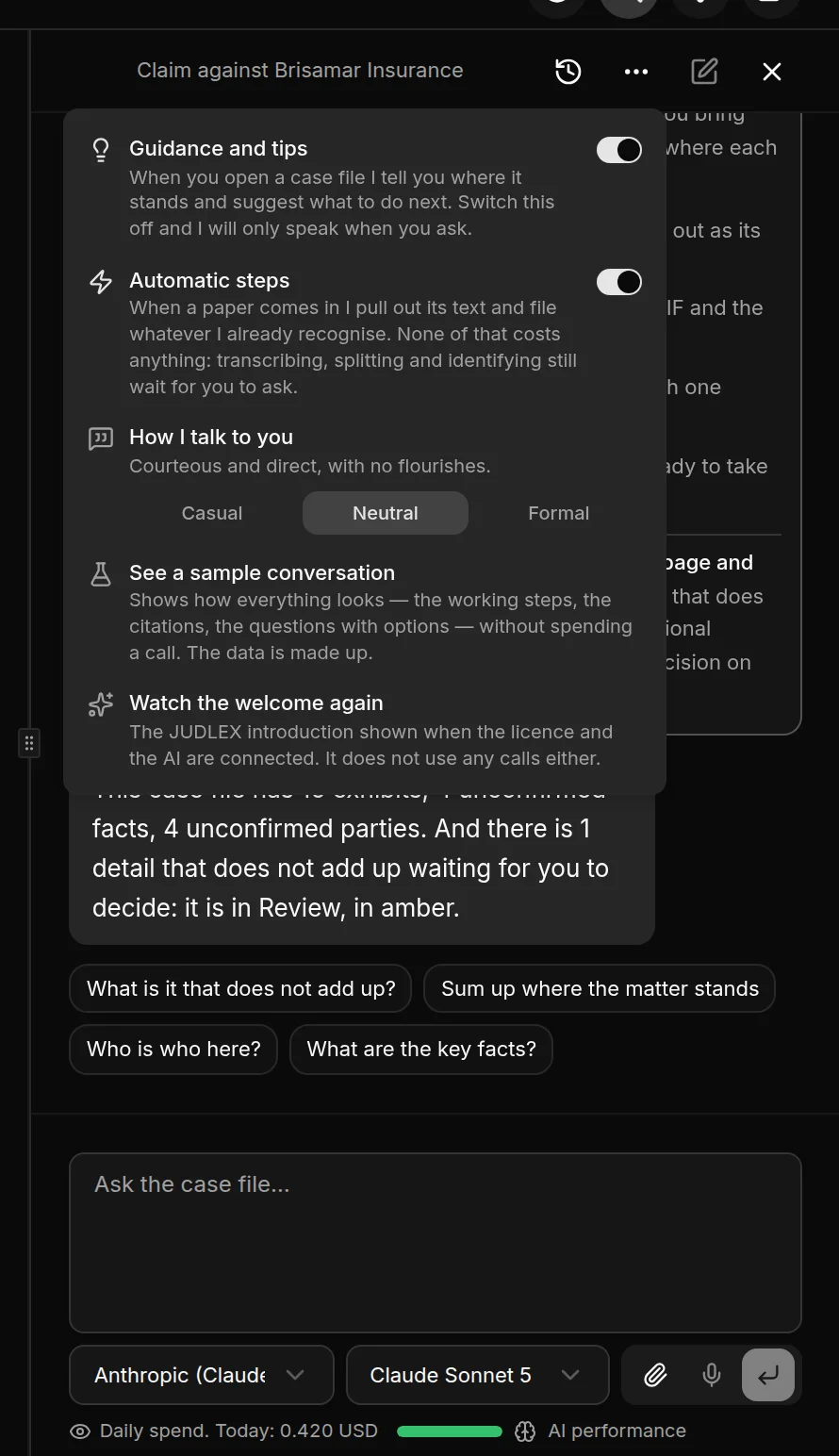
Guidance and tips
When it is on, opening a case file makes the panel tell you where things stand and suggest where to go next. When it is off, the panel only answers what you ask and suggests nothing on its own. It starts switched on.
Automatic steps
When they are on and a paper comes into a matter, JUDLEX pulls out the text it already contains and files whatever it already recognises into its folder. None of this costs anything: transcribing scanned pages, splitting documents and identifying the ones it does not recognise still wait for you to ask, each with its cost estimate.
When they are off, the paper goes into the vault and nothing is touched until you ask. They start switched on, and the choice applies to this computer.
How I talk to you
The tone the panel uses to answer:
Casual: on first-name terms, like a trusted colleague.
Neutral: polite, friendly and direct, with no frills.
Formal: polite, in the register of the courts, with no familiarity.
It changes how the panel answers, not what it answers.
Watch the welcome again
Replays the JUDLEX introduction that appears the first time, when you connect the licence and the artificial intelligence. It uses no calls. It is only available with an active licence and a connected key.
The provider and the model
Below the typing box there are two drop-down lists: the artificial intelligence Provider and its Model. Providers without a key appear as (not operational) and cannot be chosen.
If no key has been entered, instead of the drop-down lists you see No connection configured — Settings → AI and connections: Add your artificial intelligence key.
Daily spend
At the very bottom, Daily spend shows what the firm has spent on artificial intelligence so far today. It counts every call of the day, not just the chat's: what really costs money is reading and analysing exhibits. It resets to zero at midnight.
It is an estimate: the provider's public rates applied to what has been used, with no mark-up. The provider is the one who charges you, on its invoice. Clicking it opens Settings → Spending history.
AI performance
On the right, a small coloured bar shows whether the provider's service is working right now, according to the provider's own status page: green if all is well, amber or red if it has incidents. It says nothing about how good the model is. Clicking it opens Settings → AI performance.