The JUDLEX assistant takes you to each provider's page, but what happens there is up to the provider: each one puts the key in a different place and names its buttons its own way. Here is what to do on the other side, provider by provider.
The JUDLEX side is in Add your artificial intelligence key. This article is the other half.
What applies to all of them
Open the page from JUDLEX
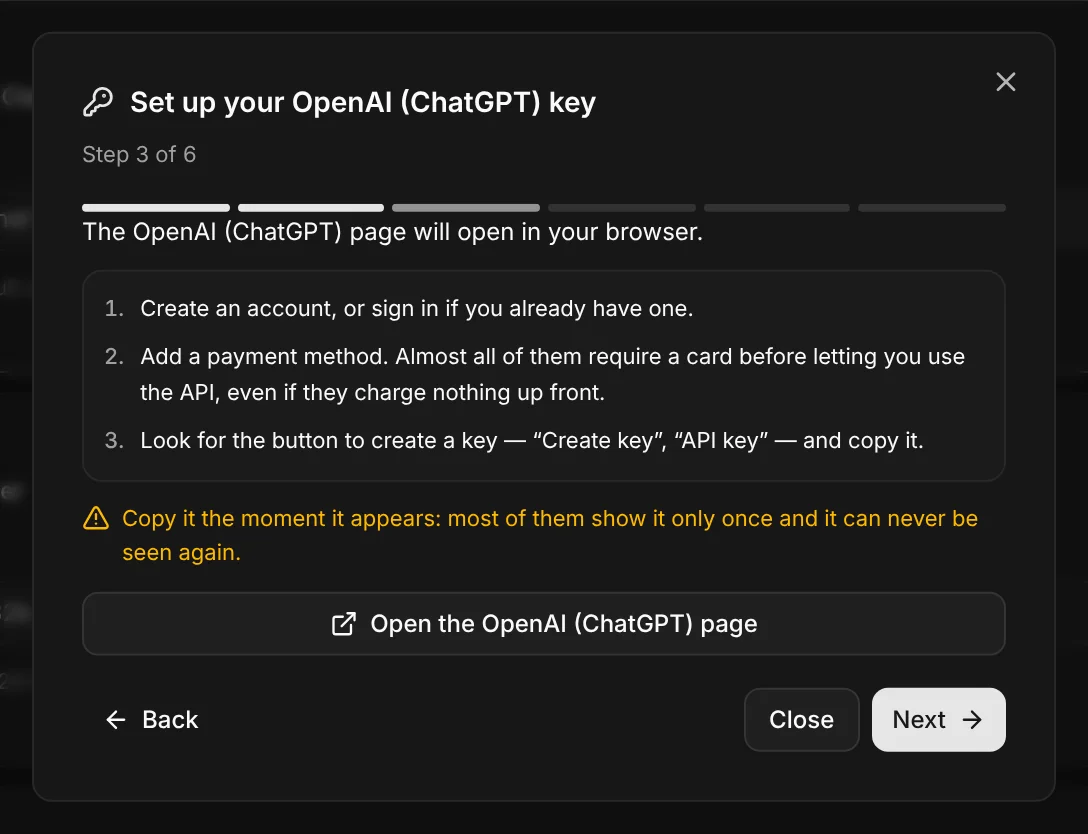
In Settings → Connections, click I have no key — walk me through it on the provider's card. If the provider has no card, first add it to the list with Add provider. In the third step, the Open the … page button, with the provider's name, takes you straight to where keys are created.
Create the account and add a payment method
Almost all of them ask for a card, or a prepaid balance, before the key will work. That payment is between you and the provider: JUDLEX does not see it and charges nothing for it.
Create the key and copy it right away
Give it a name that will still mean something in a year, for example «JUDLEX office». Copy it as soon as it appears: most providers show it only once. If you lose it, no harm done: delete that one and create another.
Set a spending limit
In the provider's dashboard, not in JUDLEX. It is the only way to make sure a figure does not get away from you: JUDLEX shows you what has been spent, but the provider is the one who charges.
Paste it into JUDLEX and test it
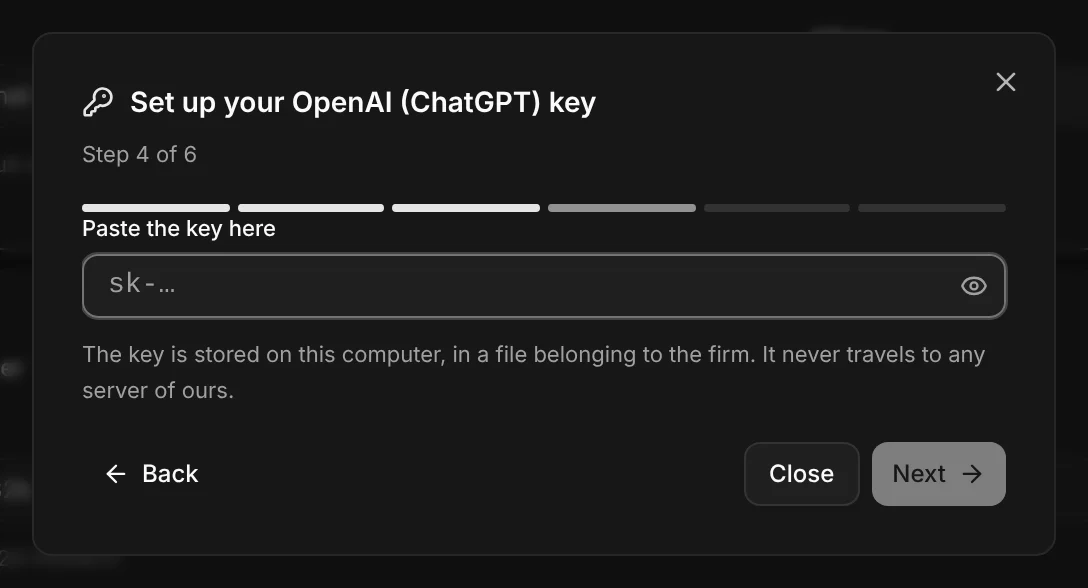
Go back to the assistant, paste the key into Paste the key here and click Test the key.
Anthropic (Claude)
Where: Anthropic's developer dashboard (Claude Console). The assistant opens its keys page directly.
Payment: under Settings → Billing you add the card and buy credit. Calls are deducted from that balance.
The key: under Settings → API keys, button Create key. It starts with
sk-ant-and is only shown when created.Spending limit: under Settings → Limits you set a monthly cap.
OpenAI (ChatGPT)
Where: OpenAI's developer platform, which is separate from the ChatGPT subscription. Paying for ChatGPT Plus gives you no API credit: they are separate accounts and separate invoices.
Payment: under Settings → Billing you add the card and buy prepaid credit.
The key: under API keys, button Create new secret key. It starts with
sk-and is only shown when created.Spending limit: under Settings → Limits, or with a budget on the project the key belongs to.

Google (Gemini)
Where: Google AI Studio, with a Google account. The key is tied to a Google Cloud project that AI Studio creates for you the first time.
The key: under API keys, button Create API key.
Payment: next to the project you will see Set up billing, which asks for a Google Cloud billing account.
Spending limit: AI Studio lets you set a cap per project.
xAI (Grok)
Where: the xAI console. You sign in with email, Google or your X account.
Payment: in the billing section you add the card or buy credit. A new account may come with some trial credit that expires.
The key: under API Keys, button Create API Key. It starts with
xai-and is only shown when created.Spending limit: in billing you set a monthly cap.
DeepSeek
Where: the DeepSeek platform, with email or phone.
Payment: it works with a prepaid balance (Top up). Without balance the key exists but does not work, and the JUDLEX test will fail.
The key: under API keys, button Create new API key. It starts with
sk-and is only shown when created.Spending limit: the balance itself is the cap: you cannot spend more than you have loaded.
MiniMax
Where: MiniMax's international platform.
Payment: under Billing → Balance you load credit, which is the pay-as-you-go mode JUDLEX uses.
The key: under API Keys, button Create new secret key.
Spending limit: as with DeepSeek, the loaded balance is the cap.
If the test fails
The JUDLEX screen shows what the provider replied. The most common causes:
The account has no balance or no payment method. This is the most frequent cause with a newly created account. Fix it in the provider's dashboard, then Test again.
The key was copied incomplete. It happens when copying by hand. Create another one and paste it whole using the provider's copy button.
The chosen model is not available on your account. Some providers unlock their most capable models by usage tier. Click Pick another model and try a different one from the list.