The first time you open JUDLEX, a five-step guide appears. It takes three minutes and makes the essentials clear: the order you work in, whether your licence is active and whether you can already read papers with the artificial intelligence. Here it is in full, with what you see at each step.
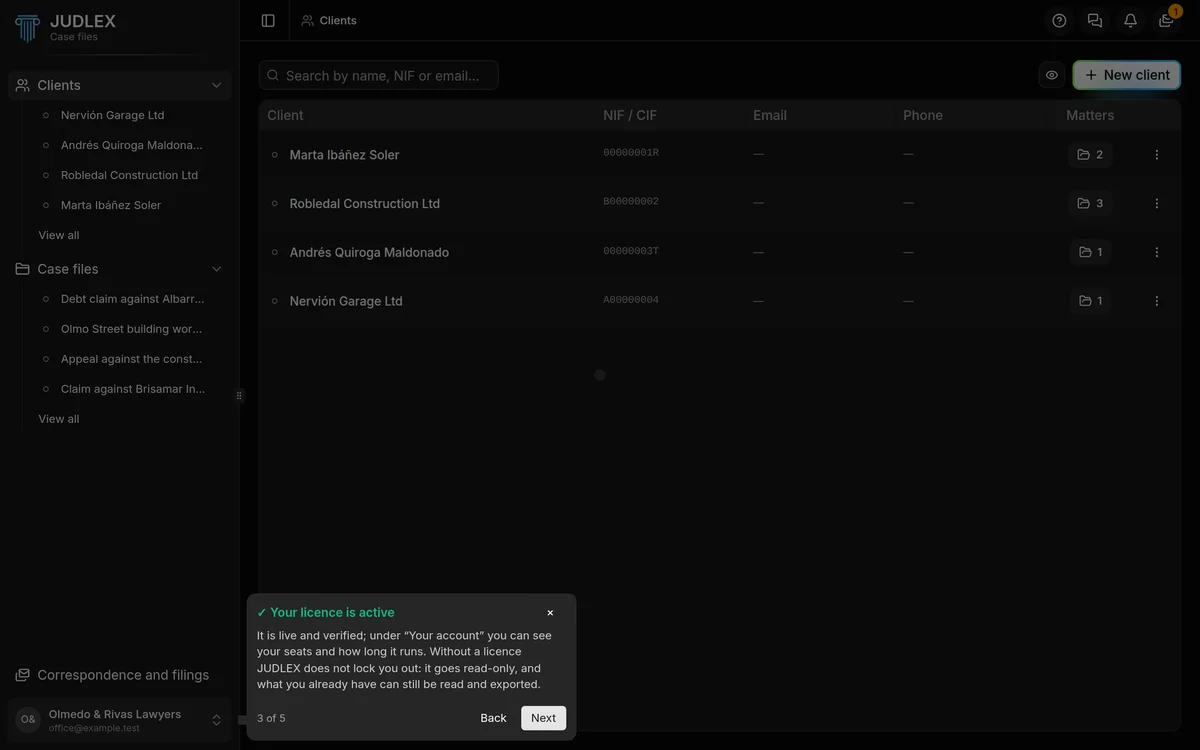
If you closed it without reading it, you can replay it whenever you like: click the Help button (the question mark at the top right) and choose First steps.
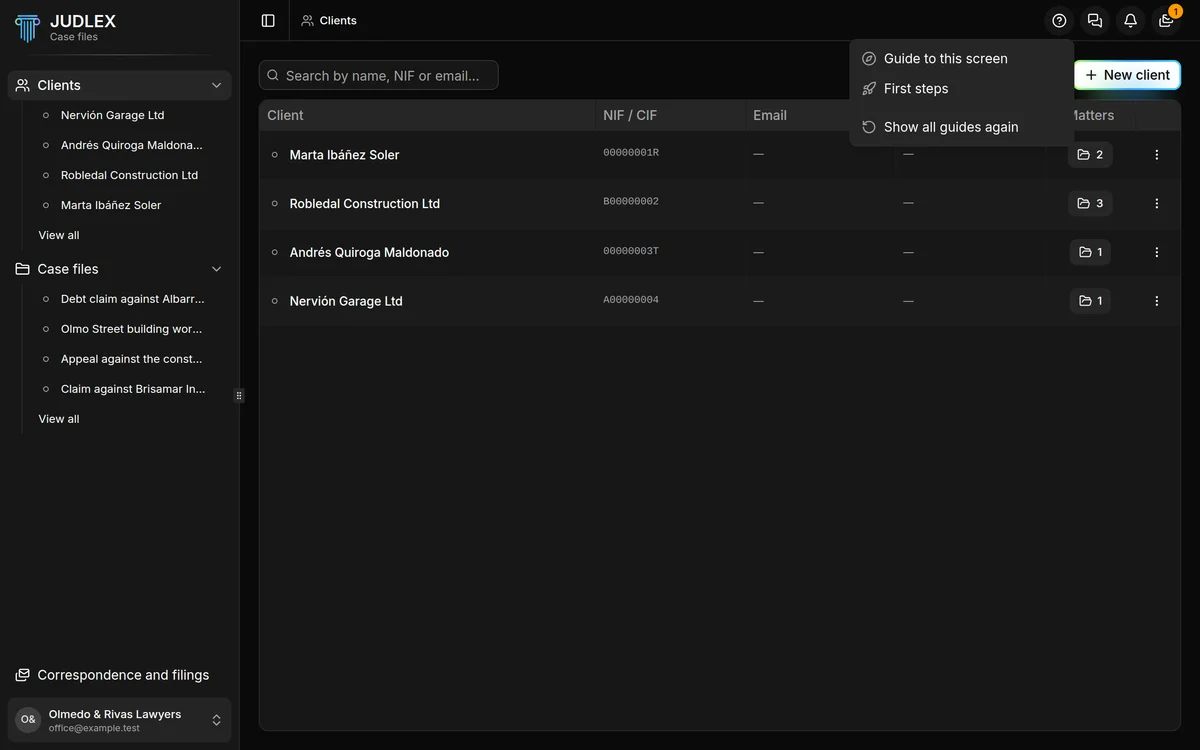
Step 1. Welcome to JUDLEX
The guide introduces itself in the middle of the screen. You can close it with the cross at any time; it will always be there under the Help button.
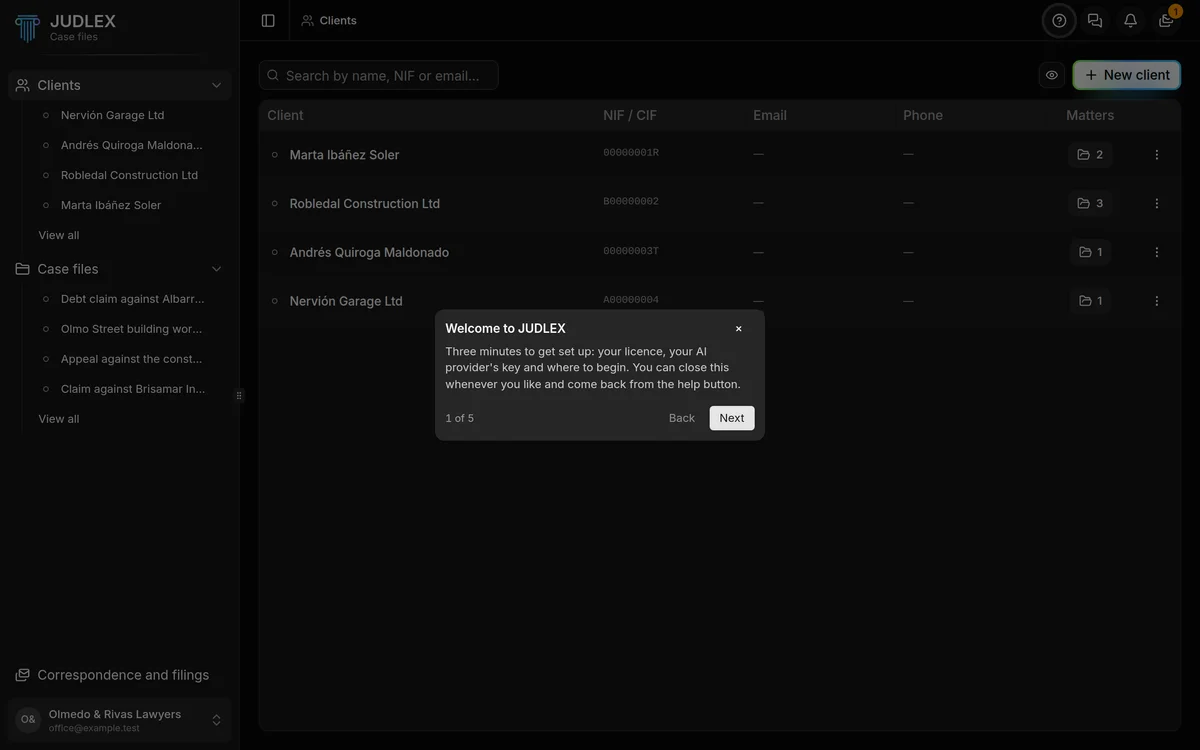
Step 2. It all starts with the client
The guide highlights Clients in the sidebar. This is the JUDLEX order, and it is worth keeping in mind at all times: first the client; then the matter, which is the paperwork for one thing they have brought you; and on top of that paperwork, the case file, which is the proceeding.
This is explained in Clients, matters and case files.
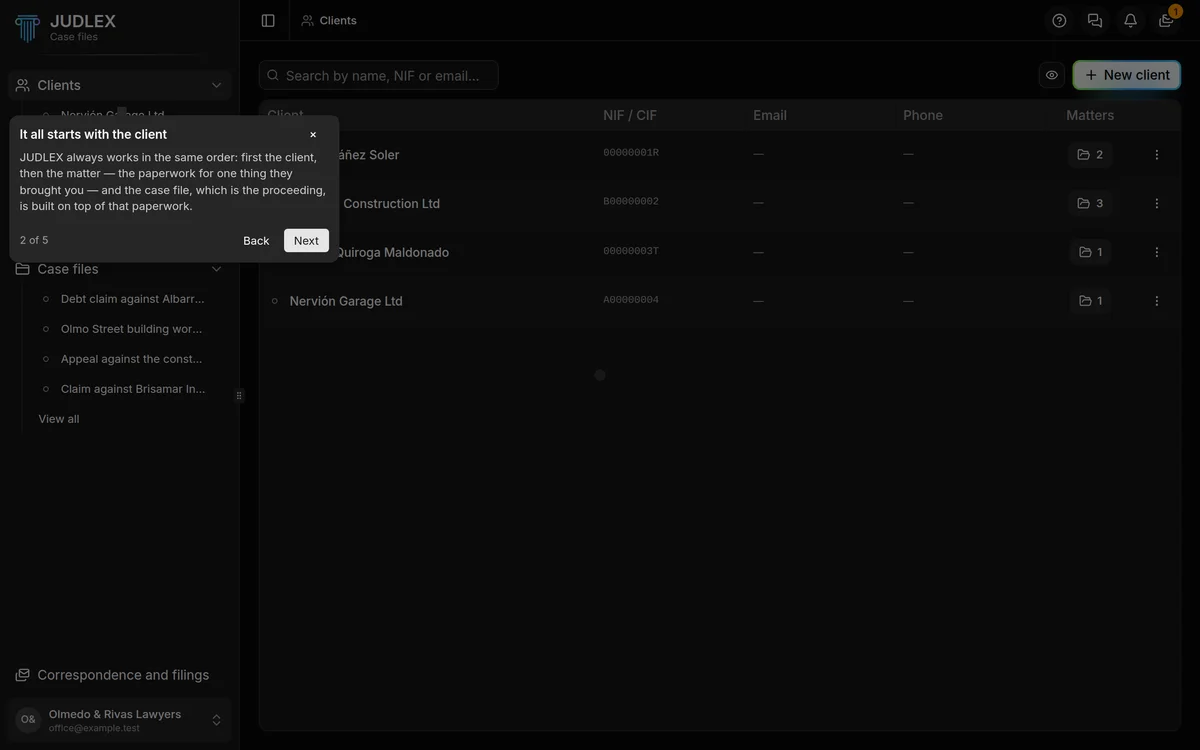
Step 3. The licence
Next the guide points to your account box, at the very bottom of the sidebar. If the licence is already active, the callout appears in green and tells you that you can check your seats there and how long it runs. If it is not, it tells you to go to Licence to buy one, or to paste the one you already have if it did not activate by itself.
Without a licence, JUDLEX does not lock you out: it goes read-only. What you already have can still be opened, consulted and exported, but nothing new can be created.
Step 4. The artificial intelligence key
The guide takes you to Settings → AI and connections and points to the list of providers. If one is already connected, the callout appears in green. If not, it explains that you open the account with the provider yourself, and that the provider bills you for the reading, at its own price.
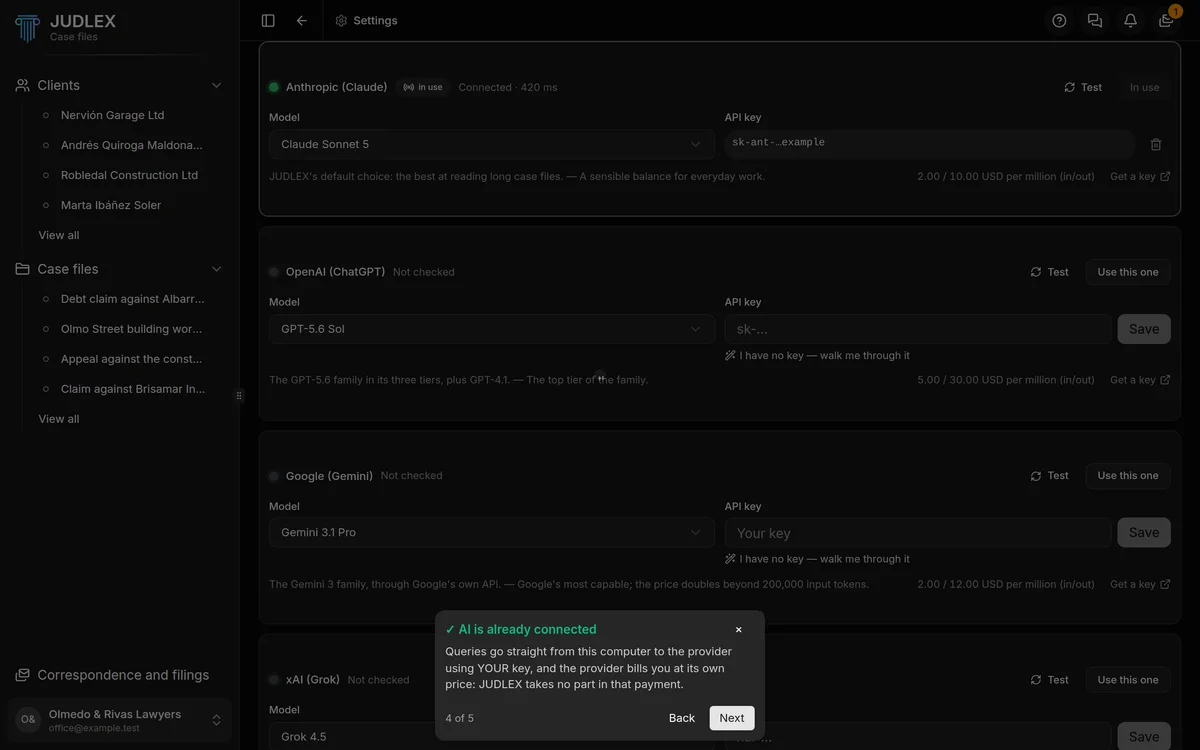
Without a key, JUDLEX still sorts and numbers, but it cannot read a single paper. How to get one, step by step: Add your artificial intelligence key.
Step 5. Every screen has its guide
The last step points to the Help button. As well as this guide, each main screen has its own: the clients screen, the client file, the case files screen, the case file record, correspondence and the chat panel. Each one appears by itself the first time you go into that screen.
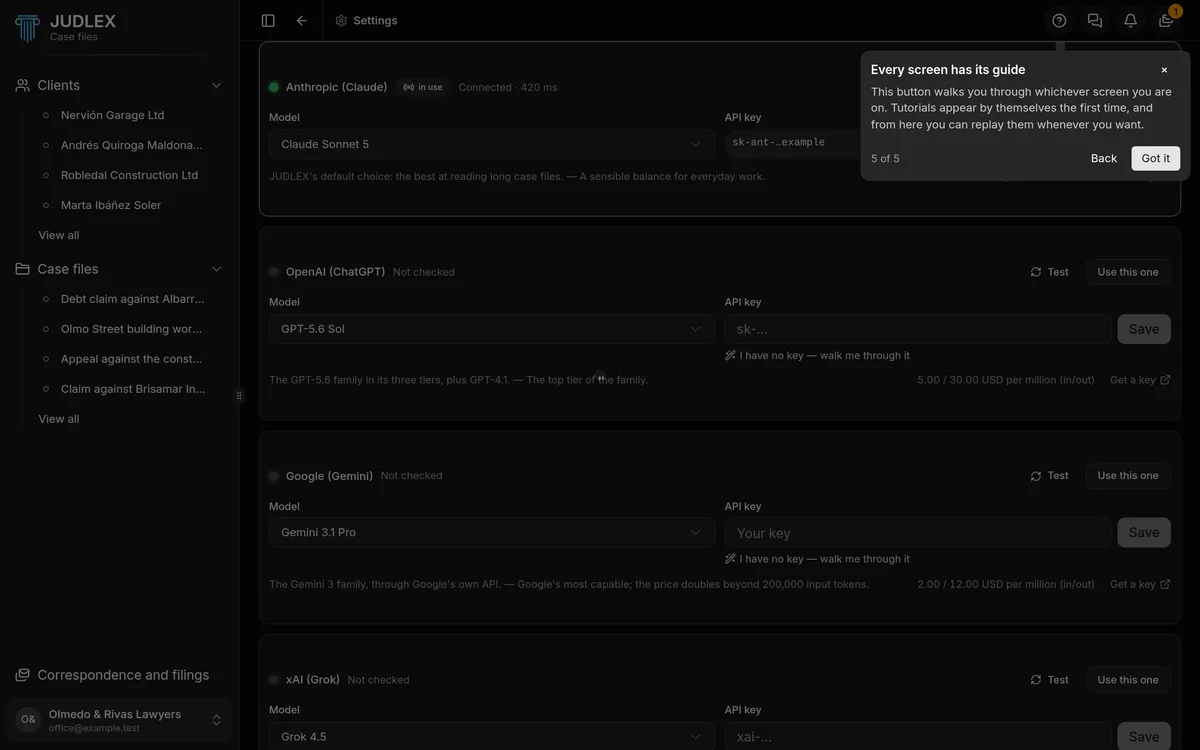
From that same button:
Guide to this screen replays the guide for the screen you are on. If the screen has no guide, the option is greyed out.
First steps replays this guide.
Show all guides again makes all the guides appear by themselves again, as on the first day.
Click Got it to finish.
And then
With your licence and key in place, the next thing is to add your first client.