The JUDLEX window always has the same layout: a menu on the left, a bar across the top and, in the middle, the screen you are working on.
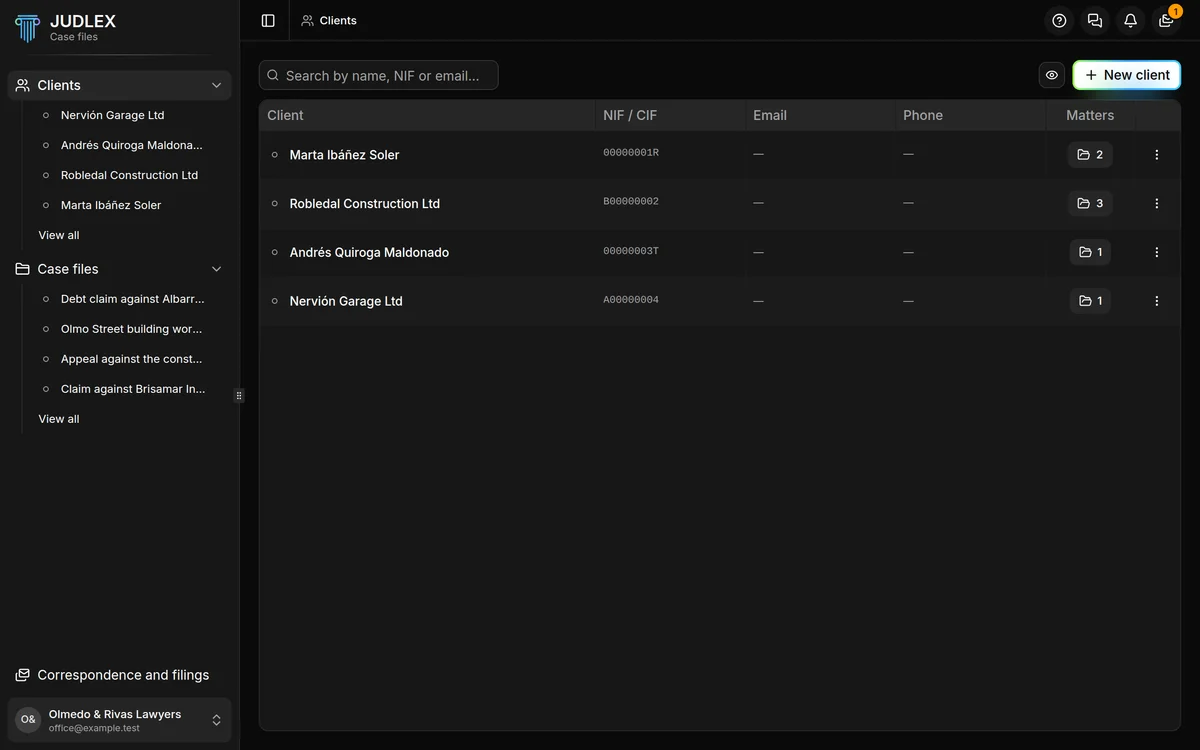
The sidebar
At the very top is the application's name; clicking it takes you back to the main screen. Below it:
Clients. The firm's client list. Your most recent clients appear underneath, so you can open one without going through the list, and View all shows them all.
Case files. The list of proceedings, with the most recent ones underneath, just like clients.
Correspondence and filings. The register of what comes into and goes out of the firm. It is an extension: it has its own section in this documentation.
When you hover over a client or a case file in the menu, a three-dot button appears: More options. From it you can Rename, Change icon, Change colour or Delete without leaving where you are; case files also have Archive.
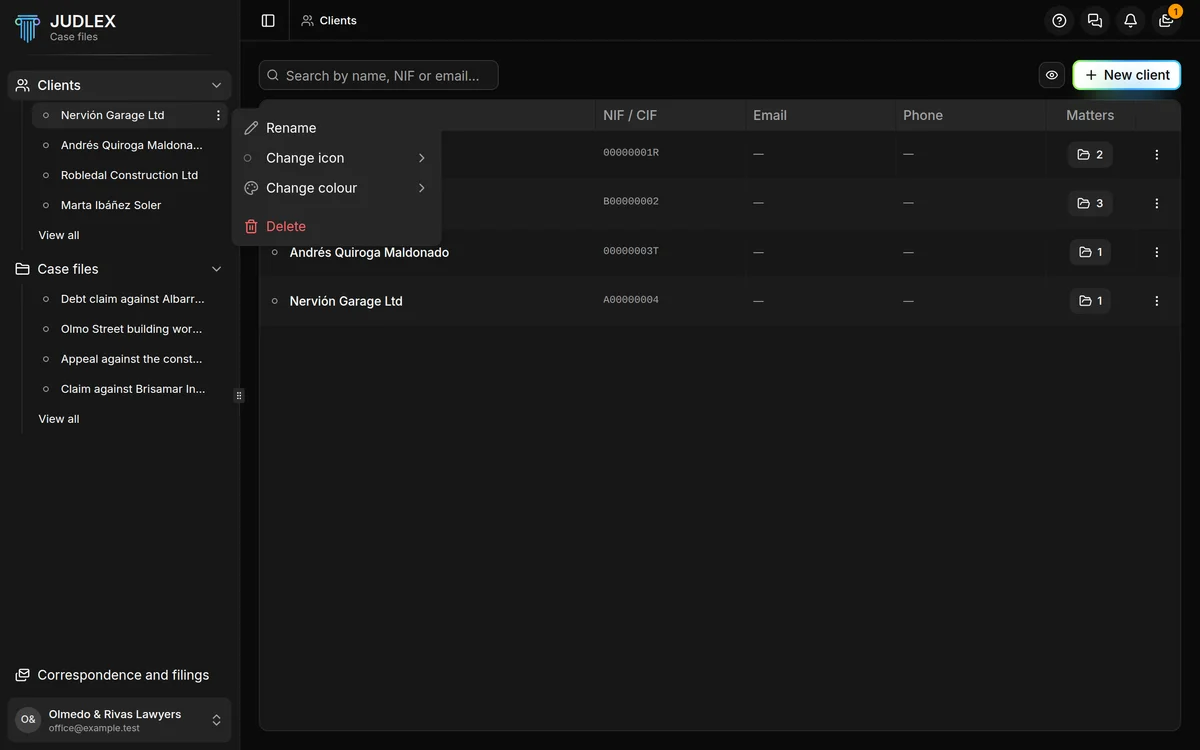
You can narrow or hide the menu with the button at the left of the top bar, and widen it by dragging its right edge.
Your account menu
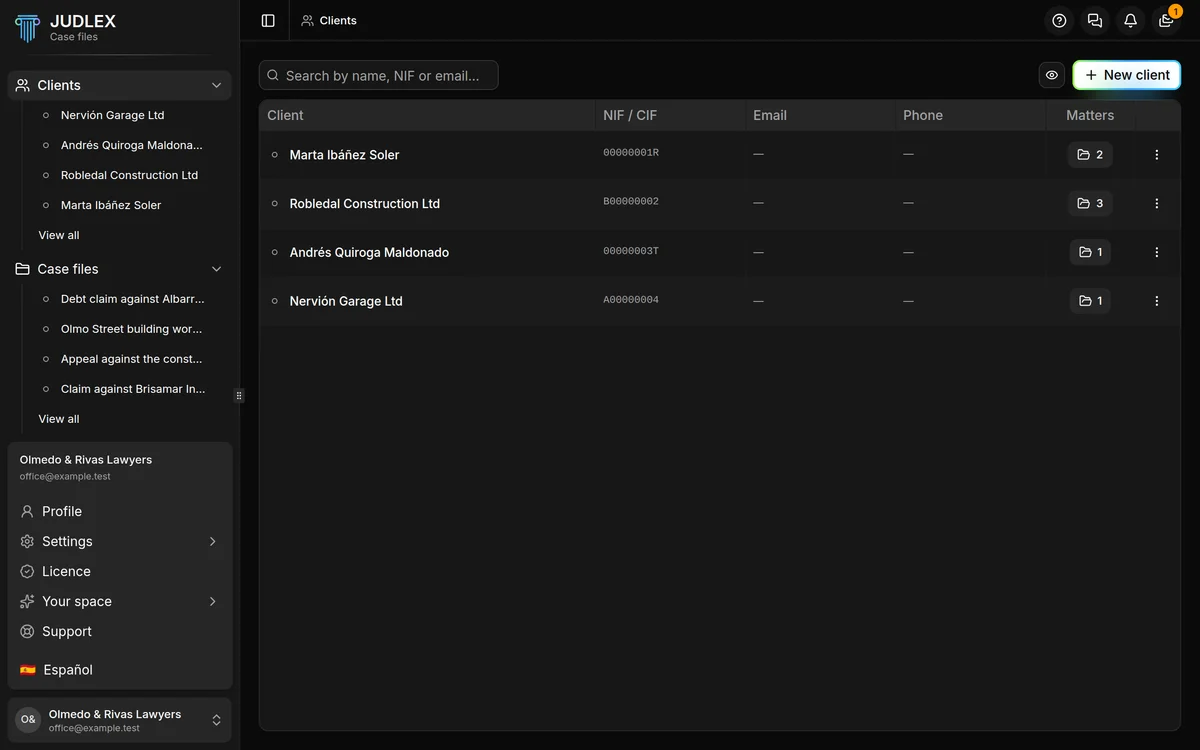
At the very bottom of the sidebar is the box with your name or your firm's name. Clicking it opens a menu with:
Profile: your details and your firm's.
Settings: Appearance, AI and connections, Deadlines and calendar and Data and folders, among others.
Licence: the status of your licence and the computers using it.
Your space: What's new, Subscription and Share.
Support: to write to us.
English or Español, to change the application's language.
The top bar
On the left it shows which screen you are on, with an arrow to go back to the previous one. On the right there are three buttons:
Help (the question mark): replays the guide for the screen you are on, or the first steps guide. We explain it in First steps.
Chat (the two speech bubbles): opens the panel for asking questions, about the case file you have open or in general.
Notifications (the bell): the application's alerts, including updates. From there you can check whether there is a new version and install it with Update now.
Closing the window does not shut JUDLEX down
When you click the close button, the window is hidden but JUDLEX stays open, with its icon in the system tray: on Windows, next to the clock; on macOS, in the bar at the top. That way you can get back to it instantly, and work in progress, such as reading a long case file, is not interrupted.
To see it again, click the icon and choose Open JUDLEX, or open the application again as usual: if it is already open, it shows you the same window instead of opening another one.
To quit completely, use Quit in that icon's menu.
JUDLEX remembers the size and position of the window, and whether you left it maximised, so that when you come back you find it as you left it.