JUDLEX comes prepared for Anthropic, OpenAI, Google, xAI, DeepSeek and MiniMax. If you want to use another artificial intelligence service (a cheaper one, such as NVIDIA or OpenRouter) or a server your firm has on its own network, you can add it yourself. You only need two things: its API address and, if it asks for one, its key.
In short
Get a key on the service's website.
In JUDLEX, open Settings → Connections → Add provider → Custom….
Paste the address and the key, tick I understand and accept and click Find its models.
Tick the models you want and click Add.
JUDLEX does the rest: the format, the name, and the test that the model can see images.
What to type in "Its API address"
It is the address JUDLEX sends its requests to. Every service gives it in its documentation, in the API section. Look for an example call (it usually comes with curl): the address is the one after POST or --url.
For example, NVIDIA's documentation shows it like this:
POST https://integrate.api.nvidia.com/v1/chat/completionsYou can paste it whole. JUDLEX removes what is not needed (the /chat/completions at the end) and, if the /v1 is missing, tries it as well. These are the addresses of some well-known services:
Service | Address |
|---|---|
NVIDIA |
|
OpenRouter |
|
Groq |
|
Mistral |
|
Ollama, on this computer |
|
LM Studio, on this computer |
|
Ollama on another office computer |
|
The address has to start with https://. Only a server on your own computer or on the office network may use http://, because over the internet your documents would travel unencrypted.
The key
You get the key on the service's website, usually in a section called API keys or Get API key. Copy it as soon as it appears: many show it only once.
If the server does not ask for a key, like an office Ollama, leave the field empty.
With the eye at the right of the field you can show it to check you pasted it correctly. The key is stored on this computer, with the other keys, and never travels to any server of ours.
Adding it, step by step
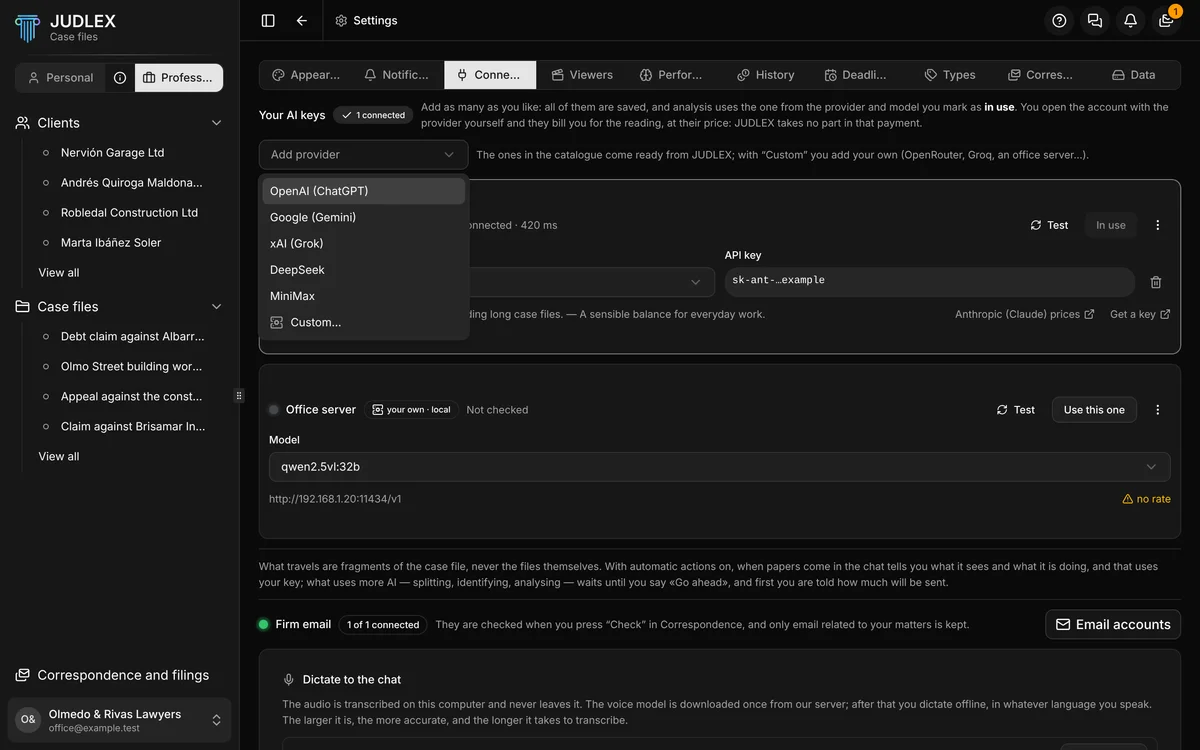
In Settings → Connections, open Add provider. At the top are the prepared providers you do not have on your list yet; at the very bottom, Custom….
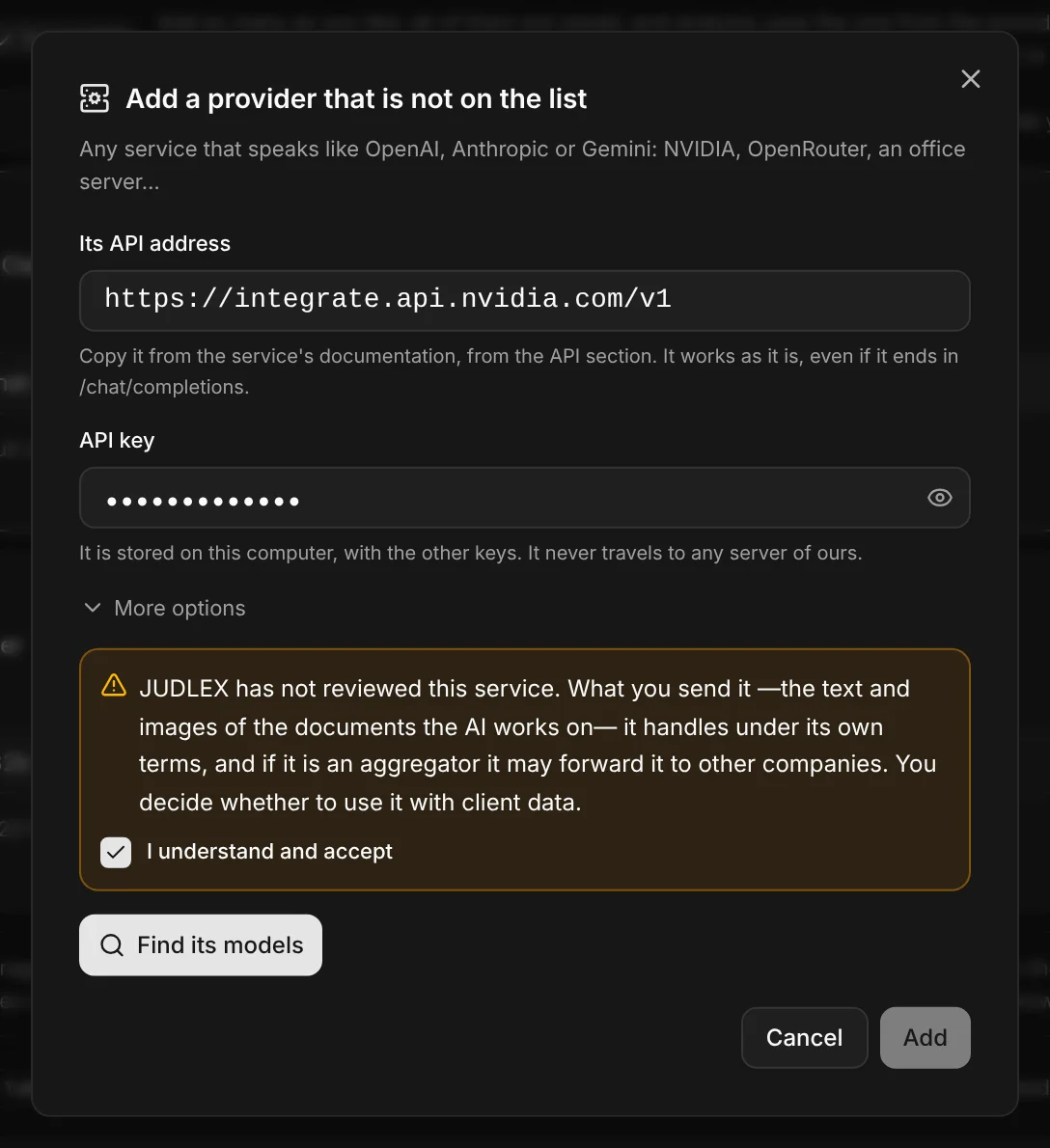
Paste the address and the key
Paste Its API address and the API key. Read the notice in the box and tick I understand and accept: until then JUDLEX does not contact the service, not even to ask for its model list. What the notice says is explained further down, in Why you have to accept a notice.
If the server is on your computer or your network, there is also a This server does not charge box. Tick it if nobody bills you for that server, and usage will be recorded at zero.
Find its models
Click Find its models. JUDLEX asks the service for its list. If it answers, you will see the address that worked (for example, Answers at https://integrate.api.nvidia.com/v1), a Name taken from the address, which you can change, and the list of models.
If the service has many, use the search box. The ones that say they can see images come first, with an eye next to them, and the ones that say they cannot are marked. Tick the ones you want to use. If the one you are looking for is not there, type its name in Not there? Type its name and click Add.
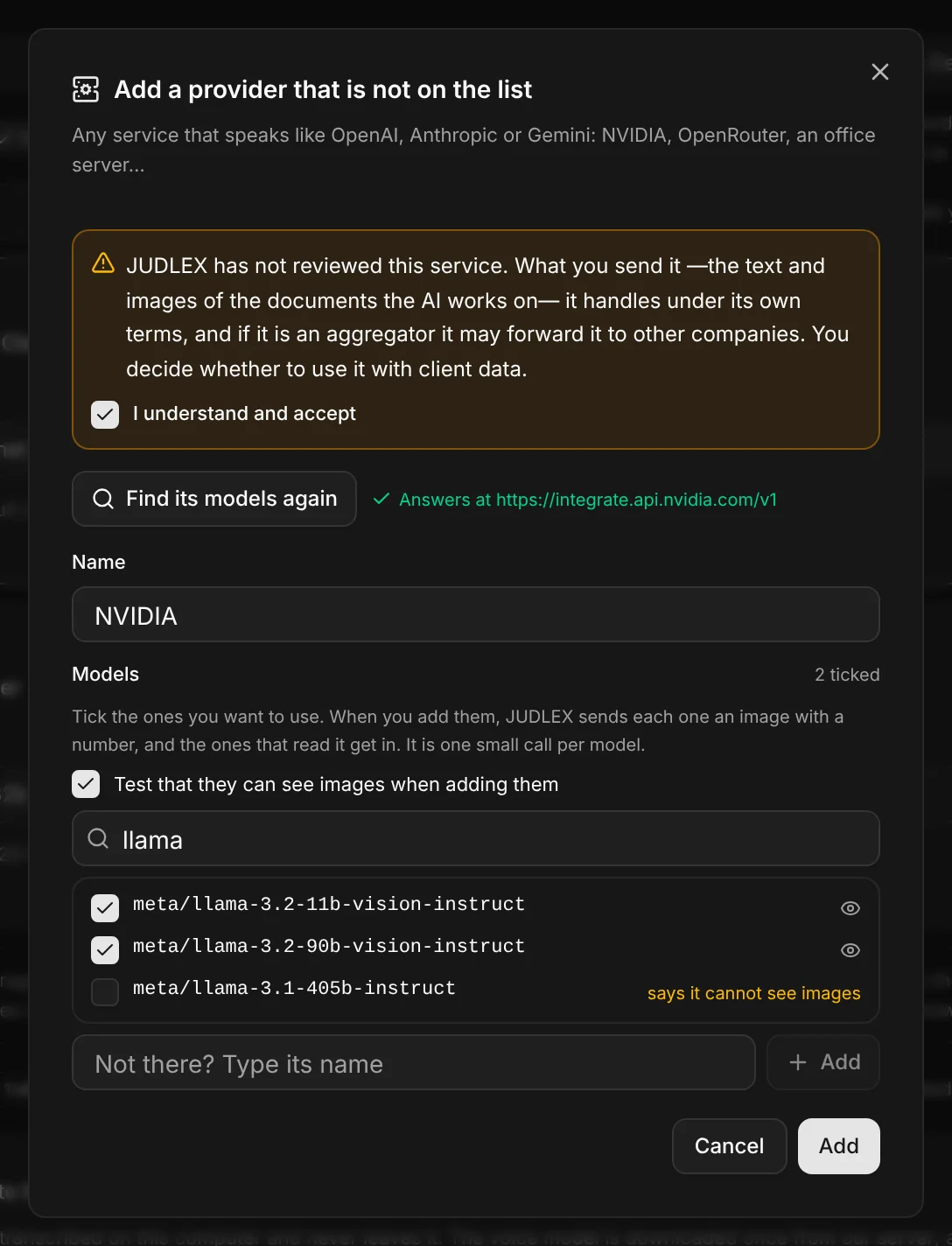
Test that they can see images when adding them comes ticked. If you untick it, the models get in without the test and their card says vision not tested. Careful: a model that does not see images well will misread scanned documents without warning. You can test it later with Test vision again.
Click Add
With the test ticked, JUDLEX sends each model a small image with a six-digit number, and only the ones that read it correctly get in. It is one small call per model, charged by the service if it charges, and it is recorded in the History.
The ones that pass the test are saved and the provider appears on your list. The ones that do not are left out, and the window tells you why: the number that was there and the one it read.
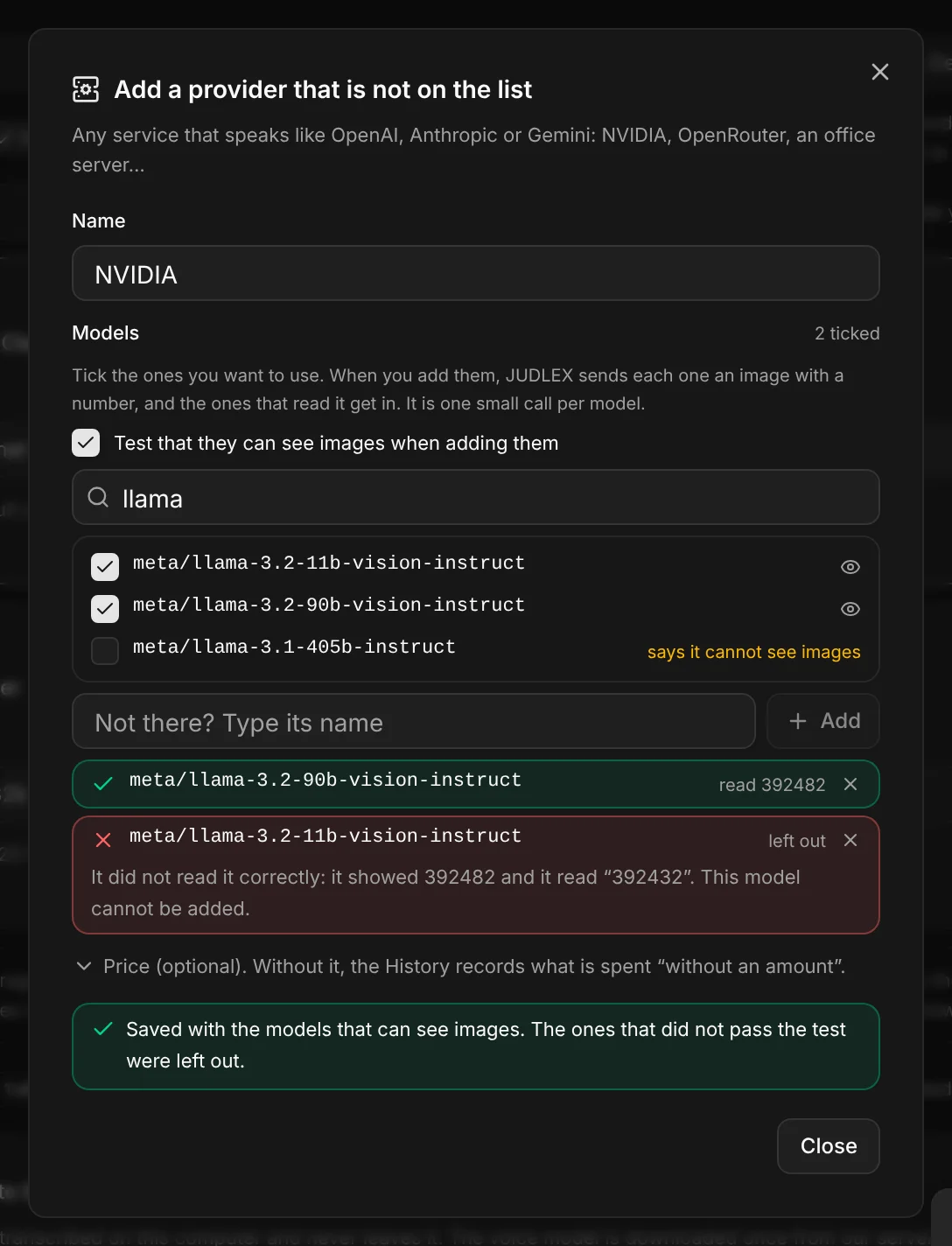
From then on it is used like any other: you choose the model, mark it with Use this one, and it works for everything, from reading and analysing to the query panel.
More options
You will hardly ever need them. They are folded away below the key:
Format. JUDLEX works it out from the address: Anthropic's and Google's have their own, and everything else is treated as OpenAI-compatible. If a service works like Anthropic (its documentation will say so), choose it here.
Key header. Only if the service asks for the key in a header other than the usual one, such as
x-api-key. Otherwise, leave it empty.
The price
Almost no service publishes its prices in its API. If yours does not, Price (optional) appears below the ticked models. Click it and a row opens for each model: type each model's input and output price, in dollars per million tokens, as shown on the service's website. The first box is the input and the second, the output. Below, you can note the address of its pricing page, to keep it at hand.
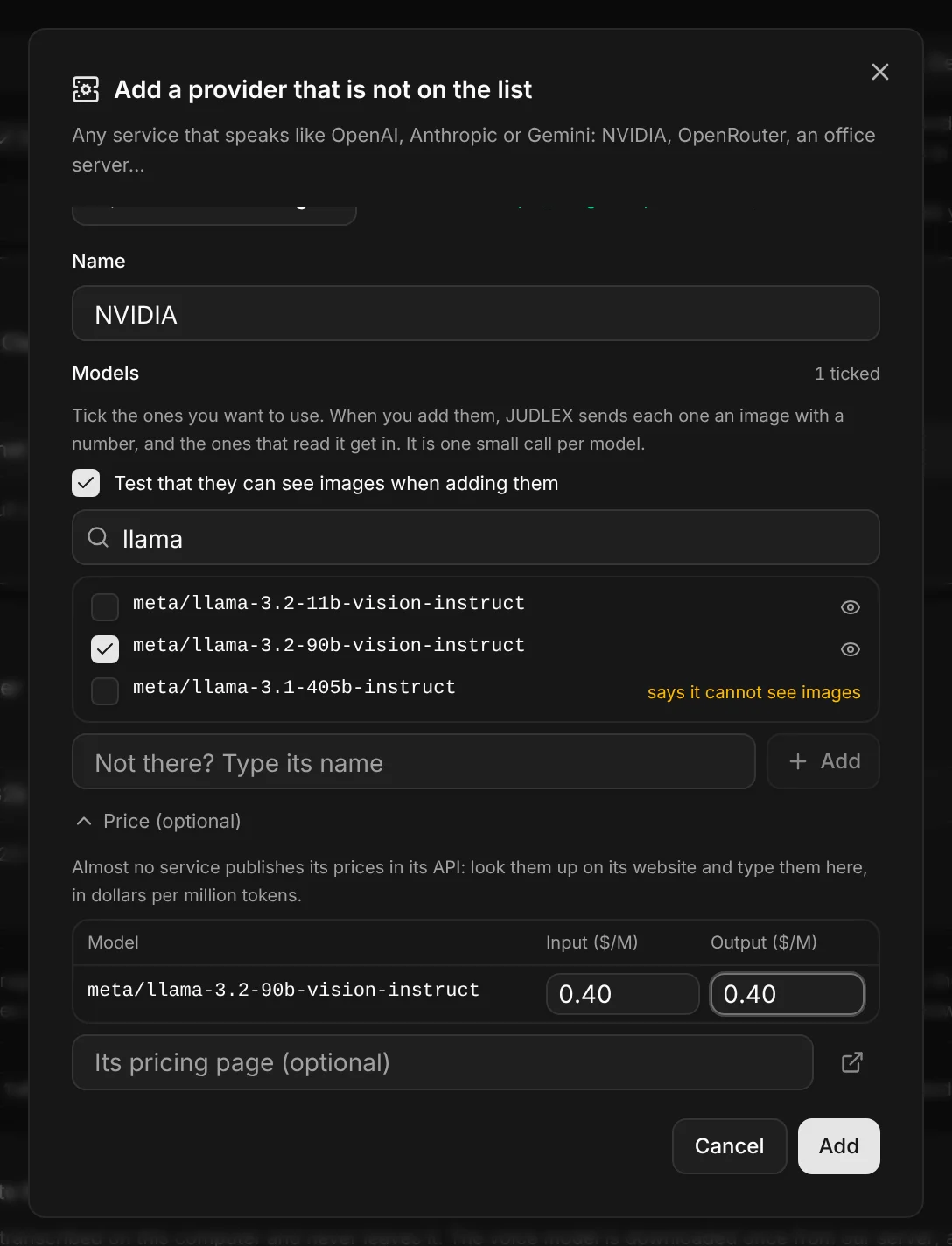
You can leave it blank. Then the History records those calls without an amount: they are not added to any total, and a note says how many there are. They are not counted as free, because they are not: the bill will come from the service. You can add the price later with Edit.
A server marked This server does not charge records its calls at zero.
Why you have to accept a notice
With the prepared providers, JUDLEX knows who your documents are sent to. With one you add yourself, it does not. The notice says three things:
JUDLEX has not reviewed that service. What it receives (the text and images of the documents the artificial intelligence works on) is handled by it, under its own terms. Some services are intermediaries that forward each query to other companies. You decide whether to use it with client data, and it is worth reading its terms first.
A server on your computer or your network stays at home. What it receives does not go out to the internet, unless that server forwards it somewhere else.
It still does not go through us. The query goes straight from your computer to the address you entered.
If the notice text changes in a future version, JUDLEX will ask you again before going on using that provider.
Why the vision test is worth it
Many documents arrive scanned, and a scanned document can only be read by looking at it. A model that cannot see images, or sees them badly, would skip whole pages without warning. That is why the test comes ticked: it is the same requirement the prepared models meet. If you remove it, the decision is yours and it stays visible on the card. The ones that see images usually have vision, VL or omni in their name.
Edit, test again or remove
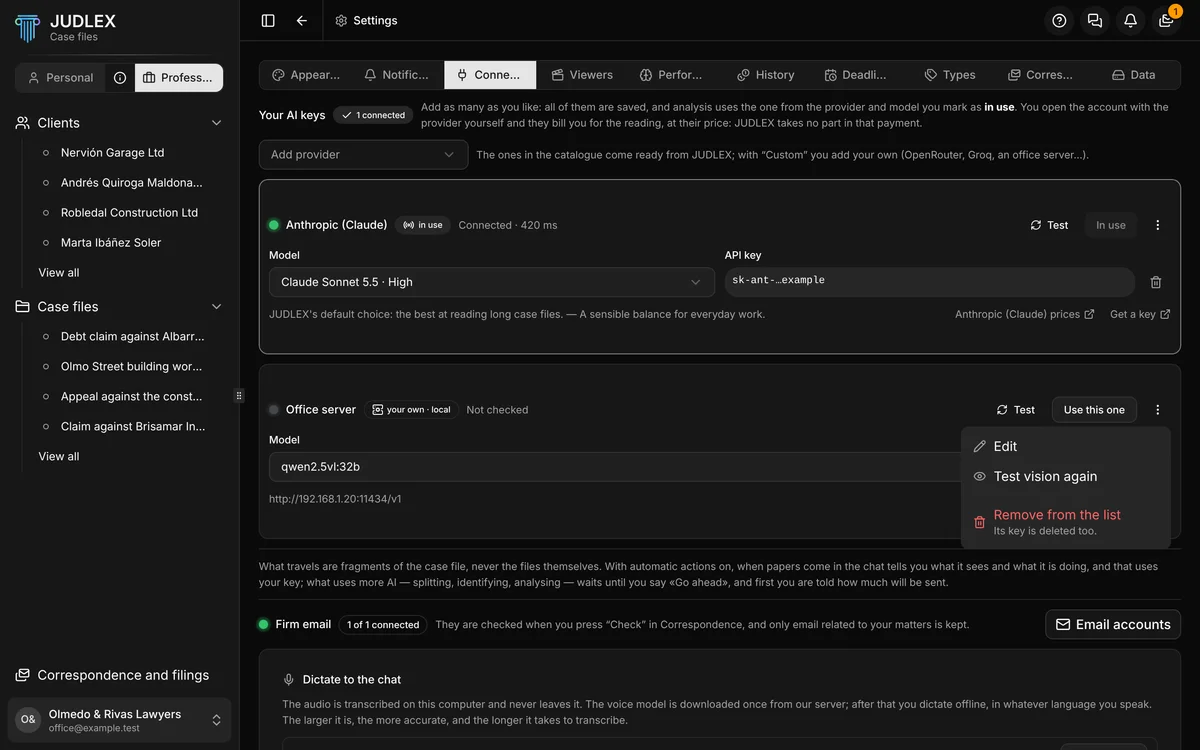
The three-dot menu on the provider's card has:
Edit: change the name, the key, the models or the prices. The address cannot be changed: for another server, remove it and add it again, because the key, the notice and the test were for the other one.
Test vision again: when you save, the test is repeated with all its models, for example if the service has changed one or you added them without testing.
Remove from the list: removes it and also deletes its key. If it is the one in use, first choose another with Use this one.
If something does not work, see My own provider does not work.