Adding the client is the first thing you do with a new instruction. Only the name is required; you can fill in the rest later.
Open the form
In Clients, click New client, at the top right.
Fill in the details
Type the Name or registered company name and choose the Type: Individual or Company. If you have the NIF / CIF, type it in: when you move to the next field, JUDLEX checks whether that person or company already appears in another of the firm's case files.
Save
Click Create client. The client appears in the list and in the sidebar, under Clients.
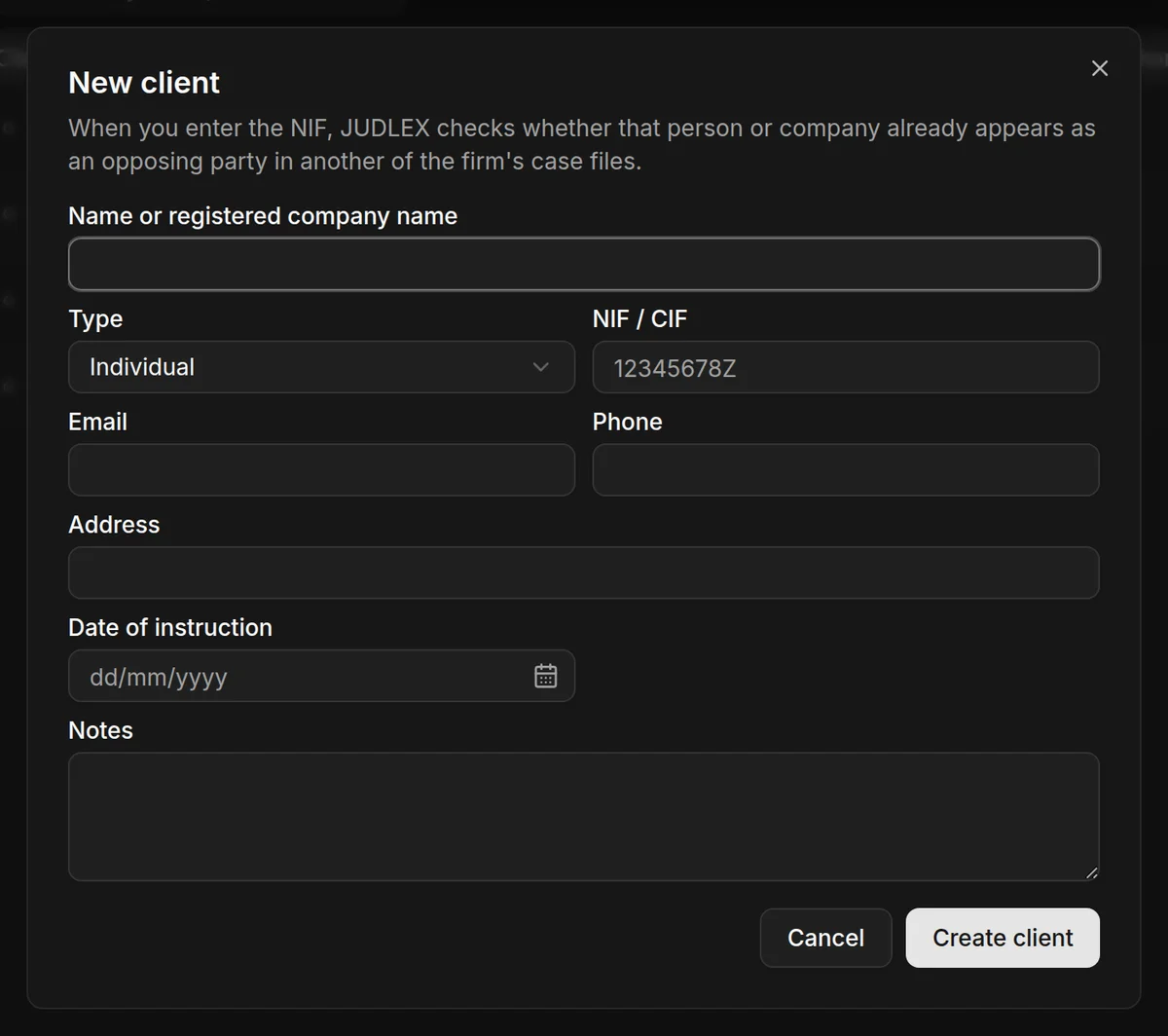
The form fields
Name or registered company namerequiredThe full name of the person or the registered name of the company. It is the only required field.
TypeIndividual or Company.
NIF / CIFUsed to identify the client and for the conflict of interest warning. It makes no difference whether you type it with dots, hyphens or spaces.
EmailCan be copied with one click from the client list.
PhoneSame as the email.
AddressThe client's postal address.
Date of instructionThe day the client instructed you.
NotesAnything you want to note down about the client, for yourself.
If a warning appears after you type the NIF
If the NIF already appears as an opposing party in another of the firm's case files, or another client already exists with that NIF, a Possible conflict of interest box appears telling you where. It is a warning, not a block: you can save anyway. We explain it in Conflict of interest warning.
Editing or deleting a client
In the client list, open the three-dot menu at the end of the client's row, or right-click the row:
Edit client opens the same form with the client's details. When you have finished, click Save.
Delete client deletes the client. You can only do this if the client has no case files: if they do, JUDLEX will not let you, so that the work that hangs from them is not lost.
You can also change a client's name, icon or colour from the sidebar, with the More options button that appears when you hover over the name.