When a paper says “within ten days”, JUDLEX records the deadline, but it does not give it a date on its own: it does not know when service took place or whether there was a suspension. You set the date with the deadline worksheet. You enter the details, JUDLEX does the count in front of you with every day that did not count, and the date only goes in when you sign it.
Opening the worksheet
In the case file's Status section, find the deadline under No date yet and click Set a date: Case file status.
If the deadline is still under To decide, confirm it first.
Filling in the count
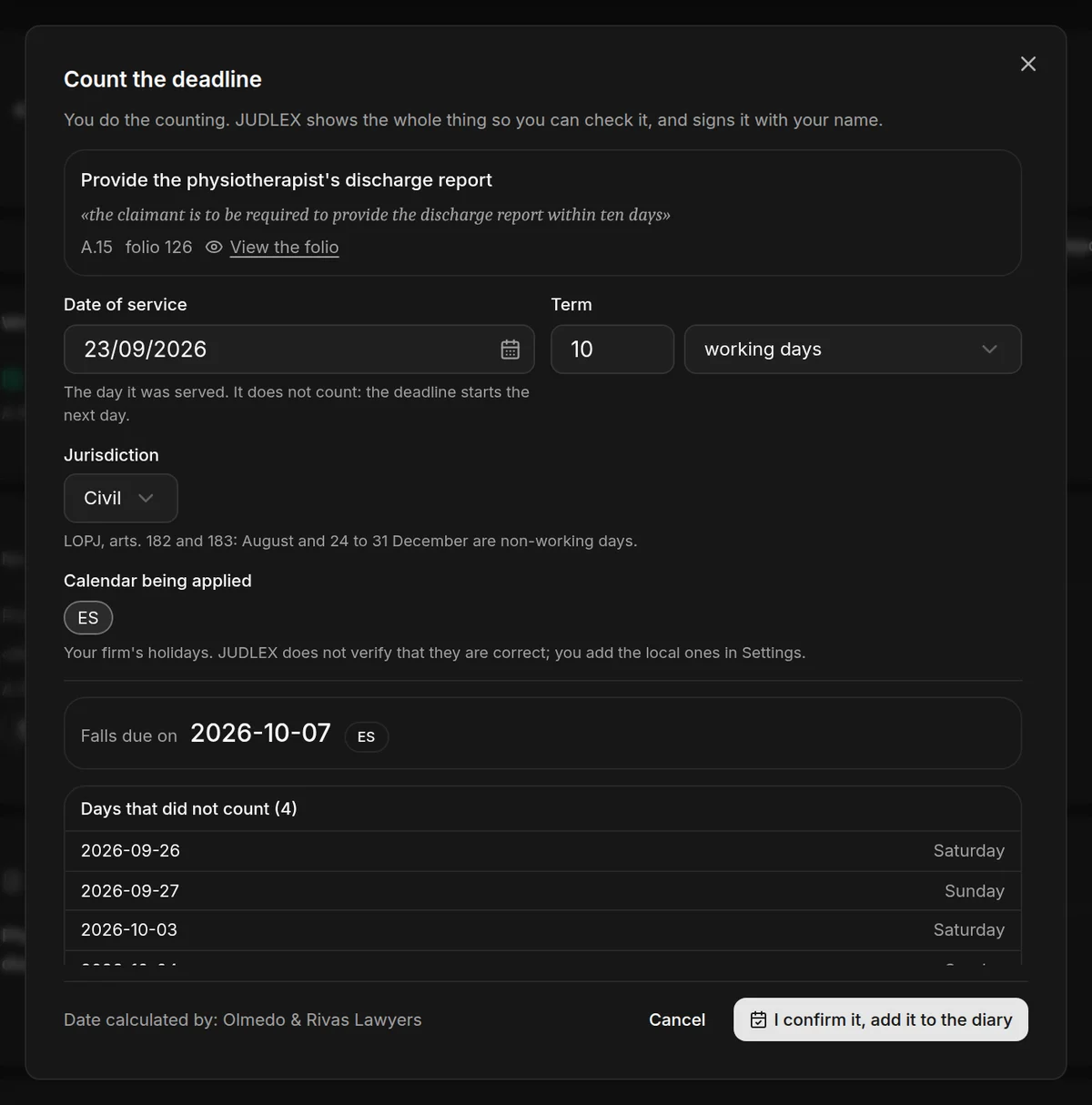
At the top is the deadline, with the sentence from the document it comes from, the exhibit and the folio. View the folio opens the exhibit at that page.
Date of service
The day it was served. That day does not count: the deadline starts on the next one.
Term
The number and the unit: working days, calendar days or months. If the paper already gave the number, JUDLEX fills it in; check it. The unit always starts as working days: change it if the deadline is in calendar days or months.
Jurisdiction
Always choose it, because it changes the count: in civil matters August is non-working, and in criminal matters it is not. Below it you can see which days are non-working in that jurisdiction.
Calendar being applied
Your firm's public holiday calendars. Tick the ones that apply. JUDLEX does not check that the holidays are correct; you add local ones in Settings → Deadlines and calendar.
Reading the result
As soon as the first three details are in, Falls due on appears with the date and the calendar used. Change any detail and the count is redone instantly. Nothing is saved yet.
Below it, Days that did not count lists every skipped day with its reason: Saturday, Sunday, public holiday, August, or 24 to 31 December. Go through them: this is how you check the count.
Amber warnings may appear, for example:
There are no holidays loaded for that calendar, so only weekends have been discounted.
The calendar has no holidays for a year the count runs into.
The day does not exist in the target month (a 31st in a 30-day month), and the deadline falls due on the last day of the month.
Signing the count
At the bottom it says Date calculated by and your name. Click I confirm it, add it to the diary. The deadline moves to What's coming with its date and your name.
The signature uses the name in your profile. If you have not entered it, the button cannot be clicked and the worksheet tells you so: add it from your account menu, at the bottom of the sidebar, under Profile.
Seeing the count again
Under What's coming, dates that came from a worksheet have View the count. It opens the worksheet with the details, the skipped days and the signature, ready to print and keep in the case file.
If there is no need to count
To enter a date you already know without doing the count, use Write it by hand instead of Set a date. That date has no worksheet.