Profile, in your account menu, opens the My details tab. What you enter here heads the documents JUDLEX produces — the exhibit index, the chronology, the deadline worksheet — and serves as your signature whenever JUDLEX asks for your name.
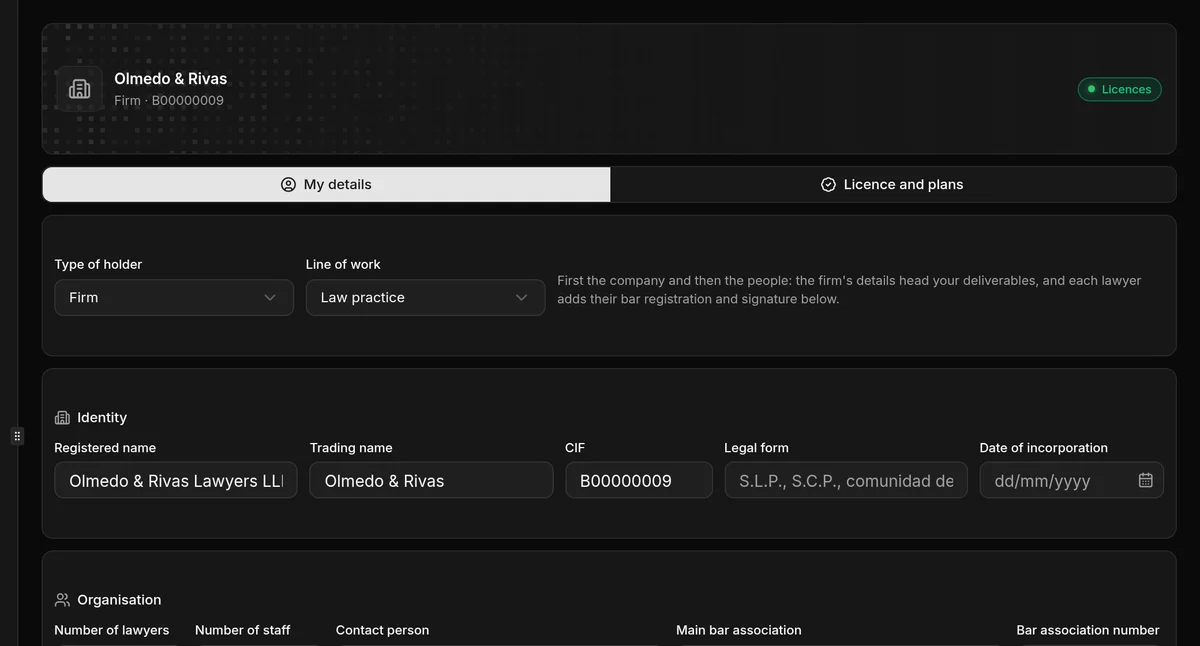
Firm or lawyer
At the top, Type of holder:
Firm: asks for the company’s Identity — registered name, trading name, CIF, legal form, date of incorporation — and its Organisation: number of lawyers and staff, contact person and main bar association. Below, you add one record per lawyer.
Lawyer: asks for your personal details — first name, surname, NIF or NIE — and your Bar registration: bar association, bar number, date of admission and areas of practice.
Line of work is optional.
In both cases, the Registered office, with the address and contact details, and Billing: tick Same as above if the invoice address is the same as the office address, or enter a different one.
The name you sign with
Several things in JUDLEX are signed with the name you enter here: the worksheet for a deadline count, the confirmation of a date or of a classification in Correspondence, the certificate of no reply. If it is missing, JUDLEX asks you for it before letting you sign.
The firm’s lawyers
With Firm, each lawyer has their own record: first name, surname, Role at the firm — managing partner, partner, lawyer, associate, of counsel, trainee or other — NIF, bar association and bar number, contact details and areas of practice.
Add a lawyer opens a new record.
A lawyer’s signature is uploaded after their record has been saved.
The bin removes the lawyer, with their details and signature. It asks for confirmation. It does not touch any case file.
Signature and logo
You can upload the firm’s logo and the signature of the account holder or of each lawyer, as a PNG or JPG. For the signature, an image with a transparent background works best.
Payment method
The card the licence is charged to. It shows the saved card — the brand and the last four digits — and warns you if it has expired or is about to expire. Change adds a different one; Remove takes it off, as soon as you click and without asking.
The card is stored by the payment processor: it does not pass through JUDLEX and is not kept on your computer. To see or change the card, you need to be signed in to your account and have a connection.
Saving
Save, at the bottom, saves your changes. It is greyed out while there are no changes or while the name of the firm or of the account holder is missing.