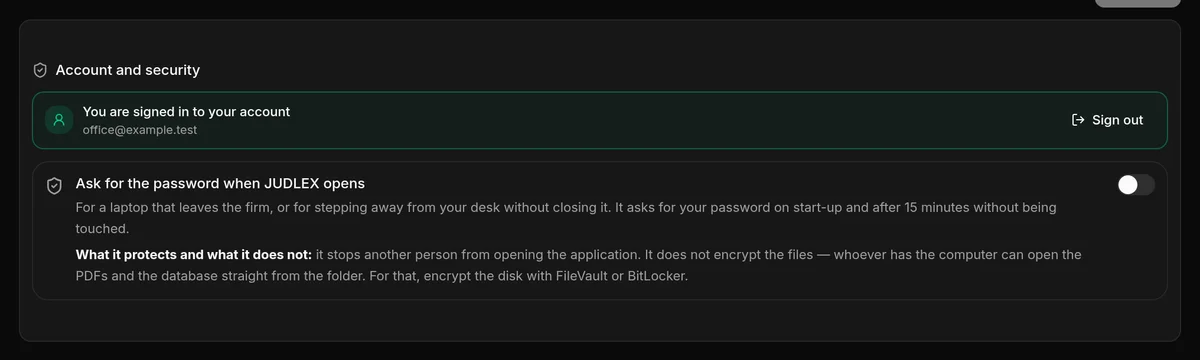
At the end of Profile, the Account and security card brings together your JUDLEX account session and the app’s device lock.
The session
You only need a JUDLEX account to buy and renew the licence and for extensions. You do not need to be signed in to work with your clients and case files.
Sign in: with your email and password, or with Google or LinkedIn, which open in your browser. Forgotten your password? sends you an email to change it.
Create account: email, password — at least eight characters, with one capital letter, one lower-case letter and one number — and, if you like, the name of the firm, which is the one that appears on the invoice. Afterwards you need to confirm your email address from the link you receive.
Sign out: asks for confirmation. Your clients and case files stay on the computer and this computer’s licence seat is not freed up.
The device lock
Ask for the password when JUDLEX opens makes the app ask for a password when it starts and after fifteen minutes without being touched. It is useful for a laptop that leaves the office or for stepping away from your desk without closing it.
Turn on the switch
The box for entering the password opens.
Type the password and repeat it
This is the password JUDLEX will ask for to unlock. It must be at least four characters long.
Click Activate
From then on, JUDLEX will ask for it when it opens.
When JUDLEX is locked, it says JUDLEX is locked and asks for the password to Unlock. If you cannot remember it, Sign in with your account removes the lock by signing in with your JUDLEX account; you need a connection.
To remove the lock, turn off the switch and type the password.