Some dates do not come from any case file: a client's quarterly tax return, the renewal of an insurance policy, a company's annual general meeting. Recurring obligations lets you note them down once and put them in the diary when you need to.
Because they do not come from any paper, you write them yourself, and they are born confirmed. The date is exactly the one you give: JUDLEX does not move it if it falls on a weekend or public holiday. If you want the previous working day, enter it that way.
Creating an obligation
Open the client s obligations
In Clients, open the three-dot menu on the client's row and click Recurring obligations.
Say what it is
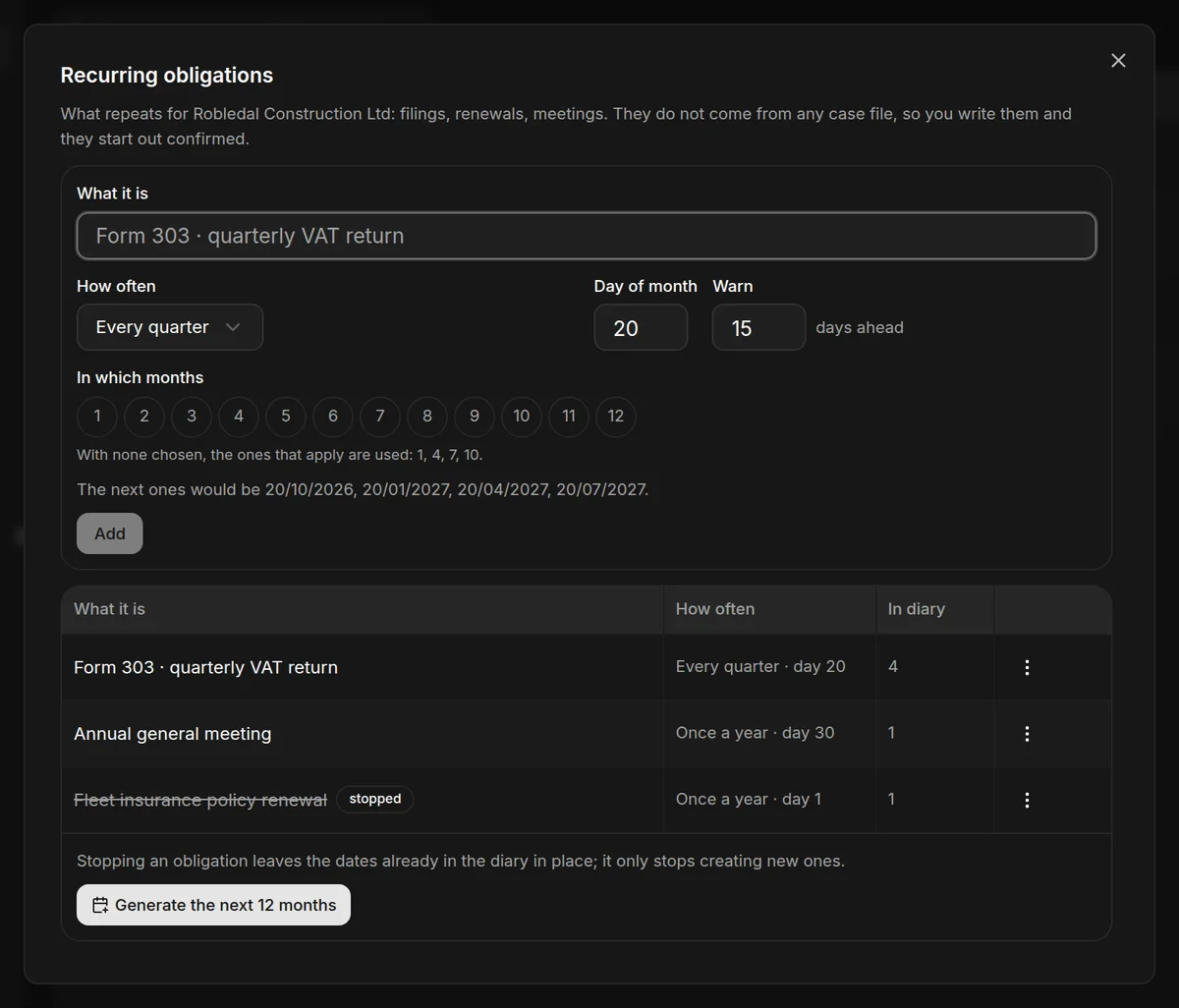
In What it is, type the name you will recognise it by, for example "Form 303 · quarterly VAT return".
Say how often
In How often, choose Every month, Every quarter, Every six months or Once a year, and the Day of month it falls due.
Say how much notice you want
In Warn, enter how many days ahead you want to see it.
Choose the months, if needed
In In which months you can tick specific months. If you tick none, JUDLEX uses the ones that apply for the frequency. Below you will see what the next dates would be, so you can check them before saving.
Click Add
The obligation appears in the list. It has not put any date in the diary yet: the next step does that.
Click Generate the next 12 months
JUDLEX puts the dates of all the client's active obligations in the diary for the coming year. If any were already there, it does not duplicate them. Click it again whenever you want to extend the diary: JUDLEX does not write dates on its own until you ask it to.
Where you see the dates
The obligations' dates appear in The month, inside Your space, together with the case files' due dates, each type in its own colour.
The list of obligations
For each obligation the list shows What it is, How often and which day it falls due, and under In diary how many of its dates are already in place. A stopped obligation appears crossed out, with the stopped label. In its three-dot menu:
Stop: stops creating new dates. The ones already in the diary stay there.
Resume: starts creating dates again.
Delete: deletes the obligation and all its dates from the diary. If you only want to stop new dates being generated, stop it instead of deleting it.