Clients is the first screen in JUDLEX and the one that opens when you start it. It is the list of all the people and companies your firm works for.
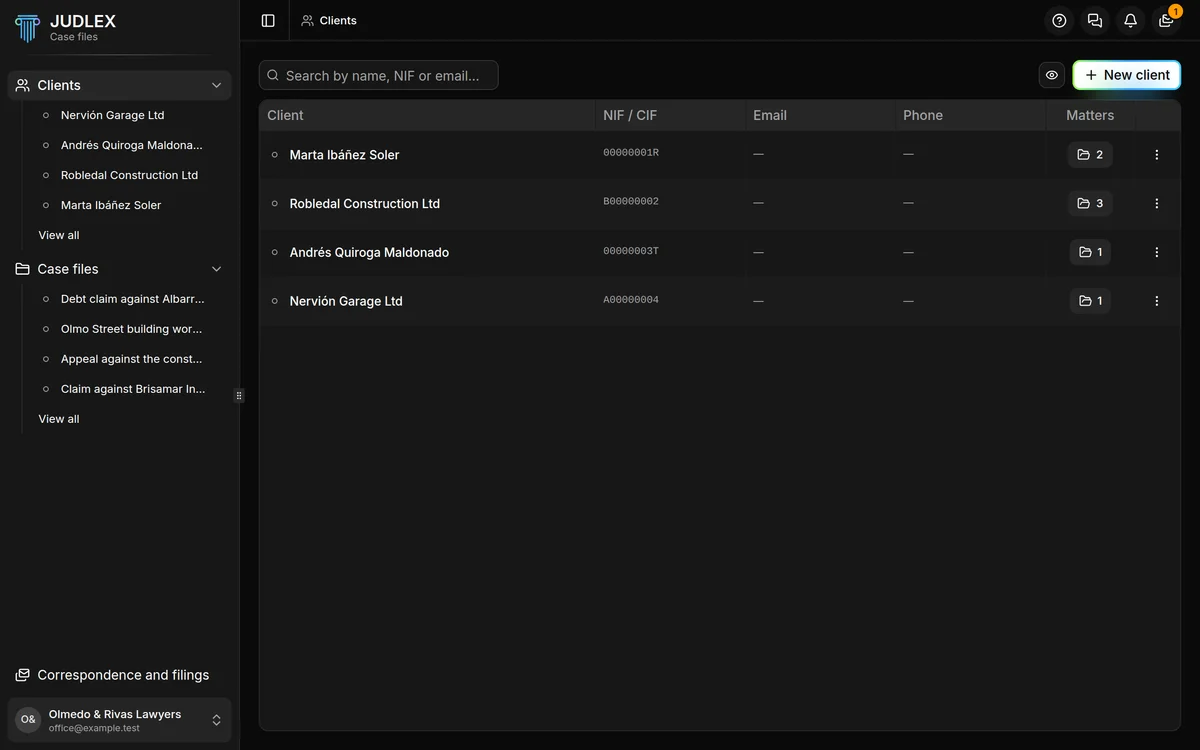
The first time you go into it, JUDLEX shows you a five-step guide. Here it is, in a little more detail. To replay it, click Help (the question mark at the top right) and choose Guide to this screen.
Step 1. Add the client
The New client button, at the top right, opens the form for adding a client. It is the first step of everything: no client, no matter; no matter, no case file.
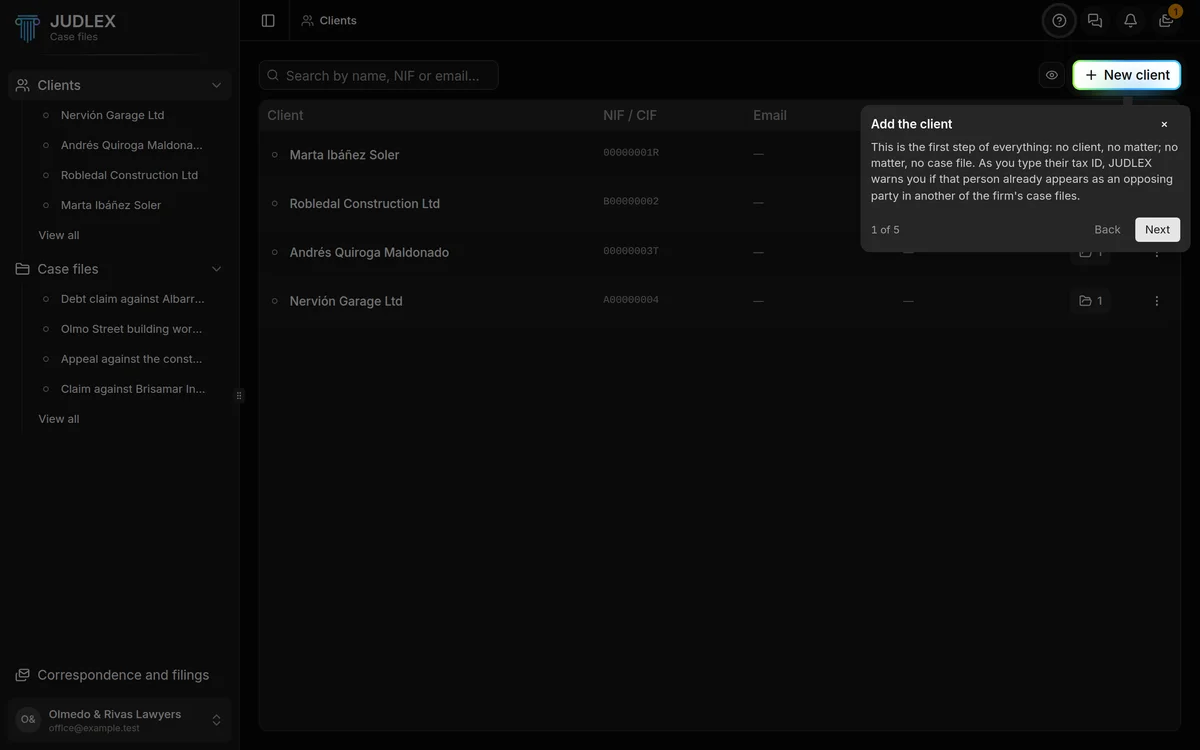
With the client's NIF, JUDLEX checks whether that person or company already appears as an opposing party in another of the firm's case files. The whole form is explained in Add a client, and the warning in Conflict of interest warning.
Step 2. Search
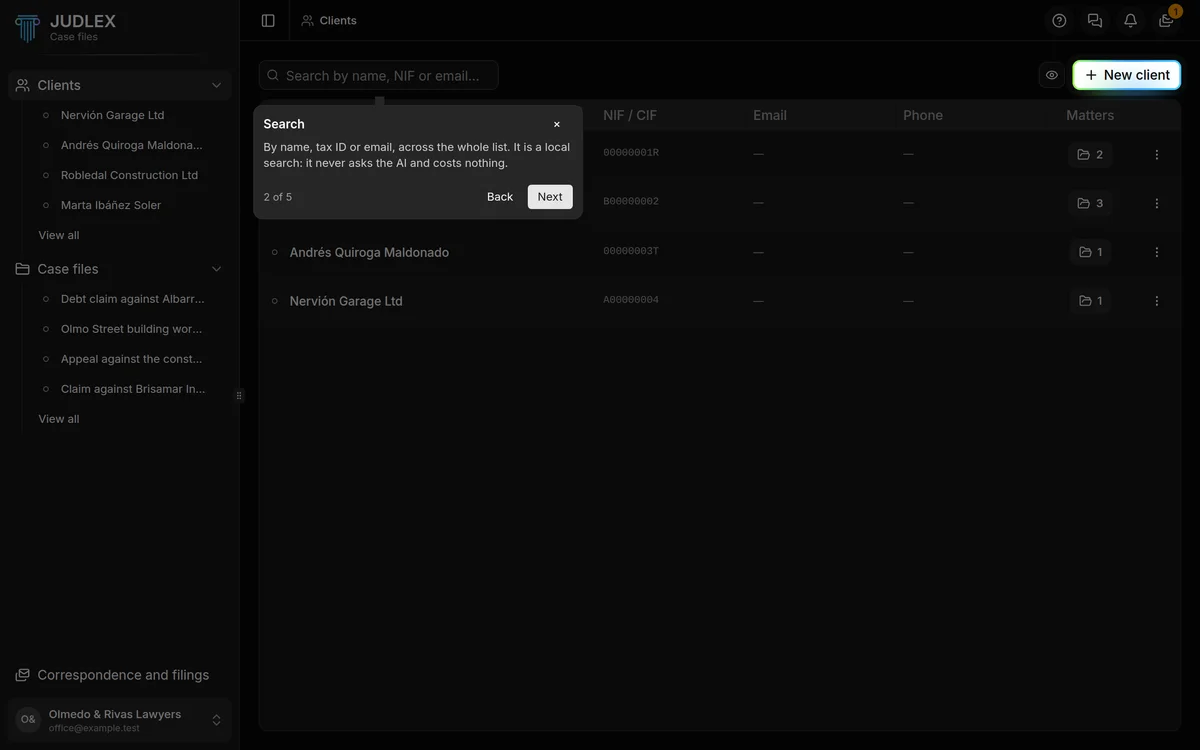
The search box at the top left finds clients by name, NIF or email across the whole list. The search runs on your computer: it does not ask the artificial intelligence and costs nothing.
Step 3. For showing your screen
The eye button, next to New client, blurs identifying details throughout the application. Use it to show your screen in a meeting or share it on a video call without your clients' details being readable.
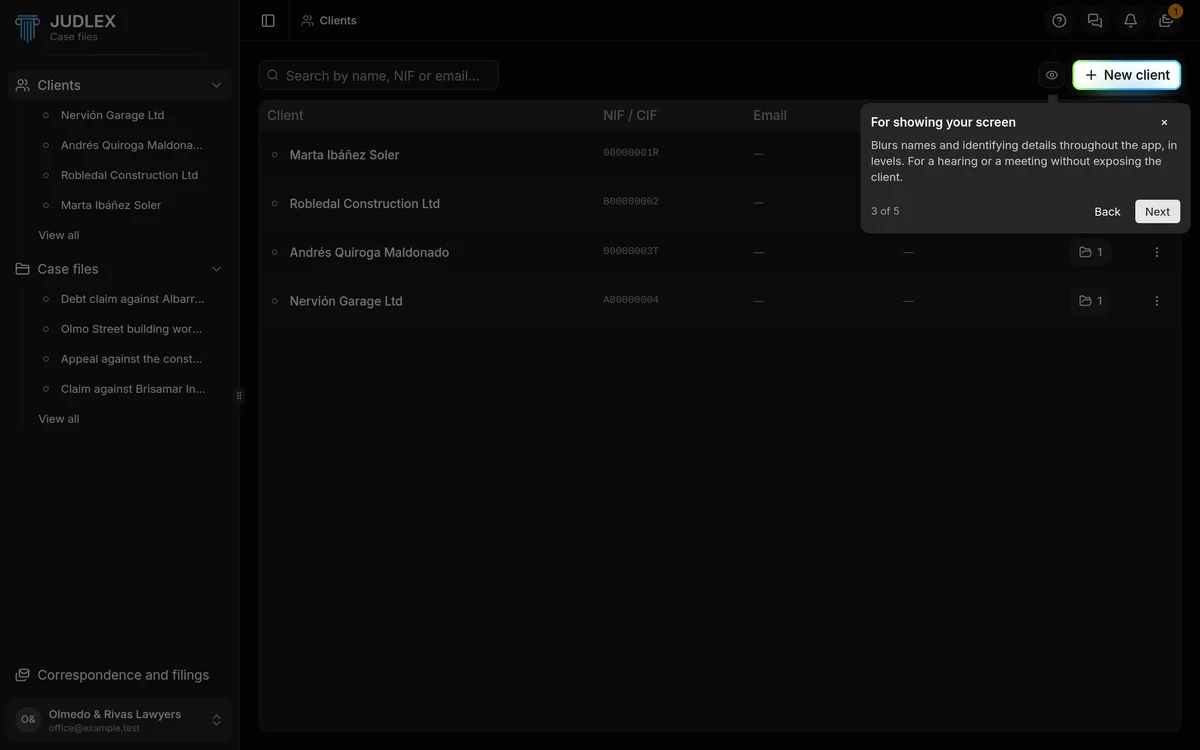
It has three levels, which you turn on separately:
Hide names: the first names and surnames of people.
Hide organisations: companies and institutions.
Hide the whole row: everything in each row, including dates, NIFs, phone numbers and exhibit codes.
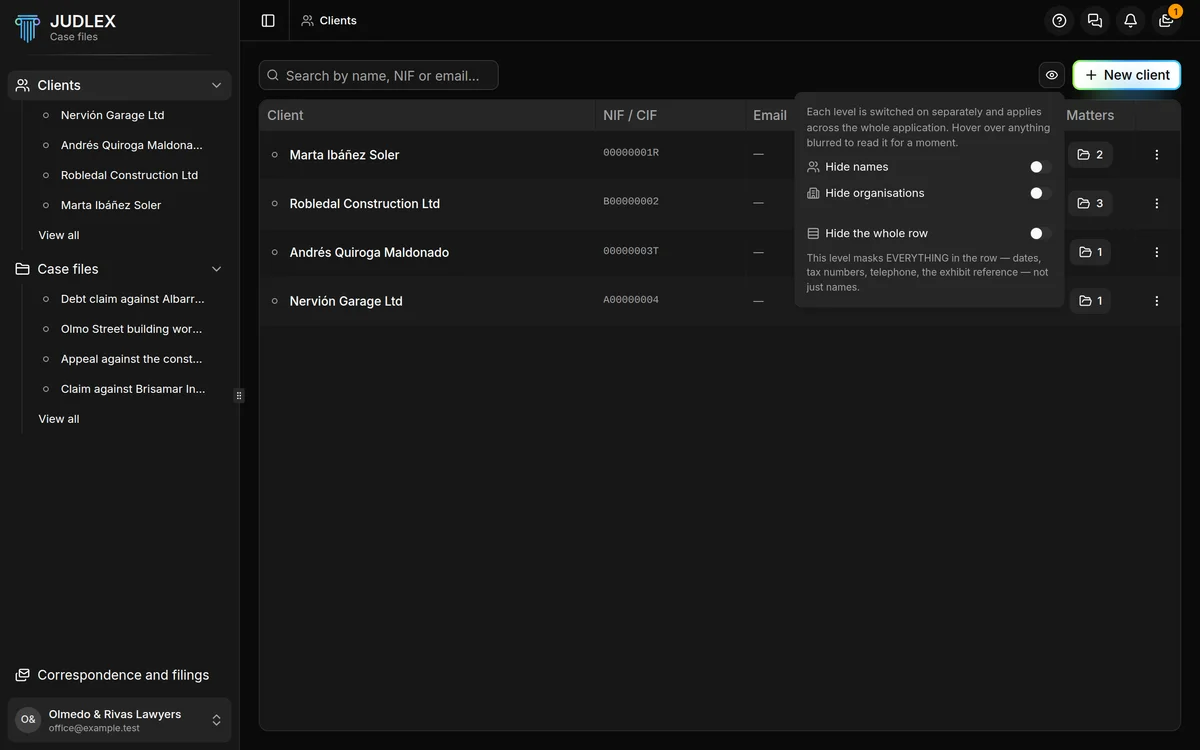
It only covers the screen: the data itself stays intact. If you hover over something blurred, you can read it for a moment. While anything is hidden, the button shows it.
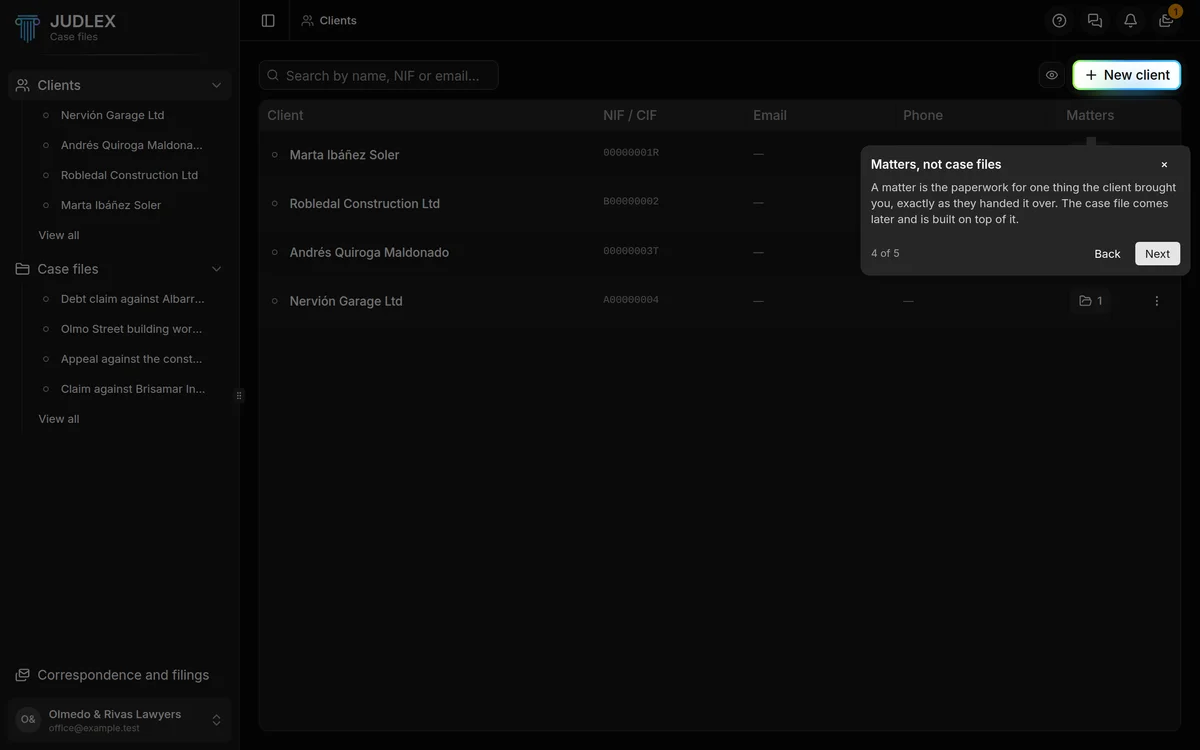
Step 4. Matters, not case files
The Matters column counts how many matters each client has. A matter is the paperwork for one thing the client has brought you, exactly as they gave it to you. The case file comes later and is built on top of it.
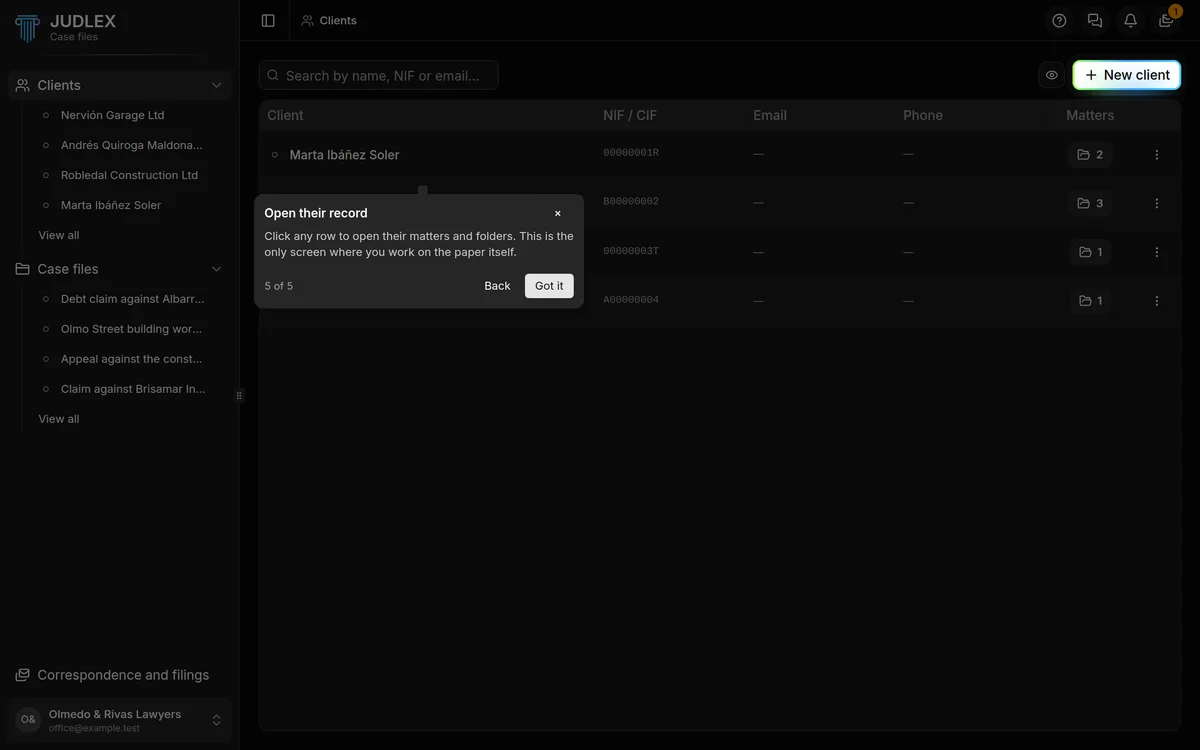
Step 5. Open their record
Click any row to open the client file, with the client's matters and folders. It is the screen where you work on the paper: The client file.
Each client's actions
At the end of each row there is a three-dot button. The same menu also opens when you right-click the row.
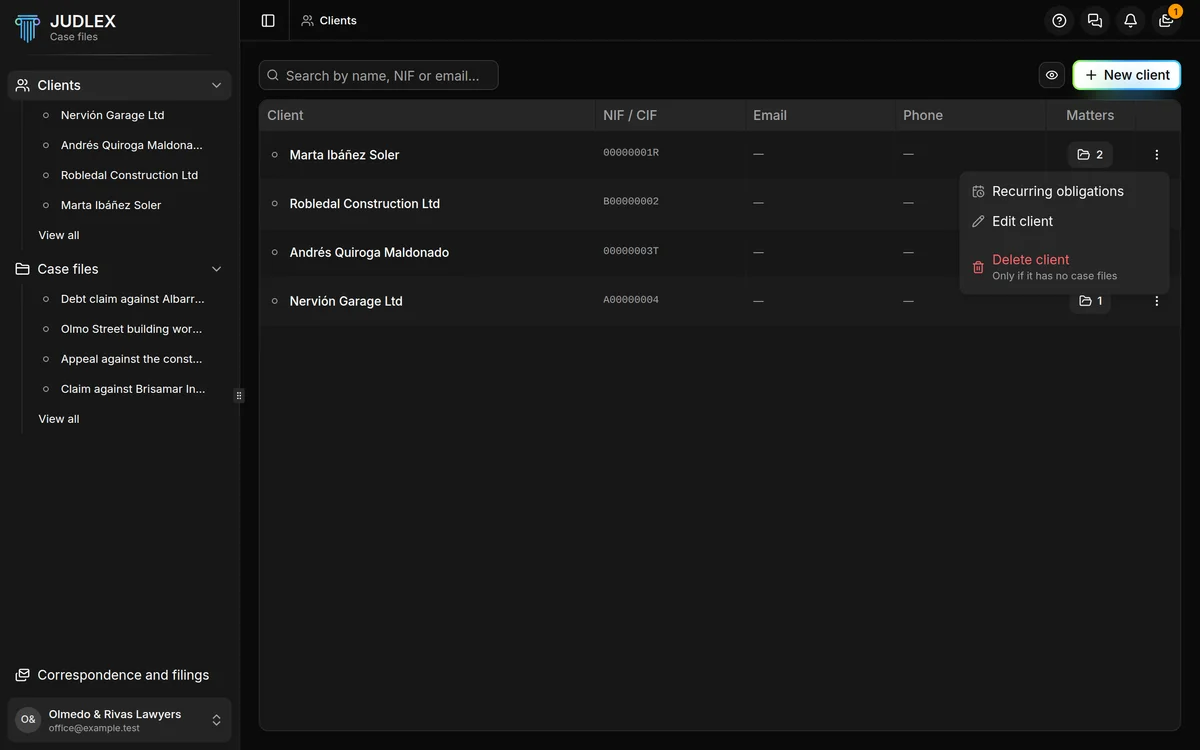
Recurring obligations: the dates that come round again for that client, such as tax returns or renewals. See Recurring obligations.
Edit client: opens the same form used to add the client, with their details.
Delete client: only possible if the client has no case files.
Next to each client's email and phone number there is a small button to copy them without opening the client file.
The client also appears under Clients in the sidebar, and from there you can open their file with one click.