A matter is all the paperwork for one thing a client has brought you, exactly as they gave it to you: their father's estate, their divorce, the accident in March. It is that client's source folder for that issue, and the case files come out of it later.
A client can have as many matters as things they have instructed you on.
Creating a matter
Open the client file
From Clients, click the client.
Click New matter
It is at the top, in the row of buttons.
Give it a title
One you will recognise a year from now: "Family inheritance", "Divorce", "Company X". If your firm uses its own numbering, type it in Reference.
Say what it is about
Optional, but useful. We explain it just below.
Click Create the matter
The matter appears in the client file's tree, ready to receive papers.
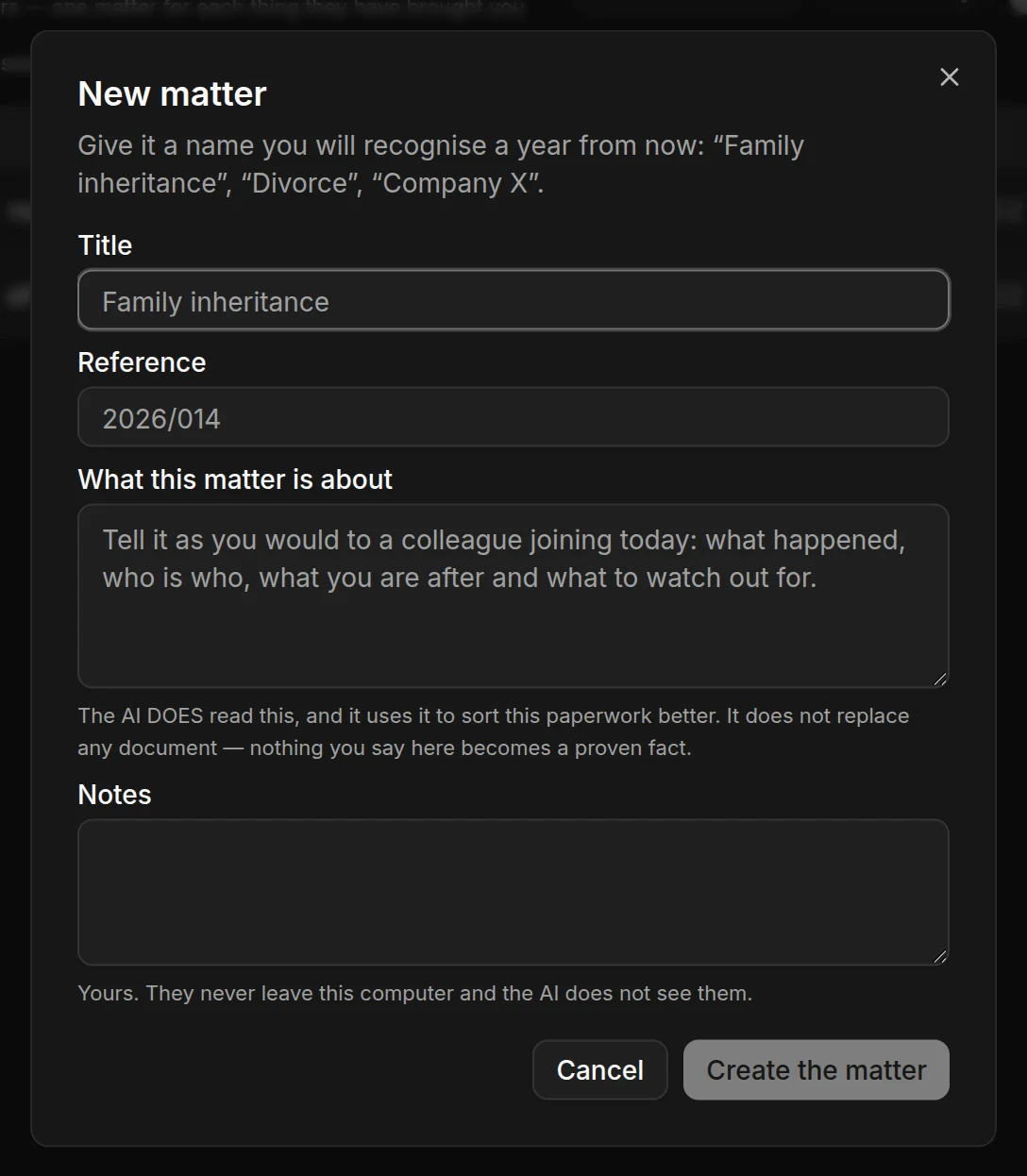
"What this matter is about" and the notes: the difference matters
The form has two text boxes that look the same but are not:
What this matter is about is for the artificial intelligence. Write it as you would tell a colleague joining today: what has happened, who is who, what you are after, what to watch out for. JUDLEX passes it to the artificial intelligence when it sorts out this paperwork, and it helps it classify better. This text does go out from your computer, to the provider you have chosen, together with whatever you ask it to read.
Notes are yours. They do not leave your computer and the artificial intelligence does not see them.
Each matter's menu
In the client file's tree, each matter has a three-dot menu at the end of its row. It also opens when you right-click the row.
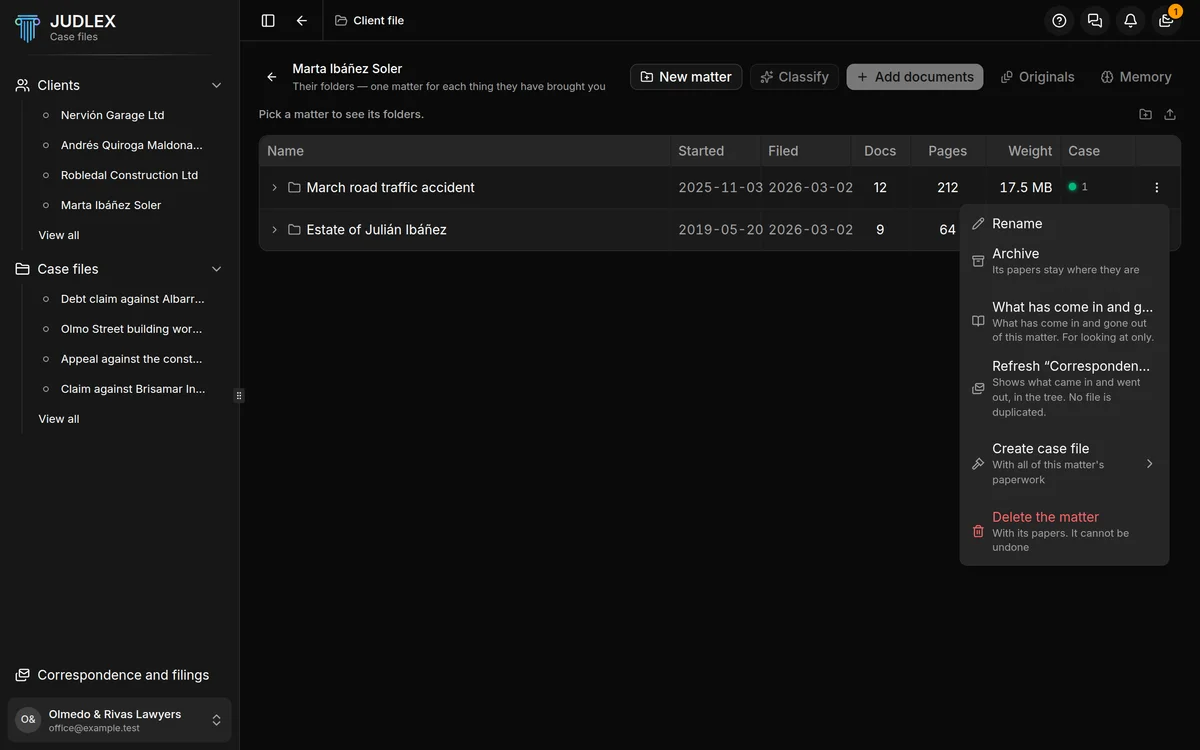
Rename: changes the matter's title right there.
Archive: gets it out of the way without deleting anything. Its papers are still there, and Reopen puts it back as it was.
Create case file: builds a proceeding on all of this matter's paperwork. You choose the type in the submenu. We explain it in the case files section.
What has come in and gone out… and Refresh “Correspondence”: only if you have the Correspondence extension. They show the email related to this matter.
Delete the matter: deletes it together with its papers, and cannot be undone.
One matter, several case files
Creating a case file does not empty the matter or move it anywhere. The matter remains the client's source folder, and several proceedings can be built on it at once. Each one links the same papers, with its own exhibit numbering, without copying any file. That is why, in the tree's Case column, the green dot shows how many proceedings have come out of each matter.