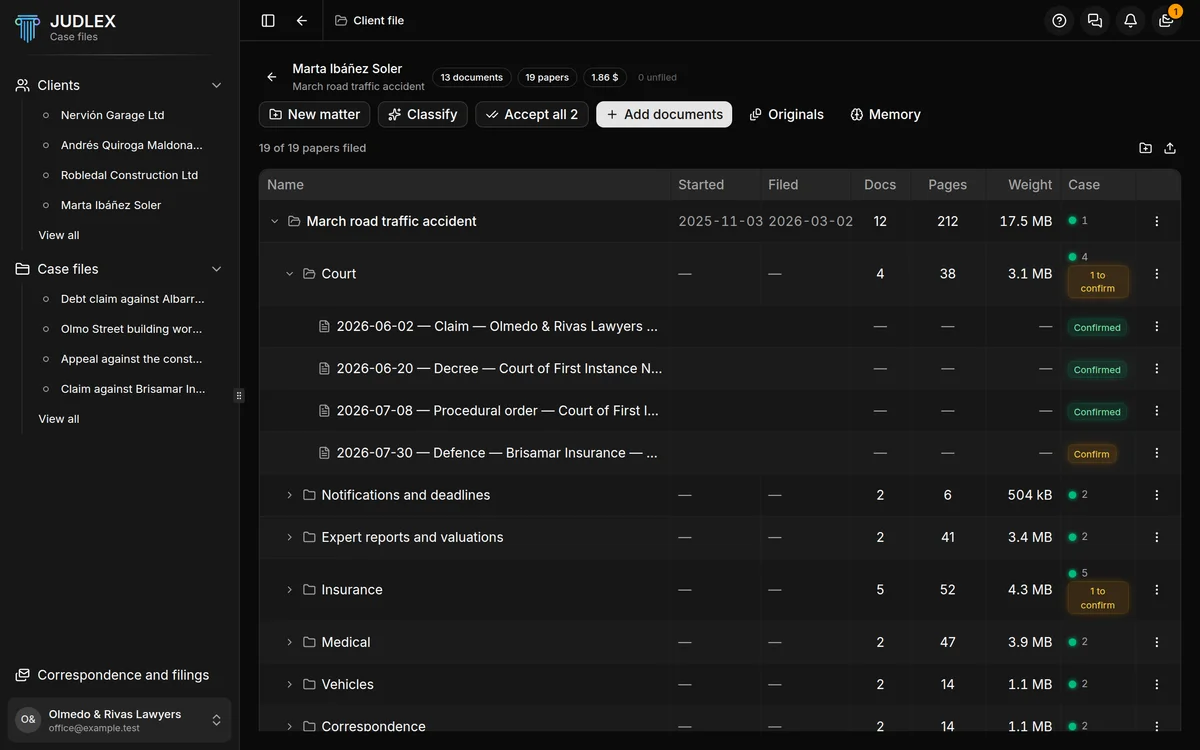
Once a matter's papers have been split out, they need to be sorted into folders. JUDLEX does this in two stages: first it files, free of charge, everything it already knows, and then, if you want, it asks the artificial intelligence about whatever was left unidentified. At the end, you confirm.
Classify: free
When a file is split, each paper already comes out with its type, backed by a sentence on the page. With that, working out which folder it goes in is simple arithmetic: invoices to their folder, judgments to theirs.
Open the matter
In the client file, expand the matter you want to sort.
Click Classify
It is in the row of buttons at the top. If you hover over it, it reminds you that it costs nothing, and it means it literally: the artificial intelligence is not consulted.
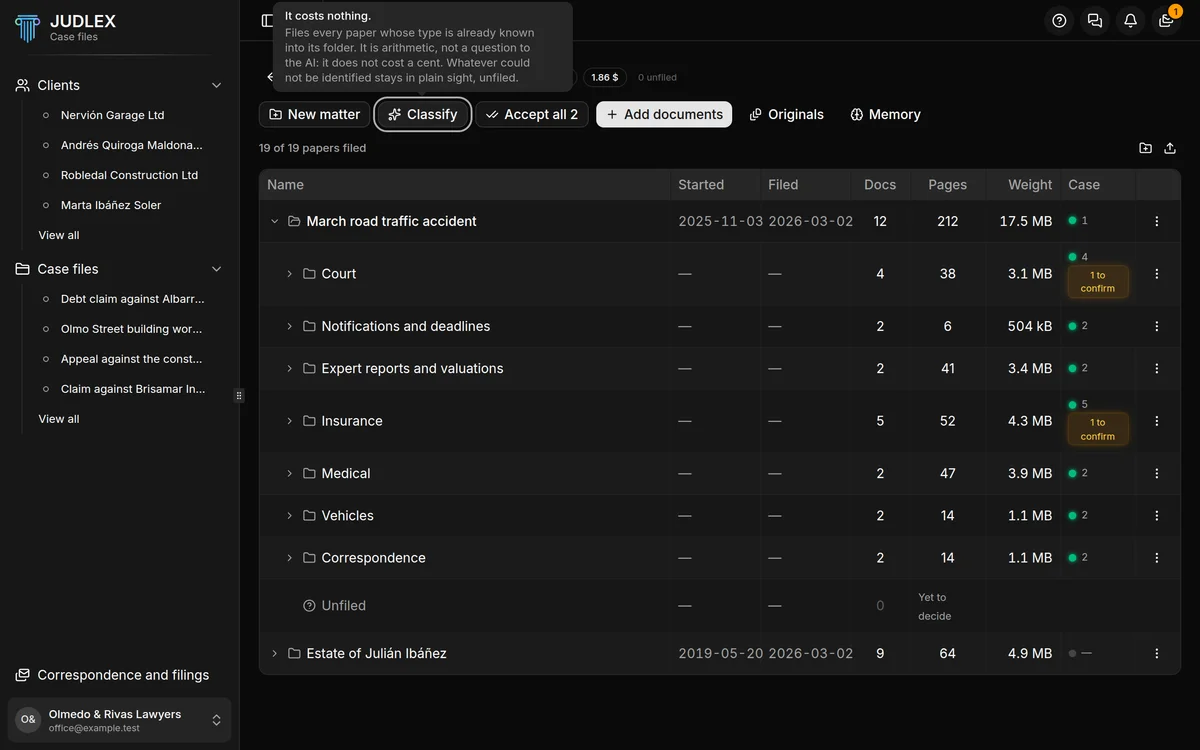
A message tells you how many papers have been filed. Folders are created automatically according to each paper's type, and if a folder gets very full, JUDLEX splits it by year. Whatever could not be identified stays under Unfiled, in plain sight, waiting for you to decide.
Unfiled is not an error. These are papers that are stored and readable but that nobody has yet said where they go. You can drag them into a folder or use Move to another folder in their menu: Move and rename folders and papers.
Identify the rest: at a cost
If there are still unfiled papers, the Identify the rest button appears, with the approximate price next to it. It asks the artificial intelligence about those papers only, not about all of them.
Click Identify the rest
The button shows the approximate cost. If you hover over it, it tells you which model was used to estimate it.
Confirm it
JUDLEX asks whether you want to go on and repeats what it will cost. Click Go ahead.
Every answer has to bring the sentence from the paper that it rests on; any answer without one is discarded. When it has finished, a message tells you how many papers have been identified, how many still cannot be identified and what it has cost.
Confirming what was filed
Everything JUDLEX files is left waiting for your approval, in amber. Amber means "this is your decision", not "this is wrong".
Paper by paper. In the tree, each pending paper has an amber Confirm label on its row; clicking it turns it into Confirmed, in green. If it is not right there, Take out of this folder, in its menu, sends it back to Unfiled, and Move to another folder takes it to the right one.
A whole folder. A folder's amber to confirm label, in the Case column, confirms all the pending papers in that folder at once.
The whole matter. When there are filings that can be justified, the Accept all button appears, followed by the number. It is not a rubber stamp: it only confirms the ones backed by a sentence that still appears on the page, or whose type was decided by someone with a checked citation. If any of them can no longer be justified, the button says how many are left out, and those are looked at one by one.