The client file is the only screen where you work on the paper. You open it by clicking a client in the Clients list or in the sidebar. At the top it shows the name of the client and of the open matter, a few figures and the working buttons; below them, the client's matters with their folder tree.
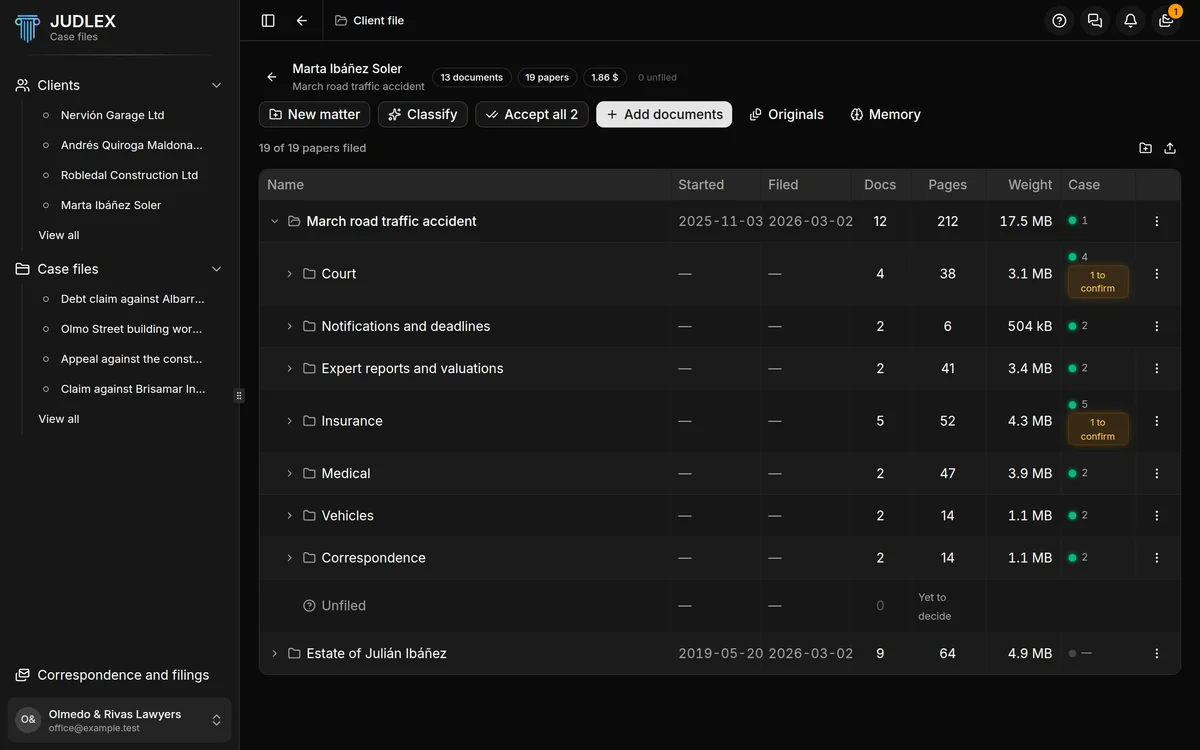
The first time you go into it, JUDLEX shows you a six-step guide. Here it is in more detail. To replay it, click Help and choose Guide to this screen.
Step 1. This is where the paperwork lives
You can drag the papers anywhere on this screen, loose or in folders, as jumbled as they were given to you. JUDLEX copies them into its vault and does not touch the original. They go into whichever matter you have open. How to do it: Add papers to a matter.
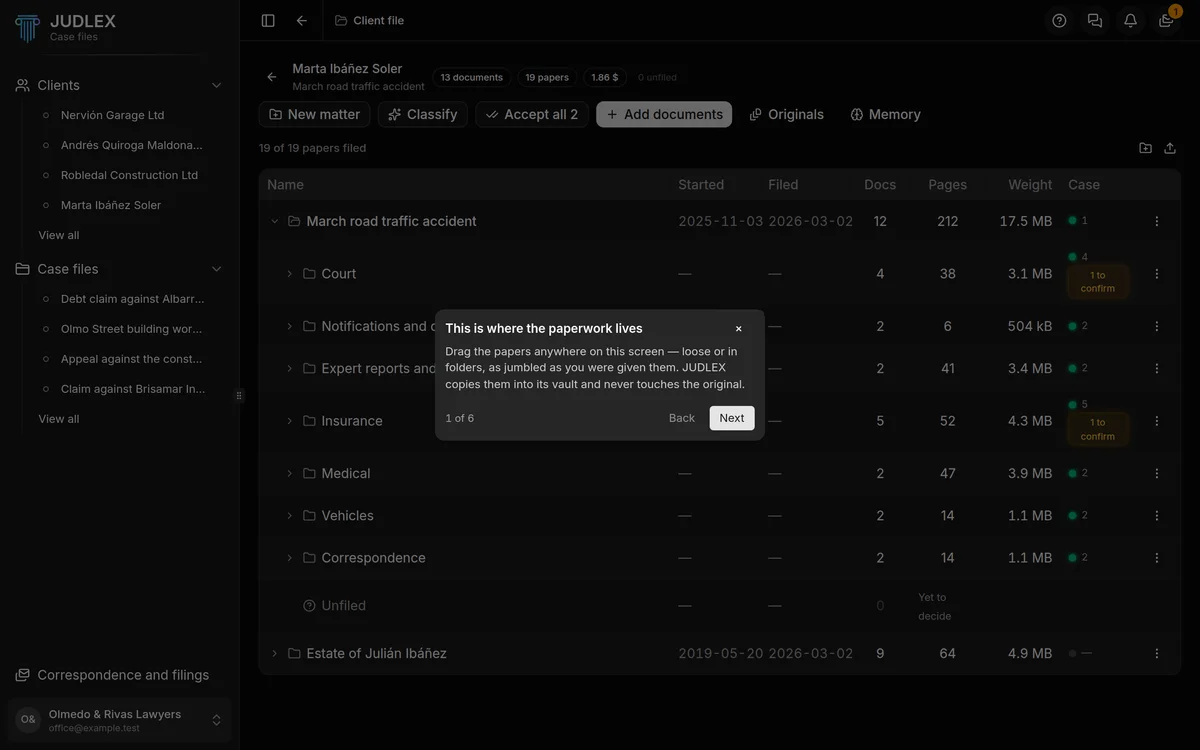
Step 2. One matter per thing
New matter creates a matter's folder. Give it a name you will recognise a year from now. It is not a case file: the case file is the proceeding that is later built on this paperwork. See Matters.
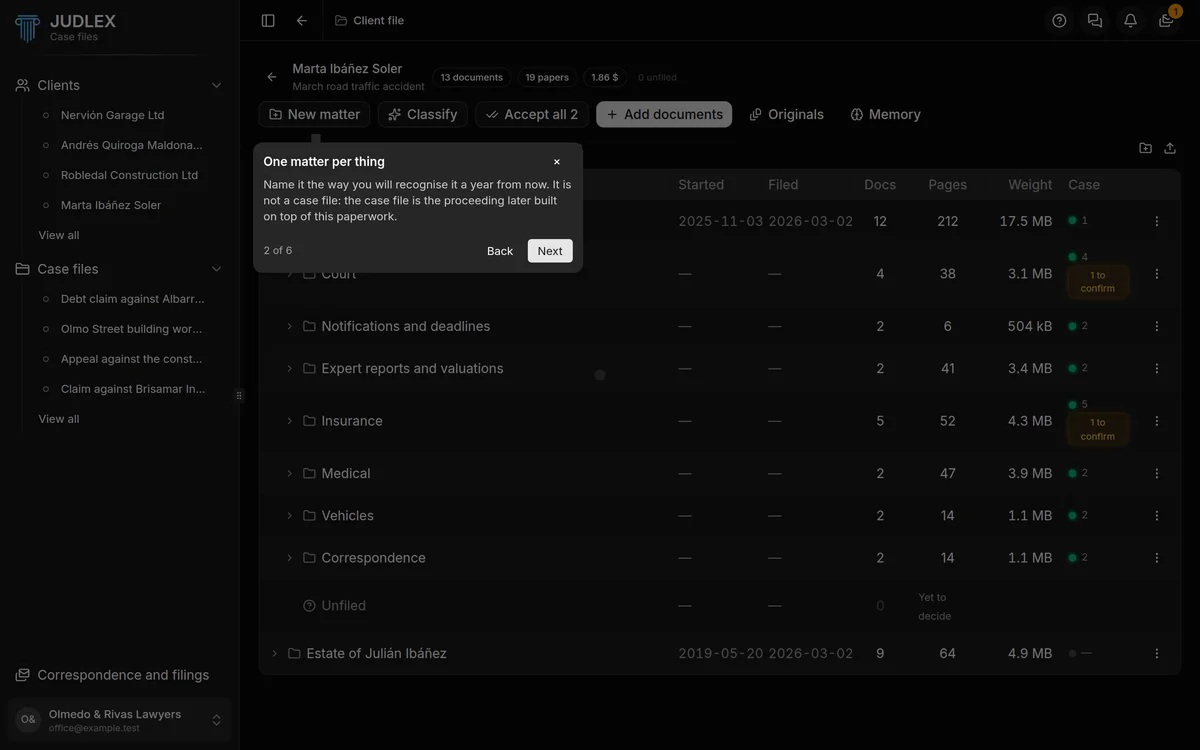
Step 3. Bring the papers in
Add documents opens your computer's file picker. Each file that comes in can be split into the real documents it contained: an eight-hundred-page dump is one document and can be forty papers. See Read a file and split out its documents.
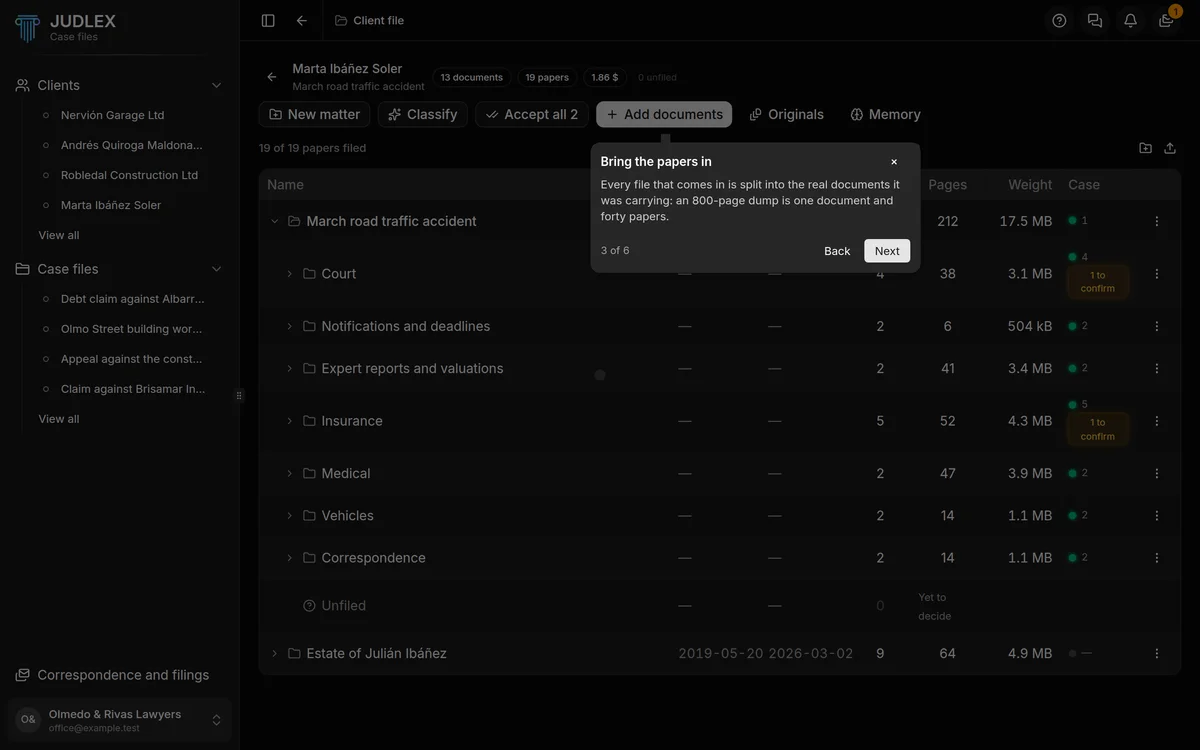
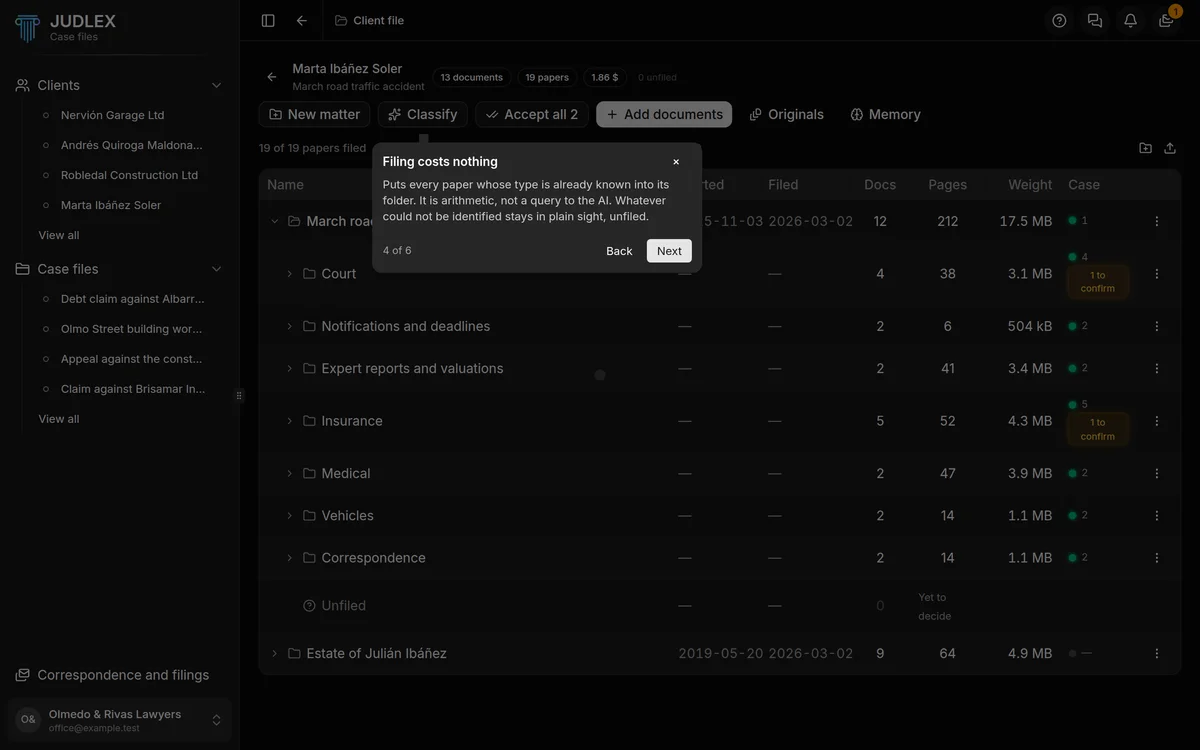
Step 4. Filing costs nothing
Classify puts every paper whose type is already known into its folder. It is arithmetic, not a query to the artificial intelligence: it does not cost a cent. Whatever could not be identified stays in plain sight, under Unfiled. See Classify and identify.
Step 5. The matter's tree
Below are the client's matters. When you expand one, its folders appear; when you expand a folder, its subfolders and papers. The same paper can appear in two folders without there being more than one file.
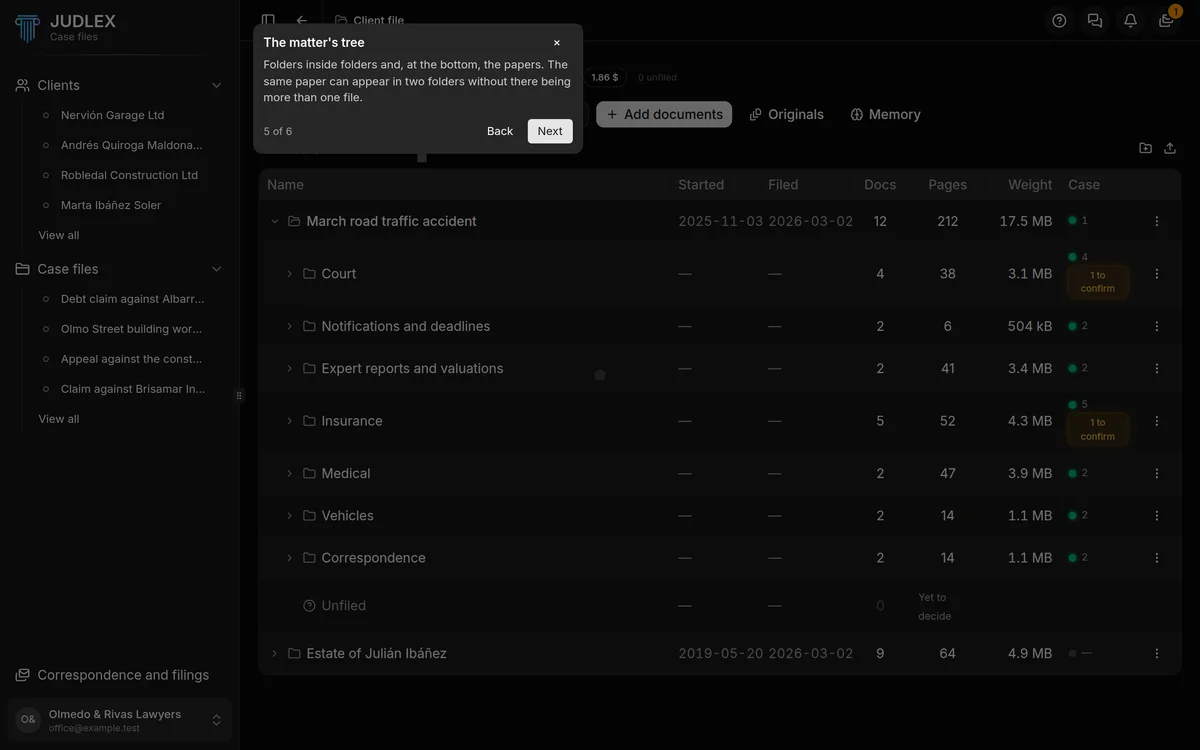
The columns of the tree are:
NameThe matter, the folder or the paper.
StartedThe date of the oldest paper inside, that is, when the events the papers describe began. If no date is on record, a dash appears.
FiledWhen the matter was added to JUDLEX.
DocsHow many documents there are inside.
PagesHow many pages they add up to.
WeightHow much disk space they take up.
CaseOn the matter's row, a green dot with the number of case files built on it, or a grey dot if none has come out of it yet, which is normal for a matter that has just come in. On a folder, the number tells you how many of its papers are already in a case file. If an amber to confirm label also appears, those are papers JUDLEX put there that you have not reviewed yet; clicking it confirms them all.
One matter is expanded at a time. When you open the client file, the most recent one is expanded, and clicking it again collapses it.
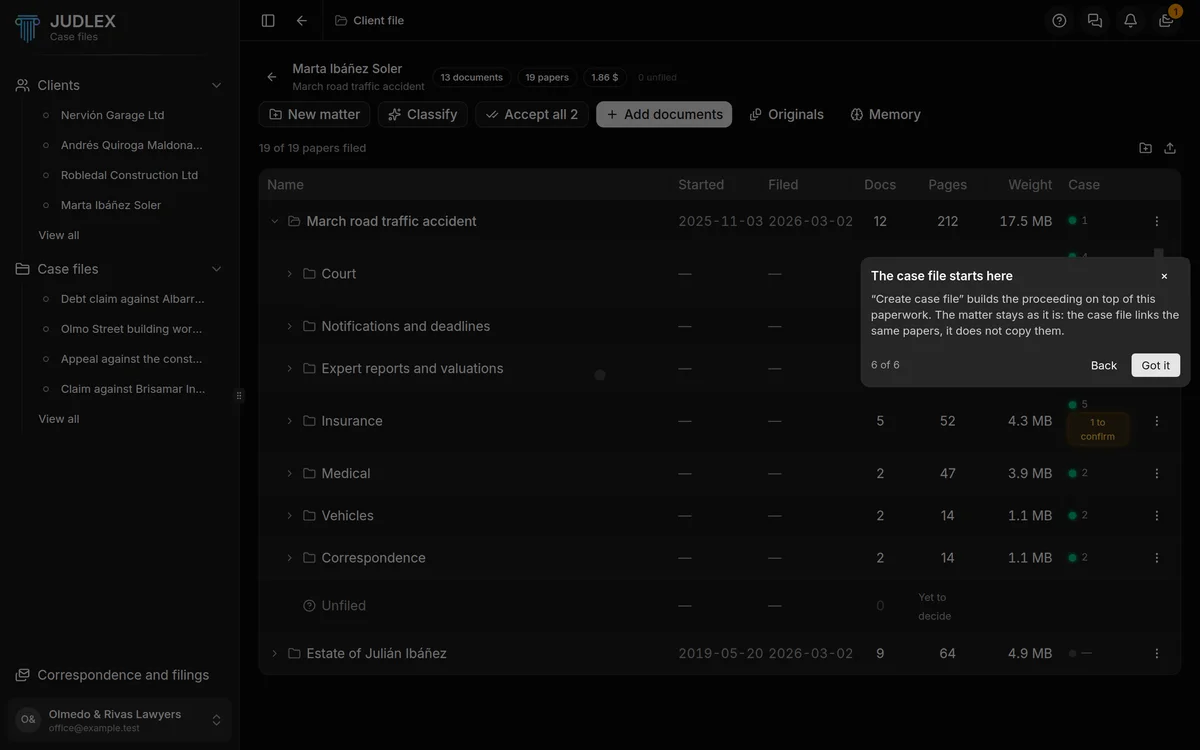
Step 6. The case file starts here
Each matter's three-dot menu has Create case file, which builds the proceeding on this paperwork. The matter stays as it is: the case file links the same papers, it does not copy them.
The figures at the top
Next to the name of the client and of the matter there are a few labels:
documents and papers: how many files have come in and how many real documents have been taken out of them.
What it has cost, in dollars: what has been spent with your key on sorting out this paperwork. It does not include what working each case file costs later, which is counted separately.
Unfiled: papers that are stored and readable but do not have a folder yet. It is not an error: it is what is left to decide.
The buttons at the top
New matter: see Matters.
Classify, and sometimes Identify the rest and Accept all: see Classify and identify.
Add documents: see Add papers to a matter.
Originals: the files exactly as they came in. See The originals.
Memory: everything JUDLEX knows about the matter, with its citation. See The matter's memory.
Above the tree, on the right, there are two more buttons: one to create a new folder and another to export the tree to a folder on your computer. See Move and rename folders and papers and Export a matter's tree.