You change a case file's details from the Case files list: the three dots on its row and Edit case file. None of them is required except the title, but the more there are, the easier the case file is to find and the more complete the conflict of interest warning and the deliverables will be.
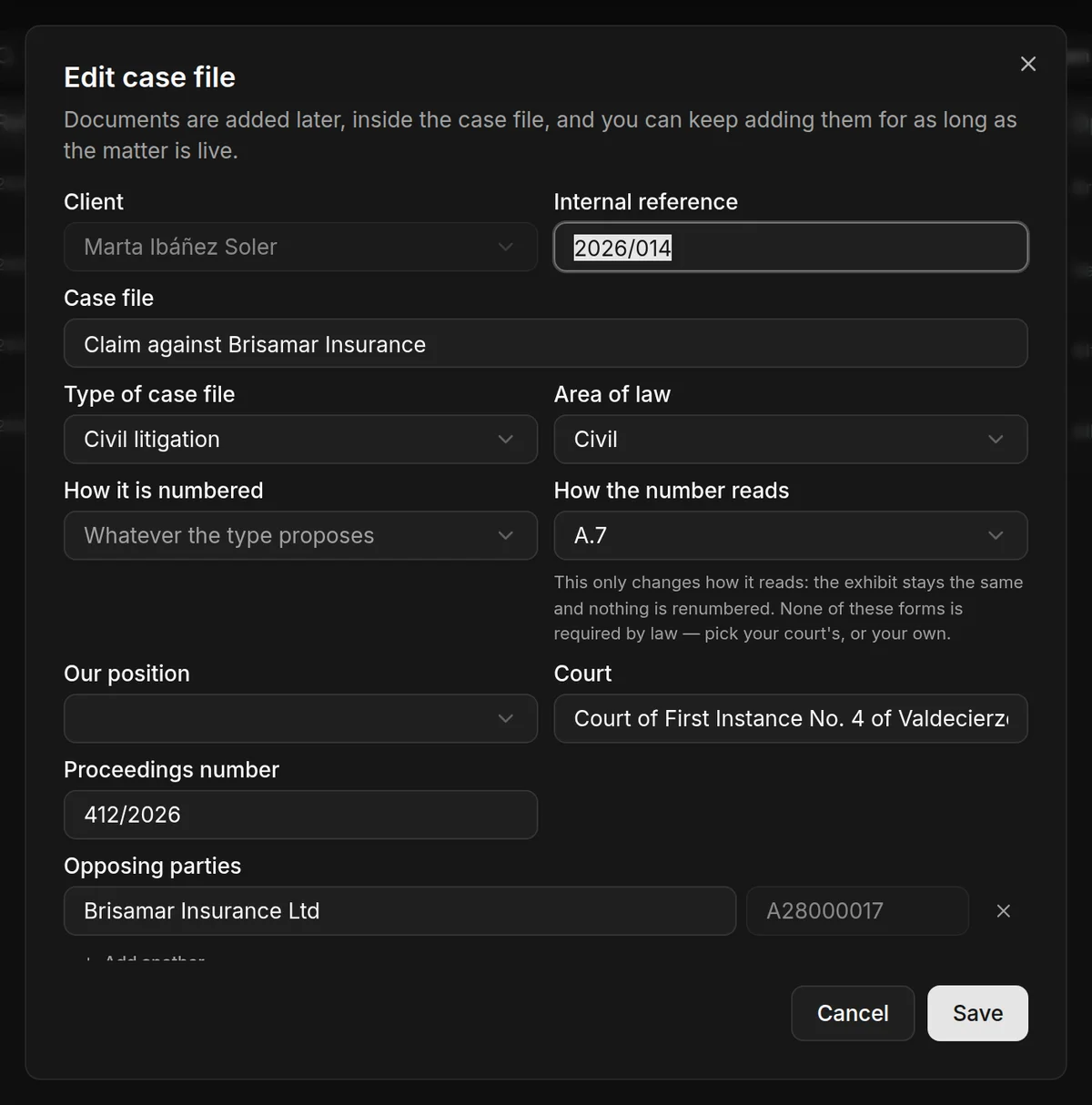
What each field is
Client: who it belongs to. It cannot be changed once the case file is created.
Internal reference: the one the firm uses to name the proceedings, for example 2026/014. It appears in the first column of the list and you can search by it.
Case file: the title.
Type of case file: the kind of proceedings. When you choose it, JUDLEX suggests a way of numbering if there was none yet.
Area of law: the branch of jurisdiction: civil, criminal, employment, commercial, administrative, family, immigration or other.
How it is numbered: whose number each document carries in that type of proceedings. JUDLEX always assigns its own number, running in date order; in proceedings where the authority identifies each document with its own reference, that reference is shown next to the JUDLEX number, never instead of it.
How the number reads: the label for the exhibit code: A.7, Documento nº 7, Doc. 7 or 7.. It only changes how it is written: the exhibit stays the same and nothing is renumbered. None of these forms is required by law; choose the one your court uses, or your own.
Our position: the client's role: claimant, defendant, complainant, reported party, suspect, private prosecution or third party.
Court and Proceedings number: the court or authority and the number it has given the case.
Opposing parties: the name or registered company name and the NIF of each one. Add another adds a row; the cross removes it.
What this case is about: a few lines about the case. The artificial intelligence does read this when it works on the case file: it guides it when ordering, naming and numbering the exhibits.
Date opened.
Click Save to apply the changes.
Opposing parties and conflicts of interest
When you type an opposing party's NIF and move to the next field, JUDLEX checks it against the firm's clients and against the parties in the other case files. If it matches, an amber warning appears before you save. We explain this in Conflict of interest warning.
The NIF of an opposing party that has already been saved is not changed here but in the Parties section of the case file page. The name can be changed here, and the correction is also applied in the exhibits and facts that mention it.