The list brings together all the firm's case files, for every client. You open it with Case files in the sidebar. Below that entry you will also find the most recent case files, so you can go into one without going through the list, and View all.
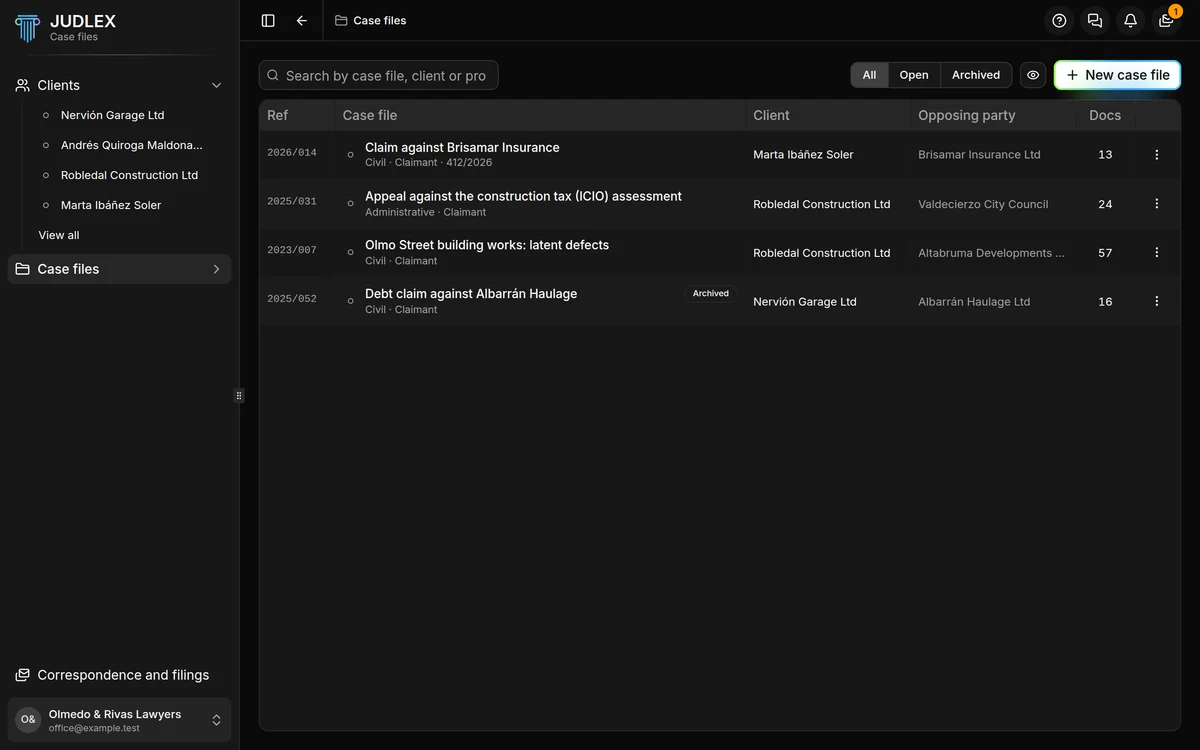
What each column shows
Ref: the firm's internal reference, whatever you have given it (for example, 2026/014).
Case file: the title and, below it, the area of law, the client's position and the proceedings number, if they are recorded. An archived case file carries the Archived label.
Client and Opposing party.
Docs: how many documents there are in the matter the case file is built on.
The most recent are at the top. Click a row to open its page: The case file page.
Searching and filtering
The search box finds a case file by its title, the client, the reference, the proceedings number or an opposing party.
All, Open and Archived filter by status. If the filter hides any, the list says so and offers View all.
The eye masks the names on screen so you can show it without them being read. It works just as in the client list: To show the screen.
If you reach the list from a client, a label with their name appears: the list shows only their case files. The cross on the label removes the filter.
The actions for each case file
The three-dot button at the end of the row, or right-clicking the row, opens its menu:
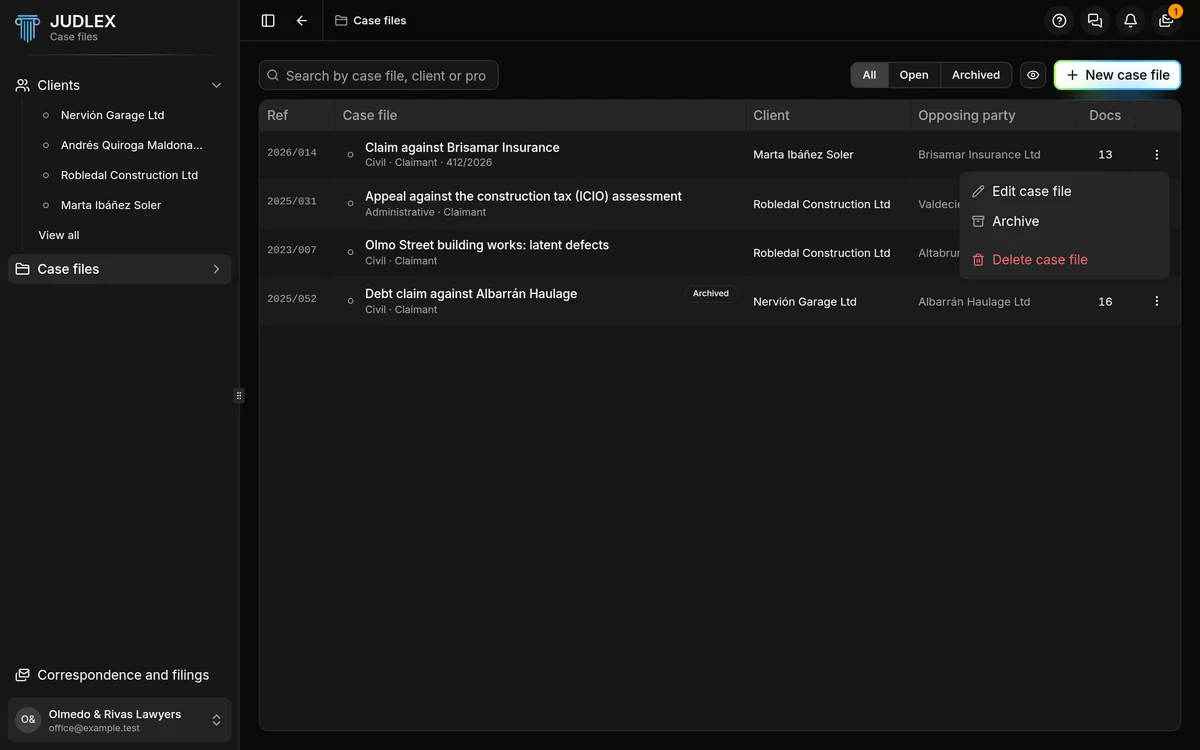
Edit case file: changes its details. See Case file details.
Archive or Reopen: puts it out of the way without deleting anything. See Archive and delete.
Delete case file: removes it permanently, with everything attached to it. The same article explains what is lost.
In the sidebar, each recent case file also has its own More options button, with Rename, Change icon, Change colour, Archive and Delete.
The New case file button
New case file opens the details form to register a set of proceedings. A case file created from here starts out with no papers. The usual way to create one is from the client's matter, because that way it starts out with all its paperwork linked and numbered: Create a case file.
The button is greyed out if no client has been added yet, or if the licence is not active. With an expired licence you can still open, consult and export the case files you already have.