You create a case file from the paperwork the client already has. You choose which papers go in, either a whole matter or a folder, and JUDLEX links them as exhibits, numbers them and gives them folio numbers. It does not copy any file, it does not ask the artificial intelligence anything, and it costs nothing.
Before you create it, it is best to have the matter's papers split into their documents and placed in their folders: Reading and splitting the documents in a file and Classify and identify.
Open the menu of the matter or folder
In the client's record, click the three dots on the matter's row, or on the row of one of its folders. You can also right-click the row.
Choose Create case file and the type
Create case file opens the list of types: civil litigation, criminal, employment, family, landlord and tenant, commercial, probate and inheritance, insolvency, administrative litigation, administrative, tax, Social Security, immigration, road traffic and penalties, and notarial or land registry. The type suggests the area of law and the way exhibits are numbered; you can change both later.
Check the details
The New case file dialog opens, with the title and the area of law already suggested. Change them if they are not what you want.
Click Create the case file
JUDLEX links the papers, gives each one its exhibit code and its folio, and lets you know: the case file is now in Case files, numbered and with its folios.
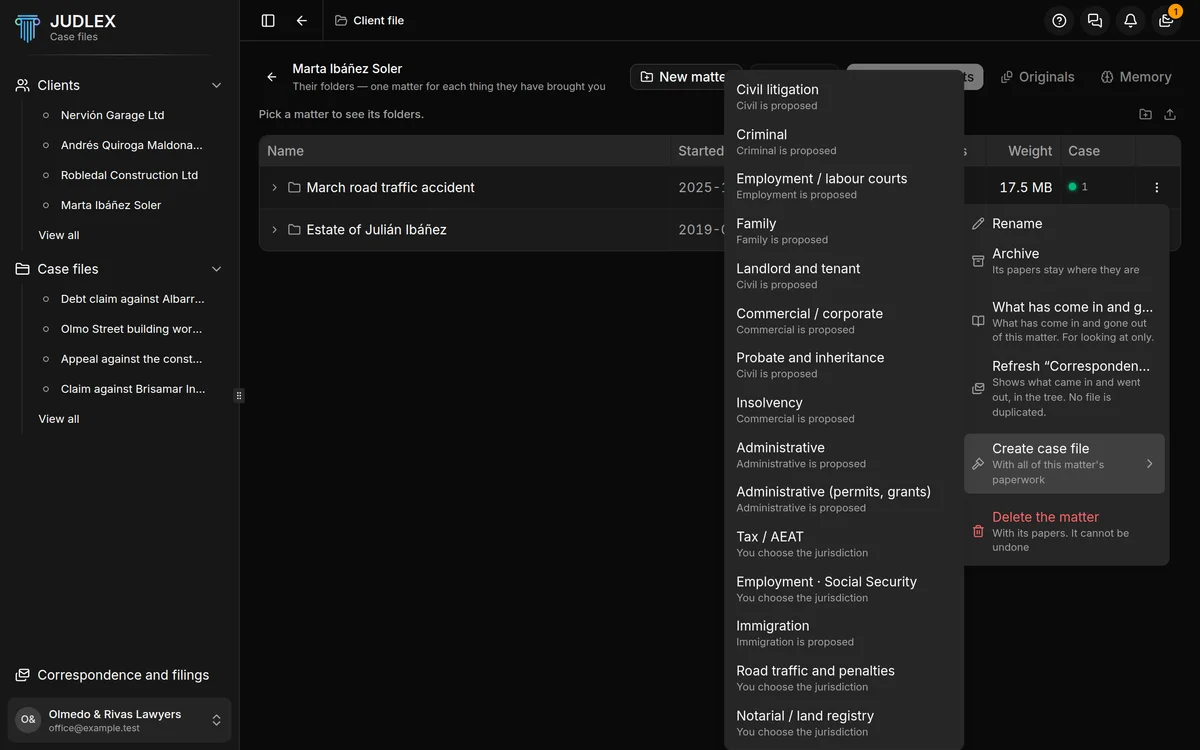
From the matter or from a folder
From the matter, the case file is built on all of its paperwork, including papers that are not in any folder yet.
From a folder, only with the papers in that folder. The Also include the papers in its subfolders box is ticked; untick it if you only want the papers in the top folder.
If the matter or the folder does not have a single paper yet, the option is greyed out.
The dialog
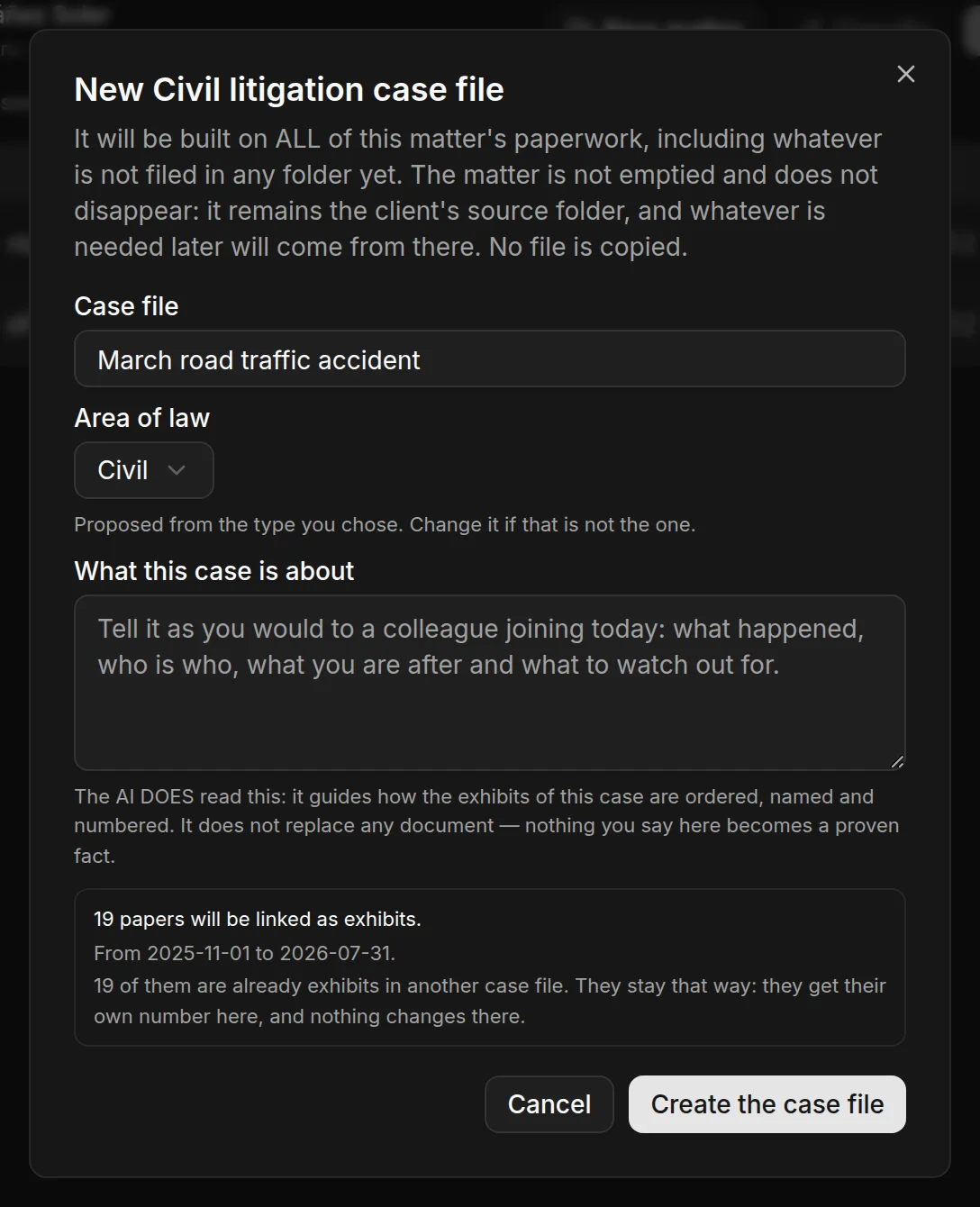
Case file: the title. From a matter, the matter's title is suggested; from a folder, the folder's name followed by the type.
Area of law: suggested by the type. Change it if it is not the right one.
What this case is about: a few lines about the case. The artificial intelligence does read this text when it works on the case file: it guides it when ordering and naming the exhibits. If you start from a matter, it begins with what you wrote in the matter.
Below that, the dialog tells you how many papers will be linked as exhibits and what dates they span, from the oldest to the most recent. If any of them is already an exhibit in another case file, it tells you that too: it will stay one, because the same paper can be in several proceedings at once.
What you are not asked for here
The internal reference, the court, the proceedings number, the client's position, the opposing parties and the format of the codes are added afterwards, from Edit case file: Case file details.
Creating a case file requires an active licence.