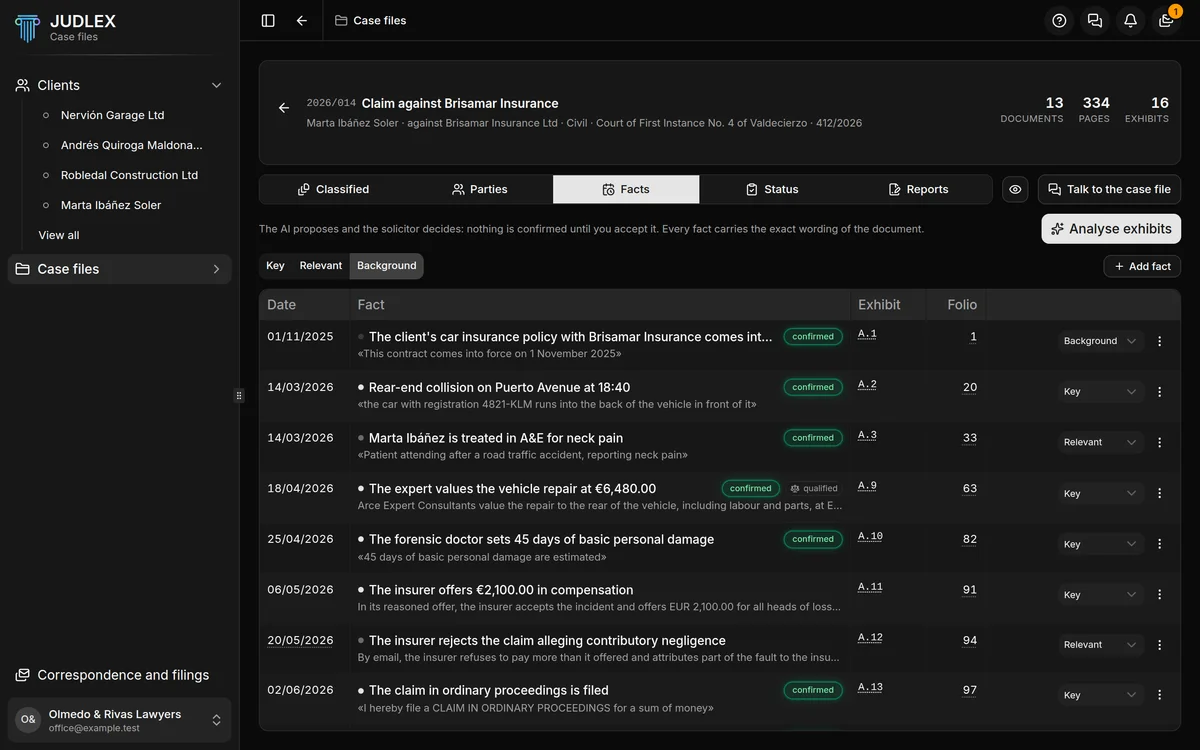
The Facts section tells what has happened in the matter, in date order. Each fact carries the exhibit and folio it comes from and, below the title, the verbatim sentence from the document. A fact with no sentence to back it up is not shown.
As in Parties, what JUDLEX suggests comes in as proposed, and nothing counts as confirmed until you accept it.
Analysing the exhibits
Analyse exhibits asks the artificial intelligence to read the exhibits that have not been analysed yet and pick out the facts, the parties that appear and the dates that look like a due date. Exhibits that have already been analysed are not read again, or paid for again.
Click Analyse exhibits
It is at the top right of the section. JUDLEX first works out what it will cost and shows it while it works, along with the exhibit it is on.
Wait for the message
When it finishes, a message tells you how many exhibits it analysed, how many facts and parties it found, how many facts are key, relevant or background, how many it discarded because their sentence was not on the page, and what it actually cost.
Review what is proposed
The facts appear in the table, the parties in Parties and the dates in Case file status.
The analysis starts as soon as you click the button, without asking for confirmation, and it is paid for with your firm's key: Add your artificial intelligence key.
While it works, Stop appears. JUDLEX finishes the exhibit it is working on and does not start the next one. What has already been analysed is saved; the next time you click Analyse exhibits it will carry on from where it left off.
The weight of each fact
JUDLEX gives each fact a weight, which you can change:
Key: what drives the proceedings. A coloured dot in front of the title.
Relevant: what goes with it. A grey dot.
Background: the background detail. A fainter dot.
Above the table, Key, Relevant and Background choose how far down you want to read. Key shows only the key facts; Relevant adds the relevant ones; Background shows everything. Next to them it says how many lower-weight facts are not being shown.
To change a fact's weight, use the drop-down on its row. When you hover over the dot, it explains why JUDLEX gave it that weight.
The table
Date: the date of the fact. Underlined with dots if JUDLEX has worked it out and it is not written on that page; it is used for sorting, but check it before you cite it. Facts with no date go at the end.
Fact: the title and, below it, the sentence from the document or a summary. Next to the title you may see confirmed, qualified (it has a legal qualification) and yours (you wrote it).
Exhibit and Folio: where it comes from. Click them to open the exhibit at that page. The folio is calculated, not read from the paper.
The fact's page
Click a fact to open its full page:
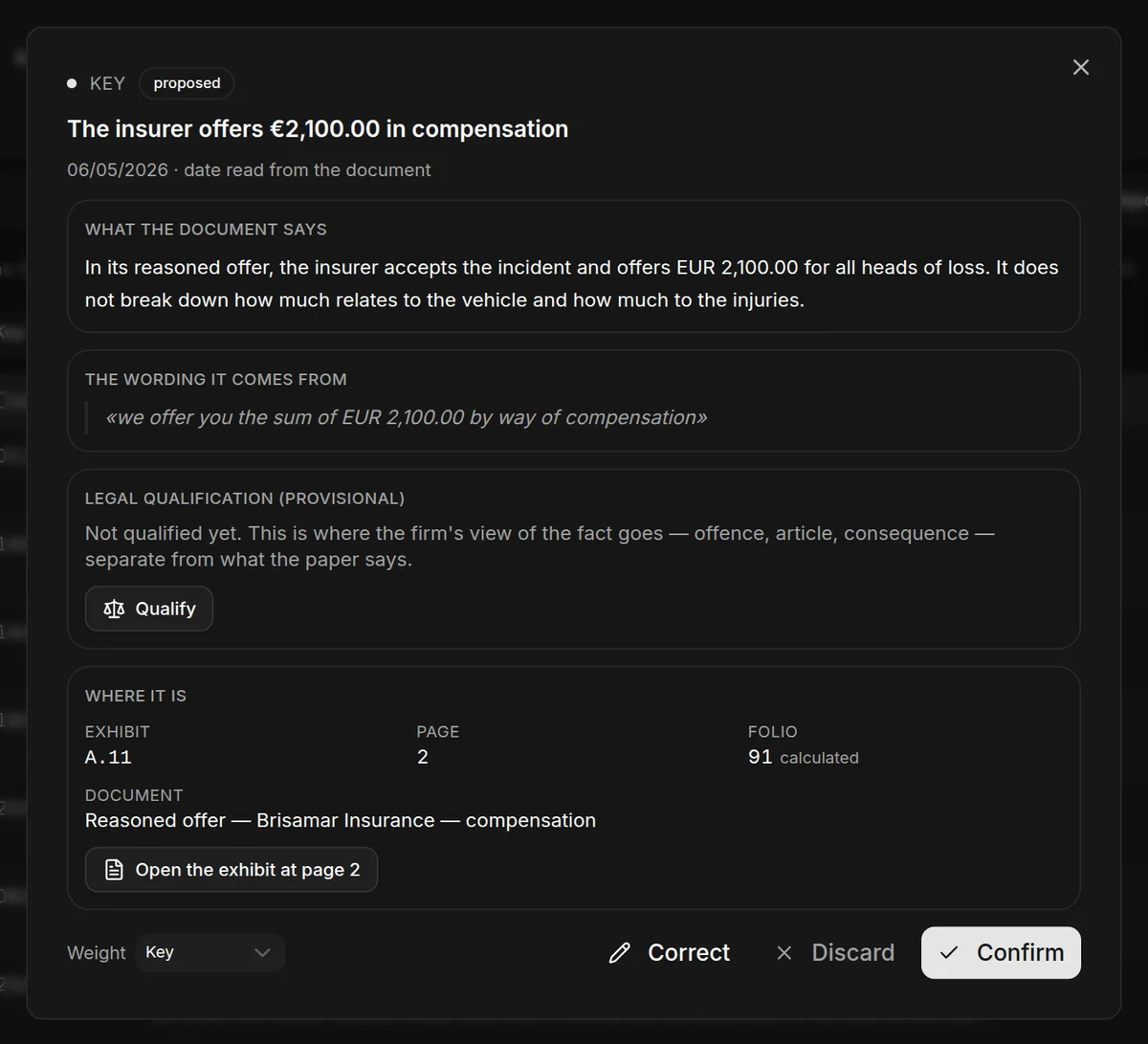
What the document says: the fact told in full.
The wording it comes from: the verbatim quotation, with its page.
Why it has this weight and, if it was corrected, Why it was corrected.
Legal qualification (provisional): what the firm thinks, separate from what the paper says.
Where it is: exhibit, page, folio and document title, with the Open the exhibit at page button.
At the bottom are the Weight and the Correct, Discard and Confirm buttons.
Confirming, correcting and discarding
The same actions are on the fact's page and in the three-dot menu on each row:
Confirm accepts the fact. Undo, or Leave as proposed on the fact's page, sets it back to proposed.
Correct opens the fact so you can write it as it should be, with a required field: Why you are correcting it. Nothing is deleted: the previous version of the fact is kept with the reason, in case you need to reconstruct what the case file said before.
Discard removes it from the table. It happens as soon as you click, without asking.
Qualifying a fact
Qualify opens a box where you write the firm's legal assessment: the legal category, the article, the consequence. For example, “Evidence of document forgery (art. 392 CP): the date does not match the acknowledgement of receipt”.
The qualification is provisional and kept separate: it does not change the fact or the sentence from the document. You can change it, or remove it with Withdraw the qualification, whenever you like.
Adding a fact you know
Add fact, above the table, is for what you know and is not in the papers. The form asks for:
What happened: one line that makes sense on its own.
The detail, optional: what you read when you open the fact's page.
When and Weight.
Attached to: the exhibit and page it relates to.
Wording from the case file, if there is any. You can leave it empty.
The fact is marked as yours: you wrote it and it does not come from the case file's papers.
Adding facts and analysing exhibits require an active licence. To add a fact, the case file must have exhibits.