The Status section is the case file's review desk. It brings together what needs a decision from you: details that do not match, dates nobody has looked at, missing documents. At the end, it generates the documents to hand over.
Each block only appears when it has something to show.
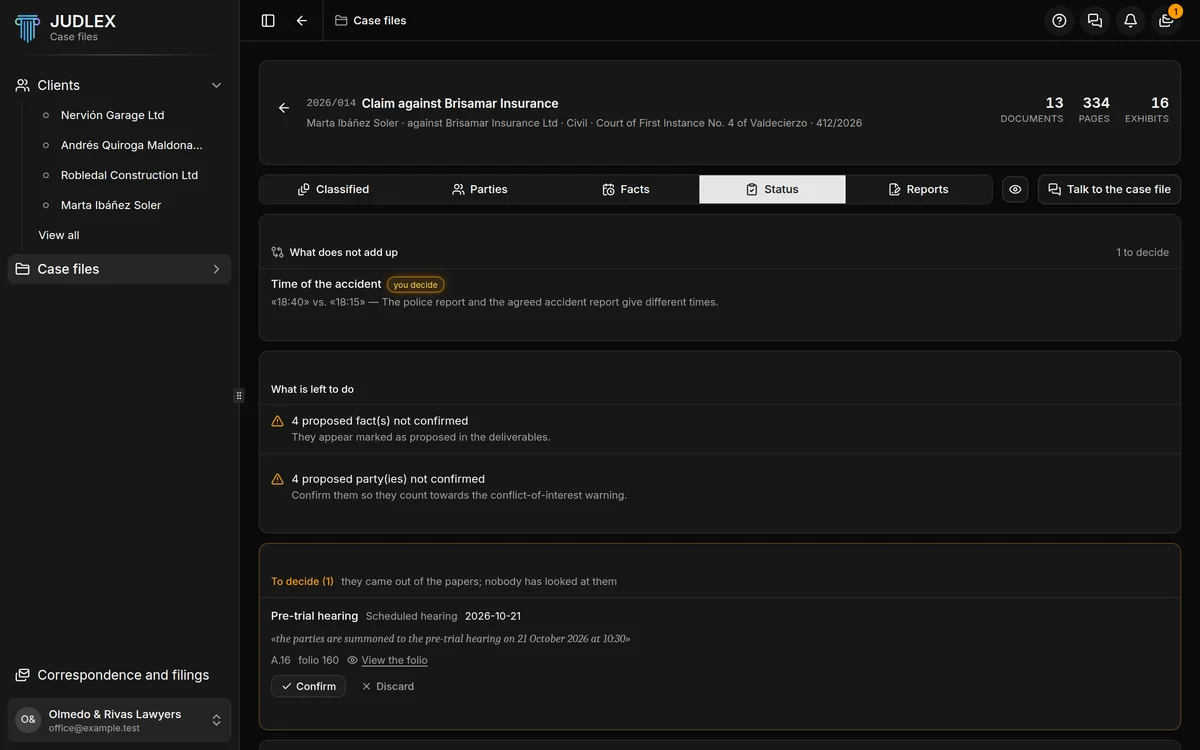
What does not add up
When two documents say different things about the same detail (the time of the accident, an amount, a party's name), JUDLEX does not choose for you. The detail appears under What does not add up with the amber label you decide, and the top right shows how many are still to be decided.
Click you decide
A box opens with each version, its sentence from the document, the exhibit and the page.
Decide
Click the right version and This is the right one. If none of them is right, type the correct detail in Or type the correct one yourself. If it is not a real contradiction, click Not a conflict. Not now leaves it for later.
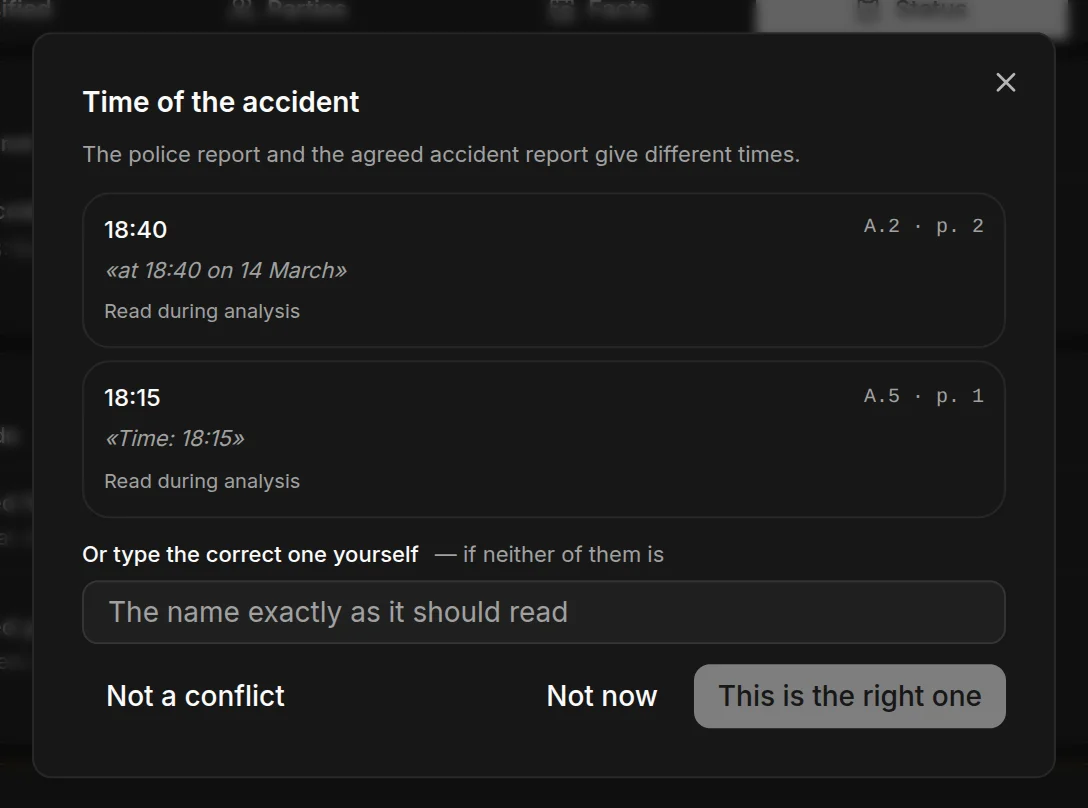
Once it is decided, the label turns green with what you chose. If you click it, the detail becomes pending again.
What is left to do
A list of what is still needed before the case file can be considered reviewed: files not yet split into exhibits, exhibits only partly read, exhibits with no date, and proposed facts and parties not yet confirmed. Each line explains why it matters. For example, unconfirmed facts appear marked as proposed in the deliverables, and unconfirmed parties do not count in the conflict of interest warning.
When nothing is left, it says All reviewed: nothing outstanding in this case file.
The case file's dates
The dates JUDLEX finds in the papers are divided into three blocks. Each one carries the sentence from the document it comes from, the exhibit and the folio, with View the folio to open it at that page.
To decide
In amber: dates that came out of the papers and that nobody has looked at. Each one says what it is (a scheduled hearing, a deadline, a due date) and its date, or the term if it is a deadline (“10 working days”).
Confirm accepts it. If it has a date, it moves to What's coming; if it is a deadline with no date, to No date yet.
Discard removes it.
Those that have gone undecided for a long time are folded into one line, and N more, undecided for a while, which opens with a click. They still count in the number at the top.
What's coming
Confirmed dates, from the nearest to the furthest away, with the days remaining. If the date came from a count, View the count opens the worksheet it was calculated with. Next to it you can see who confirmed it. The furthest ones are grouped under and N further ahead.
No date yet
Confirmed deadlines that have not been given a date yet, and documents you have marked as requested.
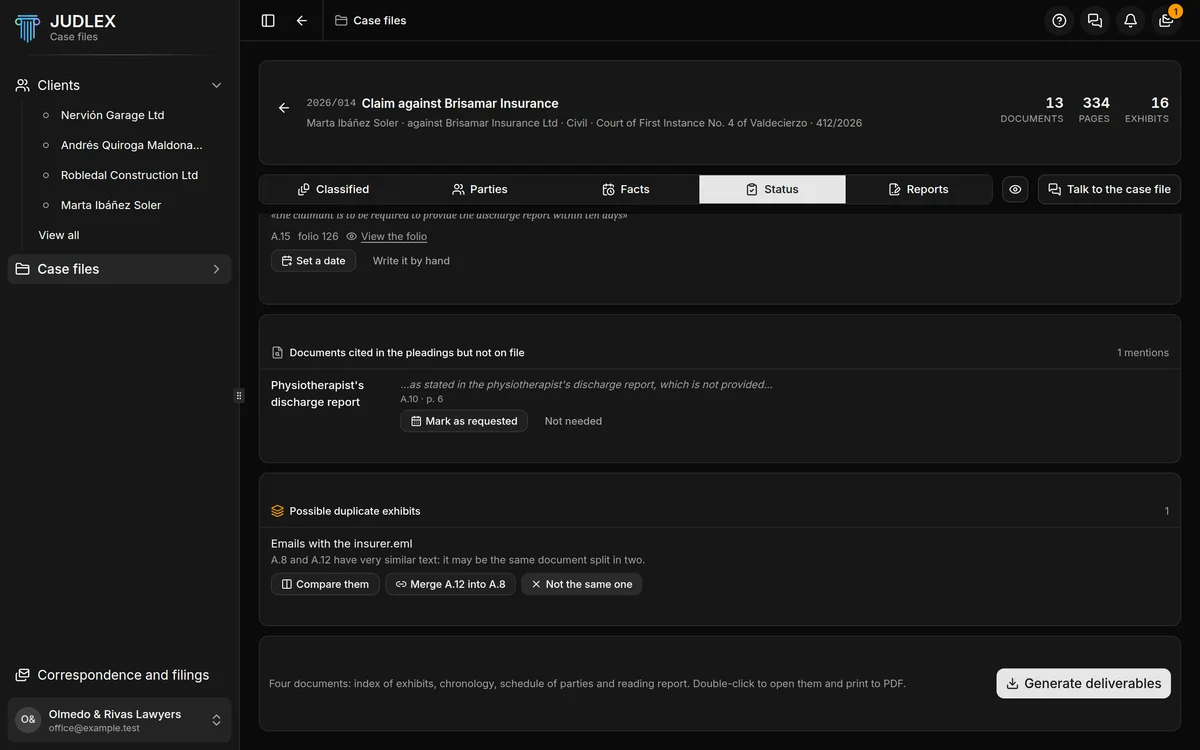
Set a date opens the worksheet to count the deadline from the date of service: Count a deadline.
Write it by hand sets the date directly, with no count.
JUDLEX does not set the date of a deadline on its own: it does not know when service took place or whether there was a suspension. You set the date.
Cited documents that do not appear to have been filed
When a pleading cites a document that is not among the exhibits (“as shown in the physiotherapist's discharge report, which is not filed”), it appears here with the sentence, the exhibit and the page.
Mark as requested records it as pending receipt. It moves to No date yet until it arrives or you discard it.
Not needed asks for a reason and stops warning you.
Possible duplicate exhibits
Two exhibits with very similar text may be the same document split in two, for example an email chain.
Compare them opens them side by side.
Merge puts the second one inside the first and leaves them as a single exhibit.
Not the same one asks for a reason and stops warning you.
If the same file is also in another case file, the block The same file is in another case file appears and tells you which ones.
Warnings you silence
Not needed and Not the same one do not delete anything. They ask for the reason, record it with your name and the date, and the warning stays as handled — bring it back. If you click it, the warning comes back.
Generating the deliverables
At the very bottom, Generate deliverables prepares four documents for the case file: the index of exhibits, the chronology, the schedule of parties and the reading report. They are saved in the case file's Deliverables folder, inside the vault.
When it finishes, the list appears. View opens each one inside JUDLEX so you can check how it looks; show in folder opens the folder it is in. Inside the viewer, Open and print opens it outside JUDLEX, where you can print it or save it as a PDF.